

Date and Time
 Time is an important factor in performance measurement. Not only is it important to know how long it takes for computers to start up, get responses from servers, etc. It can also be vital to know when things happen, and that makes date and time settings important.
Let’s take a look at date and time settings in PerformanceGuard:
One time source: the backend database SQL Server
Section titled “One time source: the backend database SQL Server”In PerformanceGuard the time is always determined by the SQL server that runs the PerformanceGuard backend database. The PerformanceGuard servers synchronize their time with the database, and the frontend servers regularly synchronize the clocks of the PerformanceGuard agents.
To verify the time and locale settings in the PerformanceGuard web interface, select ADMINISTRATION > Setup > Parameters, and then select the Date and Time tab. The tab shows the current PerformanceGuard time, the locale (country and language) that the PerformanceGuard web server runs with, and the current time in the PerformanceGuard date format. You can only do this if you’re a PerformanceGuard administrator.
You can configure date and time formats to suit the exact needs of your organization.
Date and time formats
Section titled “Date and time formats”You can configure general date and time formats in the PerformanceGuard web interface: Select ADMINISTRATION > Setup > Parameters, and then select the Common tab. You can only do this if you’re a PerformanceGuard administrator.
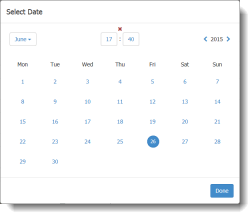
- Calendar Parse: Controls the date and time formats used in most of the custom interval selections in the PerformanceGuard web interface. That’s the ones that look like this:
- Date Separator: Controls the date separator used in most custom interval selections (see the previous).
- Date Drop Down Pattern: Controls the date format used in a special type of custom interval selector that’s only used on the Advanced TCP Activity graph. That’s the one that looks like this:
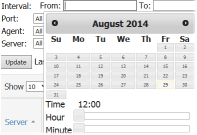
- Time Drop Down Pattern: Controls the time format used in the custom interval selector that’s used on the Advanced TCP Activity graph (see the previous).
- First day of week: Lets you specify whether the first day of the week should be Sunday or Monday. Specify 0 (zero) for Sunday or 1 for Monday.
- Date Pattern: Controls the general date and time format used in the PerformanceGuard web interface.
Date and time format on graphs
Section titled “Date and time format on graphs”You can configure the time and date formats used on graphs separately from the general date and time settings described in the previous: Select ADMINISTRATION > Setup > Parameters, and then select the Display tab. You can only do this if you’re a PerformanceGuard administrator.
Under Date formatting and locale settings you can edit how date, time as well as date/time combinations should be formatted on graphs (Graph Date Format, Graph Time Format and Graph Date Time Format).