

Back Up Database
For the SQL Server versions that PerformanceGuard supports, see Software Requirements.
-
Open Microsoft SQL Server Management Studio and connect to the required database server.
-
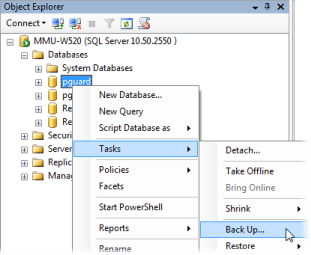
In Microsoft SQL Server Management Studio’s Object Explorer, locate the pguard database.
-
Right-click pguard and select Tasks > Back Up…
-
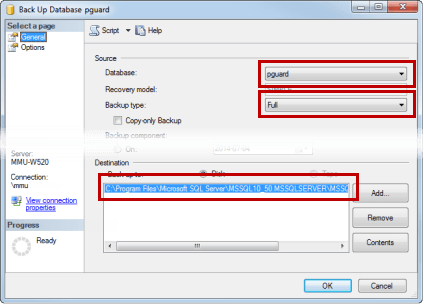
In the Source section of the Back Up Database dialog’s General page, make sure that:
- the database pguard is selected
- the backup type Full is selected
- Then make a note of the backup destination in the bottom part of the dialog.
-
Switch to the Back Up Database dialog’s Options page and select Overwrite all existing backup sets.
-
Click OK.
The backup process will begin, and you’ll be able to view its progress. It can take a while to back up the database. When the backup is finished, you’ll see a confirmation message. The backed-up database has now been saved as a .bak file at the destination you made a note of in step 4.
For information about how to restore your backed-up database, see Restore Database.