

AutoSteps Source Code
formerly known as Business Transaction Monitoring
PerformanceGuard by default measures response times for single transactions against a single server. If you want to monitor more complex business transactions that involve several steps or several servers, you must specify where transactions begin and end so that PerformanceGuard can record the execution time.
This is where the PerformanceGuard BTM (Business Transaction Monitoring) feature is useful. It essentially works as a stop watch that lets you time any event or business transaction on your client and view response times in the PerformanceGuard web interface. This way, BTM can help you easily identify bottlenecks in your business processes, even when processes are complex.
Read more about BTM, including technical information about methods, properties, etc. under Monitor Complex Activity with AutoSteps in the Setup section of this help system.
Source code
Section titled “Source code”To call the ITransactionHelper COM object for Monitor Complex Activity with BTM (Business Transaction Monitoring) from Java you must use a COM2Java bridge.
We provide an interface that uses the open-source com4j library. You can find all necessary files in the attached archive BTMv2COM4J-v1.zip.
Prerequisites:
- com4j.dll must be located in the same folder as com4j.jar
- com4j.jar must be in your classpath
- BTMv2COM4J.jar must be in your classpath
BTMv2example2.java
In the archive you’ll find an example source file, BTMv2example2.java, that shows you how to invoke the BTM COM object from Java:
import com.premitech.btm2.StopWatch;
public class BTMv2example2 {
     public static void main(String[] args) {
         // Set variables         String OEMTarget = "";         String trans_group = "BTMv2 Java Test";         String trans_name = args[0];         String trans_tag = "";         String user_name = "testuser";         String user_domain = "testdomain";         int execution_time_millis = Integer.parseInt(args[1]);
         // Create ITransactionHelper COM object         StopWatch sw = new StopWatch();
          // Set OEM agent target         sw.setOEMTarget(OEMTarget);
         // Set user name and domain         sw.setUserName(user_name);         sw.setDomain(user_domain);
          // Set transaction group name (usually the name of the application)         sw.setTransactionGroup(trans_group);
         // Mark start of business transaction         long contextId = sw.start(trans_name);
          System.out.println("Transaction started with context id = "+contextId);
         // Set any transaction tag         sw.setTag(trans_tag, contextId);
         try {                  // Execute transaction code                  Thread.sleep(execution_time_millis);
                  // Mark end of business transaction                  sw.stop(contextId);
                  System.out.println("Transaction stopped with context id = "+contextId);
         } catch (Exception e) {                 // Transaction failed - report the failure                 sw.fail(contextId);         }     }}
To compile the example source file execute this command:
javac -cp BTMv2COM4J.jar;. BTMv2example2.javaTo run the example, make sure that com4j.jar and com4j.dll are located in the same folder, and that com4j.jar and BTMv2COM4J.jar are in the classpath:
java -cp BTMv2COM4J.jar;.;com4j.jar BTMv2example2 testing 123Add a reference to the PGExtHelper.dll.
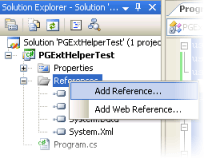
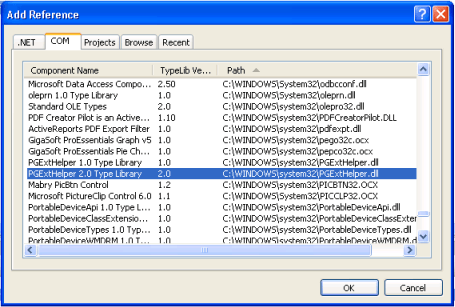
using System;using System.Threading;using PGExtHelper;namespace PGExtHelperTest{     class Program     {         static void Main(string[] args)           {            // Simple            ITransactionHelper trans = new TransactionHelper();            trans.transactionGroup = "Test Group";            trans.start("Trans1", null);            trans.stop();
// More complete ITransactionHelper trans2 = new TransactionHelper(); trans2.transactionGroup = "Test Group"; object contextId1 = trans2.start("Trans2", null); trans2.setTag("Tag1", contextId1); trans2.stop(contextId1); } }} // // BtmSimpleTest.cpp : Defines the entry point for the console application. //
// ***************** Import the PGExtHelper class ********************* // #import "C:\\pgexthelper.dll" named_guids // ***************** Import the PGExtHelper class ********************* //
int _tmain(int argc, _TCHAR* argv[]) { // Must be called before any COM-operations CoInitialize(NULL);
// Instantiate the COM-Object PGExtHelper::ITransactionHelperPtr pTransaction;
// Create a StartStop COM object smart ptr. HRESULT aHr=pTransaction.CreateInstance(__uuidof(PGExtHelper::TransactionHelper)); if (aHr!=S_OK) { // some error code here }
// make 20 100ms requests, for(int i=0; i<20; i++) { // Following properties is optional, but it's possible to change any of them to supply own values. // Please note that the length for all of them is limited with 32 characters pTransaction->userName=_variant_t(L"Any user"); pTransaction->domain=_variant_t(L"Any domain"); pTransaction->transactionGroup=_variant_t(L"Any group");
/*unsigned _int64 contextId=*/pTransaction->start(_variant_t(L"Any transaction")); pTransaction->setTag(_variant_t(L"Any tag")/*, contextId*/); pTransaction->setValue(_variant_t(L"Any value"), 1.0/*, contextId*/); Sleep(100); pTransaction->stop(/*contextId*/); }
return 0; }Example notes
Section titled “Example notes”Example client code for calling the PerformanceGuard agent COM start-stop interface:
Dim comPG As VariantDim flagPG As Variant
Err = 0On Error Resume NextSet comPG = createobject("PGExtHelper.TransactionHelper")
If Err = 0 ThenflagPG = TrueElseflagPG = FalseEnd If
If flagPG = True ThencomPG.start("Any Transaction")End If
........................ Insert transaction code here ............................
If flagPG = True ThencomPG.stop()End If
Generation of IDs
Section titled “Generation of IDs”The VB.Net samples in this section will not work directly in VBScript
Simple case
Section titled “Simple case”For simple cases where the start and stop methods are invoked non-interlaced from the same thread you don’t need to worry about the context ID at all.
Example:
Dim PGConnector As PGExtHelper.ITransactionHelperPGConnector = New PGExtHelper.TransactionHelper
'Change the following to "true" to suppress internal BTM errors.'ignoreErrors defaults to false if it is not setPGConnector.ignoreErrors=false
PGConnector.start("Test_1")PGConnector.stop() 'Stops Test_1
PGConnector.start("Test_2")PGConnector.stop()'Stops Test_2
PGConnector.start("Test_3")PGConnector.stop()'Stops Test_3
PGConnector.start("Test_1")PGConnector.stop()'Stops Test_1
In this case PGExtHelper handles the context IDs itself.
Interlaced starts and stops
Section titled “Interlaced starts and stops”If you have interlaced starts and stops in the same thread like this:
Start Test_1Start Test_2Stop Test_1Stop Test_2And you implement them like this:
PGConnector.start("Test_1")PGConnector.start("Test_2")
PGConnector.stop() 'Will actually stop Test_2PGConnector.stop() 'Will actually stop Test_1
PGExtHelper assumes that start and stop are naturally nested. In order to achieve the other behavior, you must supply context IDs yourself. You can, for example, implement a function like this:
Private Function ContextId() As Int64    Dim aId As Int64    Dim aCtr As Int32
    aId = Thread.CurrentThread.ManagedThreadId() + (Process.GetCurrentProcess.Id << 16)    aId <<= 32    aId += Interlocked.Increment(aCtr)    ContextId = aIdEnd Function
And use it like this:
Dim Id1 As Int64 = ContextId()Dim Id2 As Int64 = ContextId()PGConnector.start("Test_1", Id1)PGConnector.start("Test_2", Id2)
PGConnector.stop(Id1) 'Will correctly stop Test_1PGConnector.stop(Id2) 'Will correctly stop Test_2
The suggested ContextId function correctly handles cases where you have multiple threads accessing the same instance of the PGExtHelper object.
Currently there is no way to access the ContextIds that are internally generated by the PGExtHelper object.
VBScript
Section titled “VBScript”If you use VBScript, it’s easy to use the same method with process and thread IDs as described in the previous. The solution is based on using two instances of TransactionHelper, and simply parsing a 0 for the ID:
dim PGConnector1set PGConnector1 = WScript.CreateObject("PGExtHelper.TransactionHelper")dim PGConnector2set PGConnector2 = WScript.CreateObject("PGExtHelper.TransactionHelper")
PGConnector1.start "Test_1", 0PGConnector2.start "Test_2", 0
PGConnector1.stop 0 'Will correctly stop Test_1WScript.sleep 2000PGConnector2.stop 0 'Will correctly stop Test_2
Visual Basic .NET
Section titled “Visual Basic .NET”The following shows the code used to connect to the component and direct the measured values to the correct instance of the PerformanceGuard agent:
Private Sub Form1_Load(ByVal eventSender As System.Object, ByVal eventArgs As System.EventArgs) Handles MyBase.LoadPGConnector = New PGExtHelper.TransactionHelpertxtStatus.Text = "Ready !"End Sub
Private Sub CmdStart_Click(ByVal eventSender As System.Object, ByVal eventArgs As System.EventArgs) Handles CmdStart.ClickOn Error Resume NextPGConnector.transactionGroup="Test from VB.Net"PGConnector.start("Start click")End Sub
Private Sub CmdStop_Click(ByVal eventSender As System.Object, ByVal eventArgs As System.EventArgs) Handles CmdStop.ClickOn Error Resume NextPGConnector.stop()End Sub
Visual Basic Script (.vbs)
Section titled “Visual Basic Script (.vbs)”May be used in Citrix login scripts, for example to measure drive mappings:
dim comPGSet comPG = CreateObject("PGExtHelper.TransactionHelper")
' Initialise optional variables
comPG.userName="User"comPG.domain="Domain"comPG.transactionGroup="My Transaction Group"comPG.start("My Transaction Name")
comPG.setTag("My option")comPG.setValue "My extra value" , 3.14
' Some code for which you want to measure execution time goes here
comPG.stop()
Python
Section titled “Python”The following code shows how to perform a single measurement. You must have Python installed with the win32 extensions (they come with ActivePython).
import win32com.clientimport time# Create COM objectobj = win32com.client.Dispatch("PGExtHelper.TransactionHelper")
# Set the user and domainobj.userName="user"obj.domain="domain"
# Set the transaction groupobj.transactionGroup="My Transaction Group"
# An example of usage user-provided context (id=1000)
# Start the transaction helperobj.start("My Transaction Name", 1000)
# Do some work (in this case, sleep 1 second)time.sleep(1.0)
# Stop the timerobj.stop(1000)