

Install AutoSteps
You install PerformanceGuard AutoSteps on the computers that should run your AutoSteps scripts.
Quick installation
Section titled “Quick installation”Double-click the installer (.msi) file to install AutoSteps. The wizard shows these steps:
- Accept the end-user license agreement.
- In Enable AutoLogon, enter the Username, Password and, for a domain account, the Domain of the Windows account that AutoSteps should run as. The installer checks the credentials when you select Next. If they’re invalid, you get the message The credentials entered were invalid, please try again.
- Select the installation folder. The default is
C:\Program Files\PerformanceGuard\AutoSteps. - Select Install.
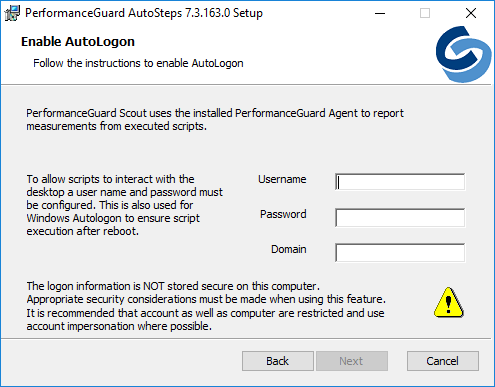
If you select Skip in the Enable AutoLogon step, the installer doesn’t configure automatic logon.
The installation usually takes less than a minute. There is no need to restart the computer after installation.
Command-line installation
Section titled “Command-line installation”You can also install AutoSteps from an elevated command prompt:
msiexec /i "PerformanceGuard AutoSteps.msi" AUTOLOGON_USERNAME=xxxxxx AUTOLOGON_PASSWORD=xxxxxxReplace xxxxxx with the user name and password of the account that AutoSteps should run as.
Installation options
Section titled “Installation options”Silent installation
Section titled “Silent installation”If you install AutoSteps on multiple computers, you may want to keep the installation completely transparent to the end users. In that case, add the /qn (quiet, no user interface) parameter:
msiexec /i "PerformanceGuard AutoSteps.msi" AUTOLOGON_USERNAME=xxxxxx AUTOLOGON_PASSWORD=xxxxxx /qnIn a silent installation, the installer doesn’t check the credentials. Make sure that they’re correct.
Installation parameters
Section titled “Installation parameters”Specify these parameters for a silent installation:
| Name | Description |
|---|---|
| AUTOLOGON_USERNAME | User name of the Windows account that runs AutoSteps and is used for automatic logon to the computer. |
| AUTOLOGON_PASSWORD | Password of the Windows account that runs AutoSteps and is used for automatic logon to the computer. |
| AUTOLOGON_DOMAIN | Domain of the Windows account. Required if the account is a domain account. |
Logging
Section titled “Logging”A log file helps PerformanceGuard support diagnose problems. To write the log to installLog.txt, add these parameters:
msiexec /i "PerformanceGuard AutoSteps.msi" AUTOLOGON_USERNAME=xxxxxx AUTOLOGON_PASSWORD=xxxxxx /qn /L*v! installLog.txtEven without these parameters, Windows Installer writes a verbose log of each AutoSteps installation to the %TEMP% folder of the user who runs the installation. If the installation fails, the error dialog has a link to this log.
Repair
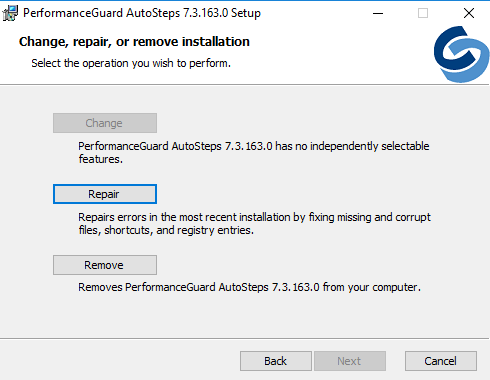
Section titled “Repair”A repair reinstalls the AutoSteps files if they have been corrupted or overwritten. It doesn’t change the AutoSteps configuration. To repair, run the installer again, or select AutoSteps in Programs and Features, and then select Repair.
Upgrade
Section titled “Upgrade”See Upgrade AutoSteps.