

Upgrade Version 8.0 or Newer to Latest Version
Important Prerequisites
Section titled “Important Prerequisites”It’s important to be aware of the following before you begin the upgrade process:
- You must have administrative rights on the computer that you are going to perform the upgrade on (local administrator).
- If you use SQL Server authentication, passwords for the databases must follow the password policy for the SQL Server that you use.
- You can download the server installer for the latest PerformanceGuard version. The Changelog has download links for the current release.
If You Want to Upgrade a PerformanceGuard Installation that Uses Windows Authentication
Section titled “If You Want to Upgrade a PerformanceGuard Installation that Uses Windows Authentication”Step 1: Stop PerformanceGuard Services
Section titled “Step 1: Stop PerformanceGuard Services”Select  /Start, type services.msc and press ENTER. Then stop these services:
- PerformanceGuard Backend Server
- PerformanceGuard Frontend Server
- PerformanceGuard Web Server
- PerformanceGuard Web Server 2
Step 2: Back Up PerformanceGuard Databases
Section titled “Step 2: Back Up PerformanceGuard Databases”Back up your PerformanceGuard Frontend and Backend server databases before you upgrade your PerformanceGuard installation. Having a backup is important in the unlikely case that something goes wrong during your upgrade.
See Back Up Database for more information.
Step 3: Back Up Current PerformanceGuard Installation
Section titled “Step 3: Back Up Current PerformanceGuard Installation”Back up all of the content of the following folders in your current PerformanceGuard installation, including subfolders:
- [PerformanceGuard installation folder]\collector
- [PerformanceGuard installation folder]\display
- [PerformanceGuard installation folder]\notification
- [PerformanceGuard installation folder]\reports
Step 4: Upgrade PerformanceGuard
Section titled “Step 4: Upgrade PerformanceGuard”- Start an elevated Windows command prompt and navigate to the folder that contains the installer for the new PerformanceGuard version.
-
Start the installation with the following command:
Terminal window msiexec /i PerformanceGuard.msi /L*v! installLog.txtThe /L*v! parameter in the command makes sure that the installer records a log file of the installation. In this case the log file will be called installLog.txt. The log file will be available at the location from which you run the installation, so if you run the installation file from C:, the log file will be placed under C:\ too.
To install PerformanceGuard at a location other than the default C:\Program Files\PerformanceGuard, add an INSTALLFOLDER parameter to the command, like in the following example where PerformanceGuard is going to be installed on the D: drive:
msiexec /i PerformanceGuard.msi /L*v! installLog.txt INSTALLFOLDER="D:\PerformanceGuard"If you are installing on a Windows Server CORE (a type of server that doesn’t have a graphical user interface), add the following to the command:
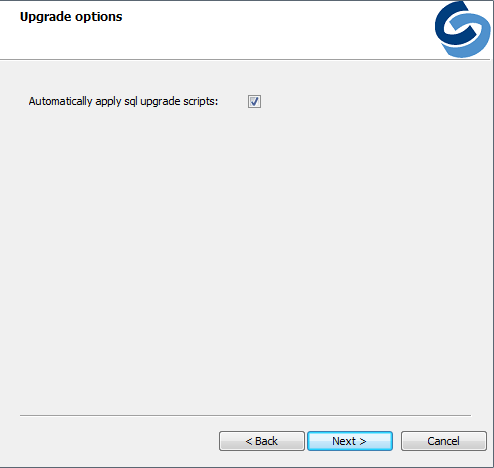
"/q"When the installer open window opens, click Next. 3. Make sure that Automatically apply SQL upgrade scripts is selected. When ready, click Next.
4. Click **Install**.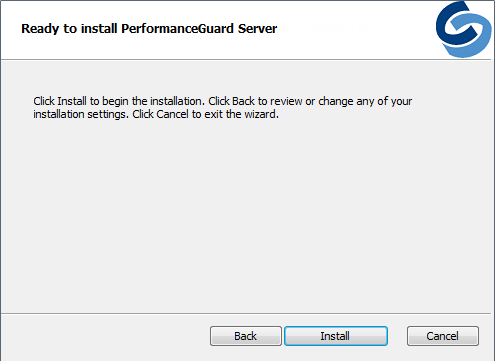
5. When installation is complete, click **Finish**.Step 5: Adding Custom Encryption
Section titled “Step 5: Adding Custom Encryption”You can add AES using two different ways:
- After Installation is finished, you can add the AES Encryption Key manually in config.properties file. Open [PerformanceGuard installation folder]\settings.ini and add the 128 bit long custom key of the aes.key parameter under [Frontend] e.g. FE_ENCRYPT_KEY=xxxxxxxxxxxxxxxxxxxxxxxxxxxxxxxx.
- If you want to upgrade using Installer, then uninstall the Server first and install Server again. Simply add the Install PerformanceGuard Server as you did with first time install.
Installation Troubleshooting
Section titled “Installation Troubleshooting”If something goes wrong during your installation, you’ll see an error message. The error message will typically tell you that:
- the setup wizard ended prematurely, and
- that your system has not been modified
The latter is not always true. Your system may in fact have been modified, even if the error message tells you that it hasn’t. Sometimes the entire PerformanceGuard system, including databases, may in fact have been upgraded, but if just a single of the PerformanceGuard services doesn’t start after the installation has finished, the error message will appear.
You are therefore often able to solve the problem yourself.
What You Should Do
Section titled “What You Should Do”If something goes wrong during your installation, you should first ask yourself if you have you met all of the prerequisites (see the beginning of this topic). For example, do you have administrative rights, and does the computer have the required version of Java JDK?
Next, you should check your installation log:
- Open your installation log. If you followed the installation procedure in the previous, the log file is called installLog.txt. The log file will be available at the location from which you ran the installation, so if you ran the installation file from C:, the log file will be placed under C:\ too.
- Search the log for occurrences of return value 3.
- Read the contents of the log file just before occurrences of return value 3 to determine which actions failed during the installation.In this example (click thumbnail to view image in full size), a search for return value 3 revealed that there were problems with the user account specified for the PerformanceGuard Backend server database:
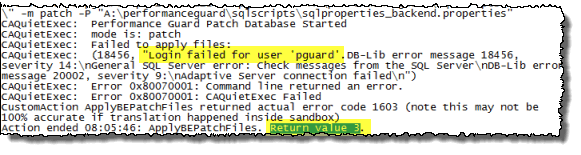
If you go through the installation log as described, you can nearly always find out what went wrong. In many cases you can solve the problem yourself. For instance, the problem identified in the example was solved simply by specifying the correct password for the Backend server database.
If you need help from PerformanceGuard support, click the PerformanceGuard logo at the top of this page. That will take you to the front page of the help system, where you can find information about your support options.
If you need help from PerformanceGuard support, you can find information about your support options on the CapaSystems website, http://www.capasystems.com/.
Step 6: Restore Specific Modifications
Section titled “Step 6: Restore Specific Modifications”At the end of the upgrade process you may need to re-apply certain configuration settings:
Stop Services
Select /Start, type services.msc and press ENTER. Then stop these services:
- PerformanceGuard Backend Server
- PerformanceGuard Frontend Server
- PerformanceGuard Web Server
- PerformanceGuard Web Server 2
Reports
Make sure that you move the content from your backup of the report folder (\[PerformanceGuard installation folder\]\reports) to the similar report folder in the new PerformanceGuard version. This way you’ll be able to access any old reports in your new PerformanceGuard version
Services Memory
The PerformanceGuard services—the Frontend server, Backend Server and Web Server services—are allocated a certain amount of memory (by default a minimum of 2048 MB and a maximum of 4096 MB).
If your previous PerformanceGuard installation used a higher maximum setting for some or all of the services, you must Allocate More Memory to Services again.
Other Changes
If you have made changes to the configuration of your old PerformanceGuard version, you’ll need to edit the new version’s configuration files. Open the configuration files in the following folders from your backup, compare them with the corresponding configuration files in your new PerformanceGuard version, and make any necessary changes to the new version’s configuration files:
- \[PerformanceGuard installation folder\]\collector\conf
- \[PerformanceGuard installation folder\]\display\conf
- \[PerformanceGuard installation folder\]\notification\conf
Start Services
Select /Start, type services.msc and press ENTER. Then start these services:
- PerformanceGuard Backend Server
- PerformanceGuard Frontend Server
- PerformanceGuard Web Server
- PerformanceGuard Web Server 2
License
When you access the PerformanceGuard web interface for the first time after upgrading, you must re-install your license.
Use your existing license from the backup of [PerformanceGuard installation folder]\display\conf\
Strange Behavior After Upgrade?
Section titled “Strange Behavior After Upgrade?”On rare occasions, PerformanceGuard may behave strangely after an upgrade if its cache and work folders were not cleaned up before you started the new version of PerformanceGuard. Fortunately, there’s an easy solution if you experience this: See the troubleshooting topic After Upgrade PerformanceGuard Behaves Strangely.
What About PerformanceGuard Agents?
Section titled “What About PerformanceGuard Agents?”You don’t need to upgrade the PerformanceGuard agents that are installed on your organization’s computers. Old agents are compatible with new versions of PerformanceGuard.
Should you wish to upgrade your PerformanceGuard agents anyway, you can download the latest version of the PerformanceGuard agent installer, see Download/Install Latest Agent from PerformanceGuard. Unless your existing agents are very old (version 5.x or earlier), you don’t need to remove existing agents before you deploy the new version.