

Download/Install Latest Agent from PerformanceGuard
You can download the latest released PerformanceGuard agent directly from the PerformanceGuard web interface, or generate a PowerShell command that downloads and installs it.
To open the page, select Administration → Agent Configuration → Download/Install Agent.
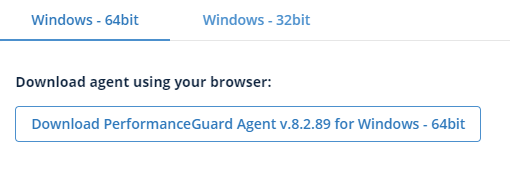
At the top of the page, select the tab for the operating system: Windows - 64bit or Windows - 32bit.
Option 1: Download the agent in your browser
Section titled “Option 1: Download the agent in your browser”Select the PerformanceGuard Agent button. It shows the version and operating system of the agent it downloads. The browser saves the installer in your Downloads folder.
Option 2: Download and install the agent with PowerShell
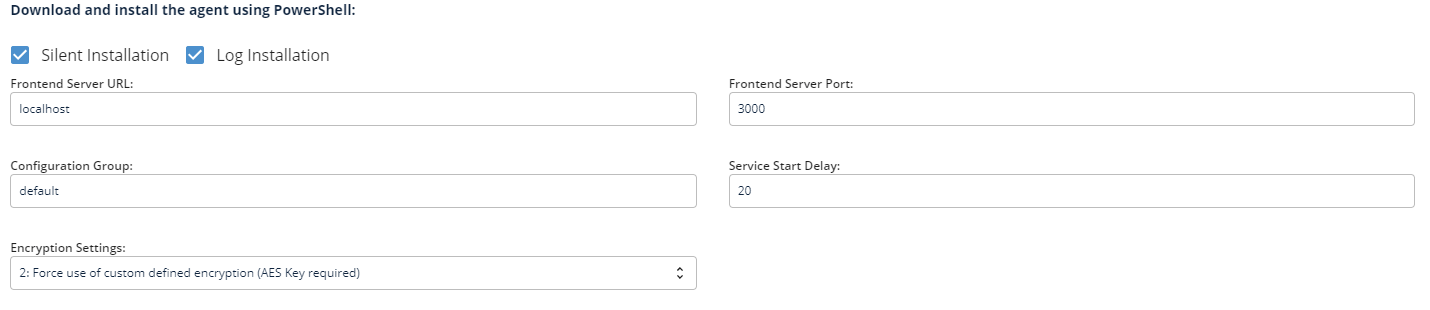
Section titled “Option 2: Download and install the agent with PowerShell”The page has a form that generates a command. When you run the command in PowerShell, it downloads AND installs the agent with the settings you specify.
Check boxes
Section titled “Check boxes”- Silent Installation: The installation runs silently.
- Log Installation: The installation writes a log file,
agentInstall.log, in the same folder as the downloaded agent installer (.msi).
Fields
Section titled “Fields”- Frontend Server URL: The public DNS name of your frontend server. If you leave it blank, the agent uses
performanceguard. - Frontend Server Port: The public TCP port of your frontend server. If you leave it blank, the agent uses 4001.
- Configuration Group: The agent configuration group the agent joins when it first connects. If you leave it blank, the agent uses Default.
- Service Start Delay: The number of seconds the agent waits before it attaches to the network.
- Encryption Settings: See the following.
For more information about these settings, see Installation parameters.
Encryption settings
Section titled “Encryption settings”- 0: Don’t use encryption
- -1: Use encryption if the Frontend server supports encryption
- 1: Force use of encryption (that is: don’t communicate with Frontend servers that don’t support encryption)
- -2: Use custom defined encryption if the Frontend server supports encryption
- 2: Force use of custom defined encryption
The generated PowerShell command
Section titled “The generated PowerShell command”With AES key (encryption 2 chosen):

If -2 or 2 is chosen in the encryption settings, the downloaded agent is configured with your installation’s AES key automatically.
Without AES key (encryption -1 chosen):

Select Copy to clipboard to copy the generated command.