

Multicast Activity Overview
Multicast is when someone sends a single set of data packets across a network to multiple selected users at the same time. Multicast is subscription-based: Computers that want to receive multicast traffic use IGMP messages to let routers know which multicast addresses they want to subscribe to. The routers are then able to calculate which multicast messages they need to send to receivers on their different interfaces. A packet is considered a multicast packet if the destination IP address is in the range 224.0.0.0 to 239.255.255.255.
The Multicast Activity overview (ANALYZE > Overview > IP Traffic > Multicast Activity) lets you view multicast activity in a list format.
-
In the Multicast Group list, select required multicast group if you want to limit your results to a particular type of multicast traffic. Otherwise select All Multicast.
Multicast groups help you filter your data if you are only interested in a particular type of multicast traffic. PerformanceGuard comes with preconfigured groups for common types of multicast traffic, LLMNR and SSDP, and PerformanceGuard administrators can set up additional groups. See also Manage Multicast Groups.
-
If you selected All Multicast, you can use Filter by Multicast-IP to limit the list to a multicast IP address (or part of it) and, optionally, a Port.
-
Under Direction, select required direction:
-
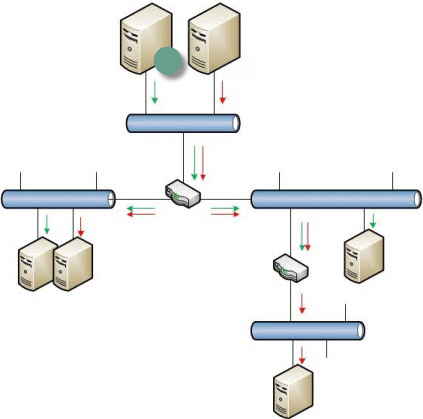
Sent: Outgoing multicast traffic measured on servers that send multicast traffic.
In the example illustration, sent multicast traffic is measured on the computer with the green dot:
-
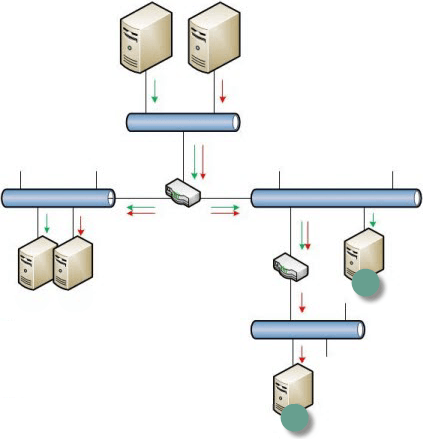
Received: Incoming multicast traffic measured on computers that receive such data.
In the example illustration, received multicast traffic is measured on the computers with the green dots:
-
-
If required, you can limit your overview to a particular group of computers with the Agents menu:
- If you selected Sent in the previous step, use the menu to limit your overview to multicast traffic sent from a particular location/network
- If you selected Received in the previous step, use the menu to limit your overview to multicast traffic received at a particular location/network
If you don’t want to limit your overview this way, select All Agents.
-
Select the required Interval (that is the period of time that you want to cover). If the predefined intervals don’t suit you, select Custom to Custom Time Periods on Graphs.
-
If required, use Filter by Server-IP to enter all or part of a server IP address to limit the search to multicast servers with that IP address.
For example, to limit your search to a server with the IP address 192.168.40.72, specify that IP address. To limit your search to servers with an IP address that begins with 192.168.40, specify those IP address segments in the first three fields, and leave the last field blank.
-
Click the Update button.
The multicast activity is listed under Activity. Click a column heading to sort the list by that column.