

Synchronize Computers in Active Directory Groups to Agent Configuration Groups
The PerformanceGuard integration with Active Directory (AD) makes it possible to automatically synchronize computers in AD groups to PerformanceGuard Manage Agent Configuration Groups.
To enable synchronization with AD:
- Set up communication between the PerformanceGuard backend server and your AD server
- Set up agent configuration group synchronization in PerformanceGuard
Set up AD synchronization
Section titled “Set up AD synchronization”Edit the file
[PerformanceGuard installation folder]\notification\conf\config.propertiesand supply these parameters:
| Parameter | Value |
|---|---|
| backend.ldap.url | Defines the hostname and port of the AD server. |
| backend.ldap.principal | Specifies a user identity’s distinguished name (DN), and is used to authenticate the LDAP service. ⚠️ The user must be able to browse AD groups. |
| backend.ldap.password | Encoded password for principal. |
| backend.ldap.basedn.computers | The computer base distinguished name (DN) indicates the starting point for searches in the LDAP directory server for computer groups. |
| backend.ldap.groupNameFilter | Filter to find all computer groups. |
| backend.ldap.computerNameFilter | Filter to find all computers. |
| backend.ldap.syncFrequencyInSeconds | Specifies how often (in seconds) the server should synchronize AD computer groups. The default is 3600 seconds (that is one hour). In order to avoid continuous server requests, values below 60 are treated as 60 seconds. |
AD connection parameters
Section titled “AD connection parameters”backend.ldap.url=ldap://ourcompany:389backend.ldap.principal=CN=aduser,OU=R & D,OU=Ourcompany,DC=ourcompany,DC=netbackend.ldap.password=XXXXbackend.ldap.basedn.computers=OU=Computers,OU=Ourcompany,DC=ourcompany,DC=netbackend.ldap.groupNameFilter=organizationalUnitbackend.ldap.computerNameFilter=computerbackend.ldap.syncFrequencyInSeconds=3600or
backend.ldap.url=ldap://ourcompany:389backend.ldap.principal=CN=aduser,OU=R & D,OU=Ourcompany,DC=ourcompany,DC=netbackend.ldap.password=XXXXXbackend.ldap.basedn.computers=OU=Computers,OU=Ourcompany,DC=ourcompany,DC=netbackend.ldap.groupNameFilter=groupbackend.ldap.computerNameFilter=memberbackend.ldap.syncFrequencyInSeconds=3600It’s also possible to add multiple domains to synchronize computers from different domains. Give the parameters for the second domain the prefix backend.ldap1., for the third domain backend.ldap2., and so on. The numbers must follow each other without gaps: PerformanceGuard stops reading domains at the first missing number. Follow the example to set up multiple domains:
backend.ldap.url=ldap://ourcompany:389backend.ldap.principal=CN=aduser,OU=R & D,OU=Ourcompany,DC=ourcompany,DC=netbackend.ldap.password=XXXXXbackend.ldap.basedn.computers=OU=Computers,OU=Ourcompany,DC=ourcompany,DC=netbackend.ldap.groupNameFilter=organizationalUnitbackend.ldap.computerNameFilter=computerbackend.ldap.syncFrequencyInSeconds=3600backend.ldap1.url=ldap://ourcompany:389backend.ldap1.principal=CN=LDAP Reader,OU=Service Accounts,OU=Yorkshire,DC=ourcompany,DC=combackend.ldap1.password=XXXXXbackend.ldap1.basedn.computers=OU=London,OU=Workstations,DC=ourcompany,DC=combackend.ldap1.groupNameFilter=groupbackend.ldap1.computerNameFilter=memberbackend.ldap1.syncFrequencyInSeconds=3600Base DN for AD computer groups :
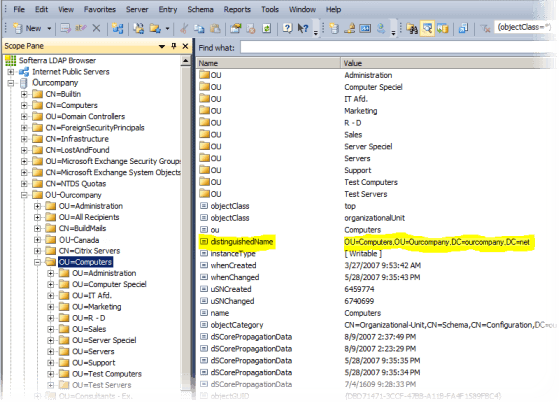
Click thumbnail to view image in full size.
Group and Computer name filter setup for organizationalUnit/computer:
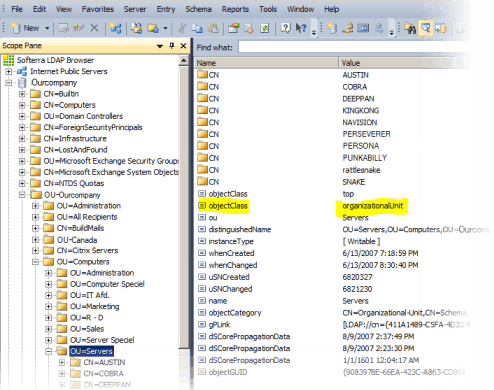
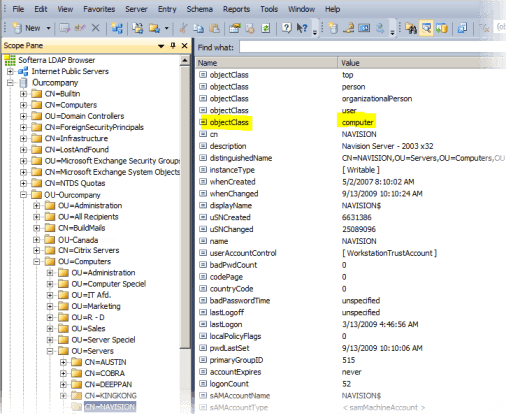
Group and Computer name filter setup for group/member:
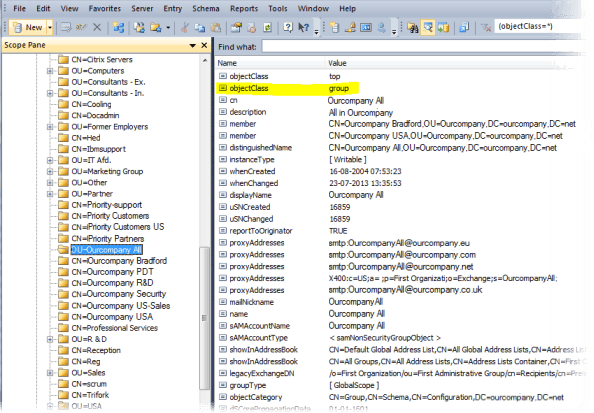
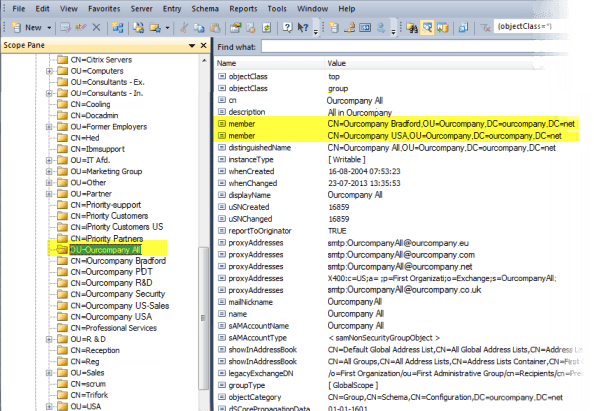
member will list all members of the group Ourcompany All:
LDAP via SSL
Section titled “LDAP via SSL”Prerequisites
Section titled “Prerequisites”To set up an LDAP connection via SSL you must import your certificates into Java Keystore:
-
Secure the Java certificate store, in an other location. Than Default location
- Default location of the Java Keystore : [PerformanceGuard installation folder]\OpenJDK\jre\lib\security\cacerts
- Create a Directory outside [PerformanceGuard installation folder]. Ie. D:\Certs
-
Add the root certificate to your Java Keystore by entering the following command in a command prompt window. This is the certificate that is used to authorize the LDAP server’s certificate.
Terminal window keytool -import -alias serverCert -file "RootCert.cer" -keystore "%JDK_HOME%/jre/lib/security/cacerts" -
Import Root Certificate
- List importet Certificates
Then look for the alias you have specified in steps 3. 5. The default password for Java Keystore is changeit. To change the password, open up a command prompt window and use the following command.
keytool -storepasswd -keystore "%JDK_HOME%/jre/lib/security/cacerts"- Enter the current password (which is the default changeit).
- Enter a new keystore password.
- Re-enter new keystore password.
Configure Java to use Certificat Store
Section titled “Configure Java to use Certificat Store”When you have imported the Certificate into the Java store. The JVM needs to load Certificat store on startup.
Locate “ [PerformanceGuard installation folder]\notification\pgbackendw.exe”. Launch Application. Open Java. Insert into Java Options, the following:
-Djavax.net.ssl.trustStore="Path to your cacerts file"
-Djavax.net.ssl.trustStorePassword="Password to cacerts"
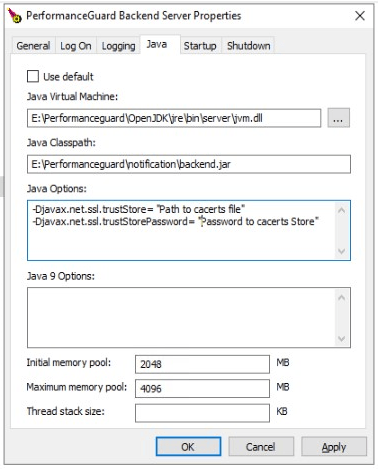
Press Apply/OK restart Performanceguard Backend service. Performanceguard server will now use Java Certificate store.
LDAP/SSL AD Connection Parameters
Section titled “LDAP/SSL AD Connection Parameters”Use the following connection parameters for LDAP via SSL.
Edit the file
[PerformanceGuard installation folder]\notification\conf\config.propertiesand supply the following parameters for AD connection via SSL:
backend.ldap.url=ldaps://hostname:636backend.ldap.principal=CN=aduser,OU=R & D,OU=Ourcompany,DC=ourcompany,DC=netbackend.ldap.password=XXXXXbackend.ldap.basedn.computers=OU=Computers,OU=Ourcompany,DC=ourcompany,DC=netbackend.ldap.groupNameFilter=organizationalUnitbackend.ldap.computerNameFilter=computerbackend.ldap.syncFrequencyInSeconds=3600- or -
backend.ldap.url=ldaps://hostname:636backend.ldap.principal=CN=aduser,OU=R & D,OU=Ourcompany,DC=ourcompany,DC=netbackend.ldap.password=XXXXXbackend.ldap.basedn.computers=OU=Computers,OU=Ourcompany,DC=ourcompany,DC=netbackend.ldap.groupNameFilter=groupbackend.ldap.computerNameFilter=memberbackend.ldap.syncFrequencyInSeconds=3600Set up agent configuration group synchronization
Section titled “Set up agent configuration group synchronization”PerformanceGuard reads config.properties when the PerformanceGuard Backend service starts. After you have edited the file, restart the PerformanceGuard Backend service.
- Select ADMINISTRATION > Agent Configuration > Configurations.
- Click the menu button
 next to the required agent configuration group, and select Edit Group.
 - Under Add Active Directory Group to group name, select the AD group, and then click Add Group.
The AD group appears under Existing Active Directory Groups. To remove it, click the delete icon next to it.
View synchronized agent configuration groups
Section titled “View synchronized agent configuration groups”Select ADMINISTRATION > Agent Configuration > Active Directory (AD) to view synchronized agent configuration groups. The Synchronized Configuration Groups table shows each configuration group, its AD group, the number of computers and when it was last synchronized. The Available Active Directory groups table lists the AD groups that PerformanceGuard has found.