

Remove AutoSteps
You can remove AutoSteps from a computer from the command line or from Programs and Features.
Remove AutoSteps from the command line
Section titled “Remove AutoSteps from the command line”Remove AutoSteps with the following command:
msiexec /x XXXXX.msiReplace XXXXX.msi with the name of the AutoSteps installation file. Removal usually takes less than a minute.
Silent removal
Section titled “Silent removal”If you remove AutoSteps from multiple computers, you may want to keep the removal completely transparent to the end users. In that case, add the /qn (quiet, no user interface) parameter:
msiexec /x XXXXX.msi /qnRemove AutoSteps from Programs and Features
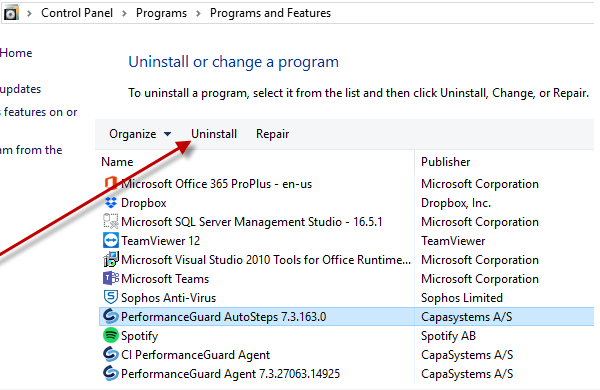
Section titled “Remove AutoSteps from Programs and Features”- Open Control Panel → Programs → Programs and Features.
- Select PerformanceGuard AutoSteps, and then select Uninstall.
What removal changes
Section titled “What removal changes”When you remove AutoSteps, the uninstaller also:
- Turns off Windows automatic logon on the computer and clears the stored logon user name, password, and domain.
- Removes the entry that starts AutoSteps when a user logs on.
The PerformanceGuard agent stays installed. To remove it too, see Remove Agents.