

Startup and Login Measurement Facts
PerformanceGuard can measure computer startup and login times … but when do the measurements begin and end, and what are the success criteria? Find the answers here.
When does startup measurement begin?
Section titled “When does startup measurement begin?”PerformanceGuard begins to measure startup performance the moment that the computer’s operating system begins its work. Technically, that’s when the computer’s OS Boot begins. OS Boot marks the first sign of life from the computer’s operating system, just before the operating system begins to load drivers.
PerformanceGuard considers that point in time as zero, and it measures the beginning of subsequent startup processes relative to that point. This means that if you view Computer Startup Info in the PerformanceGuard web interface, the Time Start (s) column will indicate how many seconds after OS Boot that a given process began.
Thus, PerformanceGuard startup measurement doesn’t begin the moment that a user switches on a computer. It begins a few moments after, when the computer’s operating system begins its work.
When is a computer started?
Section titled “When is a computer started?”With its default settings, PerformanceGuard considers a computer to be started when all of the following criteria are met:
- The process winlogon has started. winlogon is the operating system component that’s used to authenticate a user who wants to log in to the computer. In other words, this criterion is met when the login dialog appears on the computer.
- The PerformanceGuard agent service has started (in local system context).
If the criteria aren’t met within 1200 seconds (20 minutes), the startup measurement fails.
What’s measured during startup?
Section titled “What’s measured during startup?”During the startup of a computer, PerformanceGuard measures OS Boot (see When does startup measurement begin? in the previous) and every process that takes place until the startup success criteria are met (see When is a computer started? in the previous).
The following example shows startup process data from a real computer collected by a real PerformanceGuard agent and inserted into a chart tool. OS Boot marks the beginning of the startup measurement (zero), three processes start 15.968 seconds after OS Boot, yet another process starts 20.203 seconds after OS Boot, and so forth:
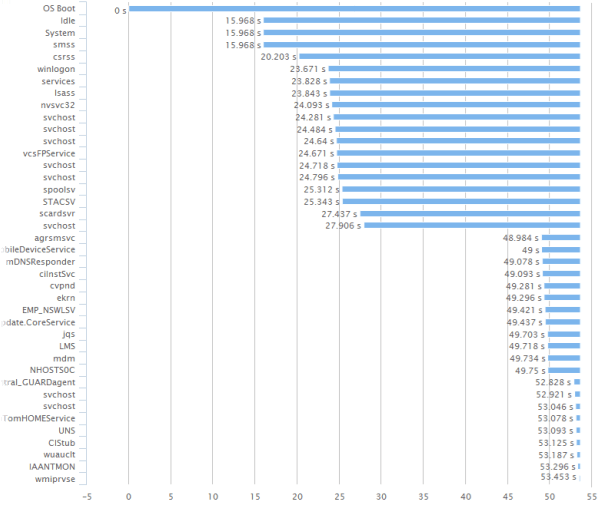
Note that the example only shows the start time of each process relative to OS Boot; it doesn’t contain end times for processes. In reality some processes may begin and end before others, like in the following example that almost resembles a Gantt chart that many people are familiar with from project plans:
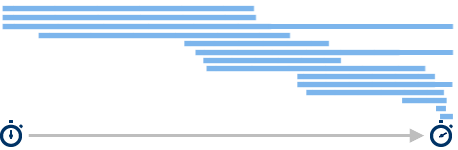
Also note that when processes run simultaneously, they may affect each other.
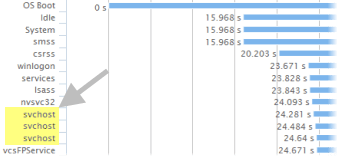
Finally, note that some processes can host multiple Windows services. For example, the process svchost.exe runs several different services. If you looked closely at the first example, you probably noted that svchost (short for service host) appeared several times, for example here:
In PerformanceGuard there are several ways in which you can find out which processes cause the longest delays during startup. For example, the Computer Startup Info in PerformanceGuard provides a good overview of process time measurements during startup of individual computers, including information about any services hosted by the processes.
When does login measurement begin?
Section titled “When does login measurement begin?”With its default settings, PerformanceGuard begins to measure login performance the moment that the user’s login credentials are validated and the login session begins.
When is a user logged in?
Section titled “When is a user logged in?”With its default settings, PerformanceGuard considers a login to be completed when all of the following criteria are met:
- The process explorer.exe has started. explorer.exe is the component that enables the user’s desktop, the taskbar, file browsing, etc.
- explorer.exe uses less than 10% of the computer’s CPU. In other words: explorer.exe has reached a stable state.
- The PerformanceGuard agent has started in user context.
What’s measured during login?
Section titled “What’s measured during login?”During the login, PerformanceGuard measures every process that takes place until the login success criteria are met (see When is a user logged in? in the previous).
In PerformanceGuard there are several ways in which you can find out which processes cause the longest delays during login. For example, the Computer Login Info in PerformanceGuard provides a good overview of process time measurements during login on individual computers.
Note that when processes run simultaneously, they may affect each other. Also note that some processes can host multiple Windows services.