

Manage Custom Reports
With PerformanceGuard you can create, copy, edit and delete reports. There is no limit on the number of reports you can have on your PerformanceGuard solution.
A report can be generated on the fly when you view it online, or it can be generated automatically every day, week or month, and archived for later viewing.
It’s also possible to automatically generate and send reports to selected people via e-mail.
Create New Report or Edit Existing Report
Section titled “Create New Report or Edit Existing Report”-
In the PerformanceGuard web interface, select ADMINISTRATION > Reporting > Reports.
-
If you want to create a new report, click the Create New Report button. If you want to edit an existing report, click the Edit icon
 next to the required report.
 -
Specify settings for your report:
- Name: (Mandatory) Type the title that shall appear on the front page of your report. The report title can be up to 255 characters long, including spaces, but we highly recommend that you use a much shorter title.
- Description: (Optional) Up to 30 lines (maximum 1500 characters) of text that’ll appear at the beginning of the report, before any data.
- End text: (Optional) Unlimited amount of text that’ll appear at the end of the report.
- Short Name: (Mandatory) Specify a short name that’ll be used in the report’s file name. A short name is automatically suggested, but we recommend that you change the short name to a name that’s meaningful in your organization. You can include underscores _ in a short name, but don’t include spaces or special characters like æ, /, { or $. The short name must be unique; you can’t use the same short name for two different reports.
- Interval (under Default Report Parameters): Select the time interval that the report should cover. All intervals are relative to the time that the report will be generated.
If you select **None selected**, the report will by default use the intervals specified for the individual report items themselves (that is if a graph uses the interval 0-12 hours, that interval will be used for that graph in the report). **Agent Super Group**: Select the super groups that shall by default be used when PerformanceGuard selects data for the report's items (that is graphs, tables, etc.). If you select **None selected**, the report will by default use the values specified in the individual report items themselves (that is if a graph uses data from a server at your London office, that data is what will be shown in the report).- You can always generate your reports manually in the PerformanceGuard web interface ( REPORTING > Reports), but with the following options under Automatic Report Generation you can set up a report to be generated automatically:
- Frequency: Select how often the report shall be automatically generated.
- Delete after: In order not to waste disk space on storing old and unwanted reports, automatically generated versions of your report can automatically be deleted after a period of time. Default is 90 days. To keep generated versions of the report indefinitely, specify 0 (zero).
- Formats: Automated reports are always generated in PDF format. You can specify whether the report should also be generated in HTML format.
- Run Options: If you selected a specific location or super group in the Agent Super Group menu, you are able to select if the report should be run for each sub-location of the selected location/super group (if any sub-locations exist). If you don’t select this, the report will only be run for the location/super group that you selected in the in the Agent Super Group menu.
- When ready, click the Create button (if you create a new report) or the Update button (if you edit an existing report).
Copy Existing Report
Section titled “Copy Existing Report”If you want to base a new report on an existing report, you can simply copy the required report and edit it:
- In the list of custom reports (ADMINISTRATION > Reporting > Reports), click the Copy icon
 next to the report that you want to copy. The copied report will now appear in the table with the label (copy) added to its name.
 - Click the Edit icon next to the copied report, and edit the report’s settings as required.
- Click the Update button.
Add Data to Report
Section titled “Add Data to Report”The following describes how to add a graph to a report. You can use the same method for adding other content, such as top 10 lists, tables or pie charts; more information about this is available at the end of this description.
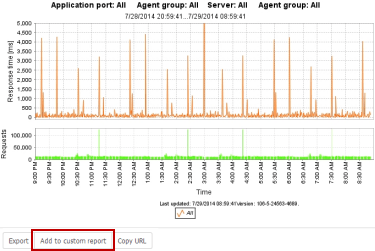
When you generate a graph in the PerformanceGuard web interface (ANALYZE > Graphs > …), you’ll see an Add to custom report link below the graph (click thumbnail to view image in full size).
-
Click the Add to custom report link.
-
Specify the following:
- Report: Select the report to which you want to add the graph.
- Header: (Mandatory) Type the headline that shall be used for presenting the graph in the report. The header will also be used in the report’s table of contents. The header can be up to 255 characters long, including spaces.
- Description: (Optional) A description that’ll appear below the graph in the report. The description can be up to 255 characters long, including spaces.
- Click the Add to report button.
- You are taken to the Report management tab, where you can view details about the report in which you included the graph. In the tab’s Report Items section, you can see which graphs are included in the report.
You can use this method to include other content than graphs in a report. For example, you can also include hotspots (such as top 10 lists of login times) or IP traffic load overview pie charts, because they also have Add to custom report links. You find hotspots and other overviews by selecting ANALYZE > Overview.
Furthermore, you can quickly include PerformanceGuard’s Performance Counters in reports if you click an icon below such charts.
Automatically Send Report to People via E-Mail
Section titled “Automatically Send Report to People via E-Mail”If you have set up a report to be generated automatically (see Create New Report in the previous), the report can automatically be sent via e-mail to selected recipients:
- In the PerformanceGuard web interface, select ADMINISTRATION > Event Management > Notification Recipients.
- If the recipient hasn’t been defined yet, click the New Notification Recipient button and specify details about the new recipient. Leave the Email summary reports field as it is. When ready, click Save.
- In the Notification Recipients list, click the Edit icon next to the required recipient.
- Select the Report Subscriptions tab.
- Select the required Report and Location.
Your location selection defines which of your organization’s locations that’ll be covered by the report for the recipient in question.
- When ready, click the Add Subscription button.