

ServiceNow Integration
The PerformanceGuard Incident Management Connector for ServiceNow shows PerformanceGuard information about the affected computer directly on ServiceNow incidents. Service desk staff get computer details and recent PerformanceGuard events without opening other tools, which helps them solve more incidents on the first call.
This page is for ServiceNow administrators who set up the connector. For how service desk staff use it, see Use PerformanceGuard in ServiceNow Incidents.

Set up PerformanceGuard in ServiceNow
Section titled “Set up PerformanceGuard in ServiceNow”-
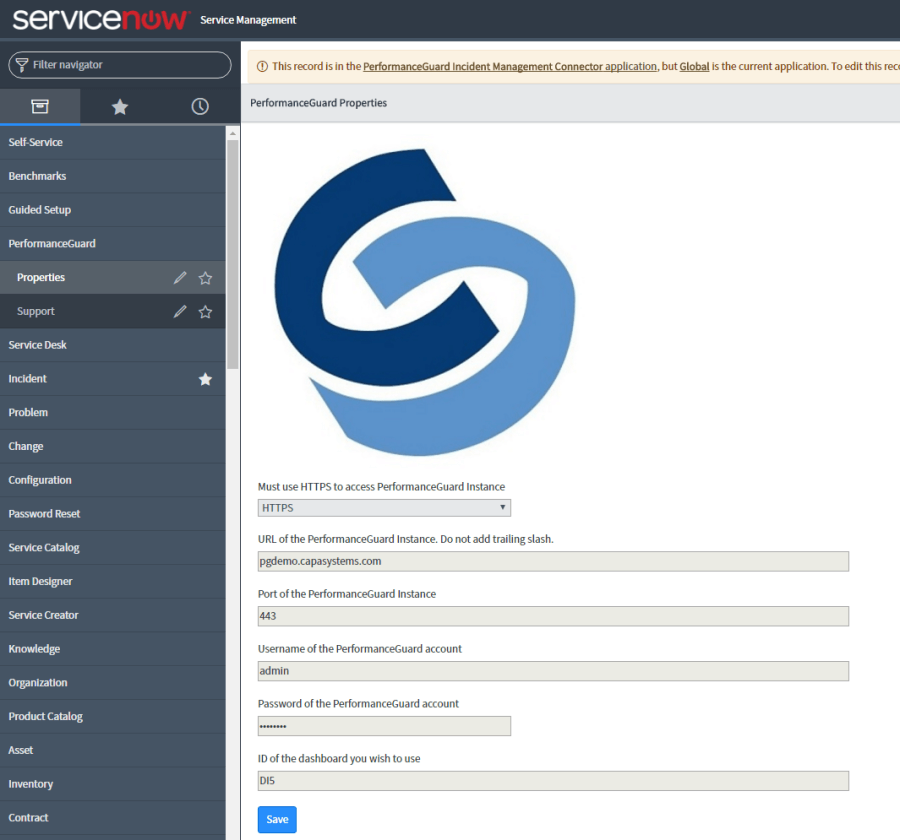
In the ServiceNow navigator, select PerformanceGuard → Properties.
-
In Must use HTTPS to access PerformanceGuard Instance, keep HTTPS.
-
In URL of the PerformanceGuard Instance, type the host name of the PerformanceGuard web interface, for example
performanceguard.example.com. Don’t includehttps://, a port number, or a trailing slash. -
In Port of the PerformanceGuard Instance, type the HTTPS port of the PerformanceGuard web interface.
-
In Username of the PerformanceGuard account and Password of the PerformanceGuard account, type the credentials of the PerformanceGuard user you created for ServiceNow.
-
In ID of the dashboard you wish to use, type the ID of the PerformanceGuard dashboard that opens when users select Open in PerformanceGuard. To find the ID, open the dashboard in PerformanceGuard. The ID is the part after
/dashboard/in the browser’s address bar, for exampleDI5for a built-in dashboard orDB12for a dashboard you created. -
Select Save.
To check the connection, select PerformanceGuard → Support, and then select Open PerformanceGuard  on the page. PerformanceGuard opens in a new browser tab.
Give users the PerformanceGuard role
Section titled “Give users the PerformanceGuard role”Users need the connector’s role to see the PerformanceGuard menu and the PerformanceGuard tab on incidents. Users normally get the role during setup. If a user doesn’t have it, follow these steps:
-
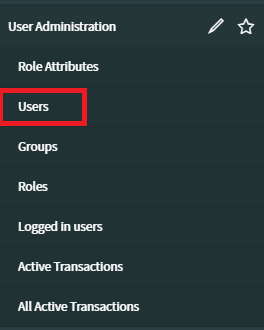
In the navigator, select User Administration → Users.
-
Select the User ID of the user.
-
At the bottom of the page, select the Roles tab, and then select Edit.

-
Filter the role list: in the –choose field– box, select Name, change starts with to contains, type
pg_user, and run the filter.
-
Move the role
x_233582_performan.pg_userfrom the list on the left to the selected roles on the right. -
Select Save.
Starting with connector version 1.0.40, there are two roles:
x_233582_performan.pg_admingives access to the settings page.x_233582_performan.pg_usergives access to the PerformanceGuard tab on incidents.
Prepare the incident form
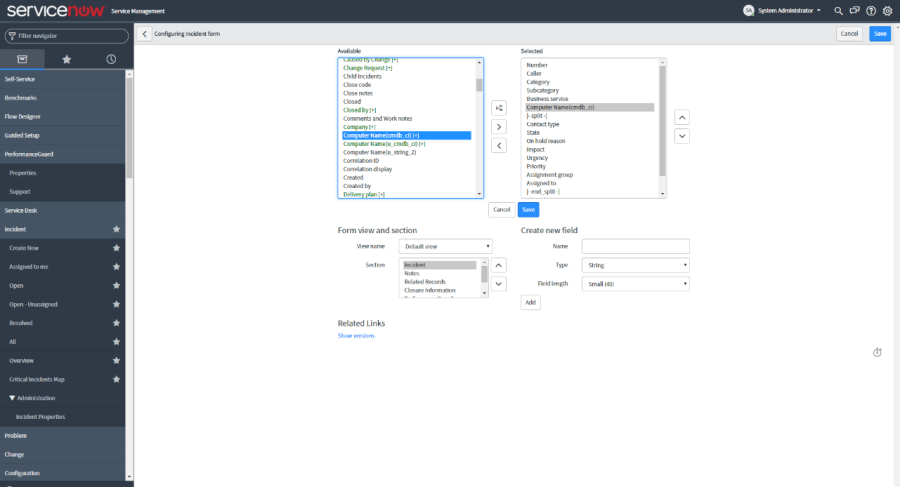
Section titled “Prepare the incident form”The connector uses a computer name on the incident to find the matching PerformanceGuard agent. By default, it reads the name of the incident’s Configuration item.
Your incident form must have a field that contains the computer name. If it doesn’t, add one: open an incident, open the form menu  , and select Configure → Form Layout. The configured layout is also shown in Form Design.
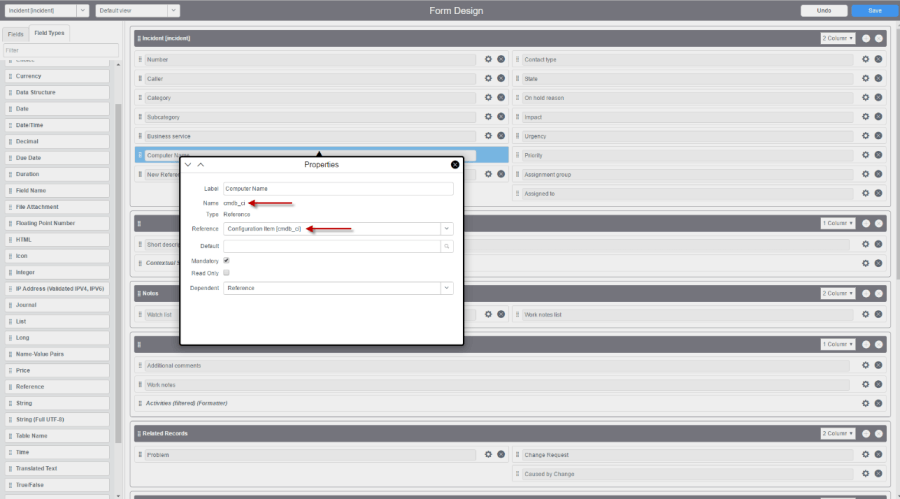
Use another field for the computer name
Section titled “Use another field for the computer name”If the computer name is in another field or table, change the client script that looks up the agent:
-
On the incident form, open the form menu
 and select Configure → Client Scripts.
 -
Open the client script PerformanceGuard Fetch Agent Id.
-
The script belongs to the connector’s application scope. If ServiceNow shows a message that the record is in another application, select the link in the message to switch scope so you can edit it.
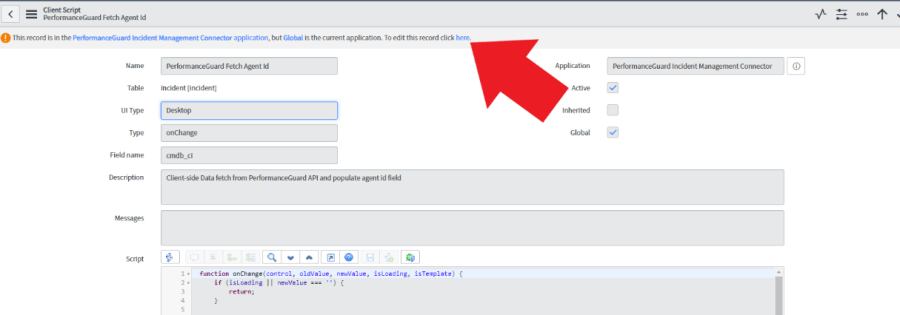
-
In Field name, select the field that holds the computer name.
-
Edit the script to read the computer name from that field, in one of these ways:
- Reference field: if the field is a reference, get the value with a callback.
// get computer name from reference field, using callbackg_form.getReference('cmdb_ci', function (ci) { // use computer name from name column of configuration item table; cmdb_ci setAgentId(ci.name)});- String field: if the field is a string, use
getValueand then callsetAgentId.
// get computer name from string fieldsetAgentId(g_form.getValue('u_affected_pc'));- Save the client script.
The connector also has an onLoad client script, PerformanceGuard Fetch Agent Id onLoad, that looks up the agent when an existing incident opens. If you change the field, make the same change in that script.