Manage Users

To manage who’s able to use the PerformanceGuard web interface, open the PerformanceGuard web interface and select ADMINISTRATION > Setup > Users and roles.
This topic only has to do with who is able to access the PerformanceGuard web interface. The majority of users in your organization (those who simply have PerformanceGuard agents installed on their computers) are not covered by this. You don’t need to configure such users, because PerformanceGuard will be completely transparent to them.
User Roles and Access Rights
Section titled “User Roles and Access Rights”PerformanceGuard offers the following roles that determine what users are able to do in the PerformanceGuard web interface:
- Admin: Has access to all sections of the PerformanceGuard web interface and may change settings. If a user has the Admin role, the user automatically also has the Detail role.
- Detail: Has read access to information related to individual computers or users. You typically give this role to Service Desk personnel.
- User (that is a user who doesn’t have any of the Admin or Detail roles): Has read access to aggregated information about groups of computers only.
| Roles’ Access Rights | Admin | Detail | User |
|---|---|---|---|
| Administration | ● | ||
| Information about individual computers | ● | ● | |
| Information about groups of computers | ● | ● | ● |
Which Widgets Are the Roles Able to Use?
Section titled “Which Widgets Are the Roles Able to Use?”Because of the roles’ different access rights, users with certain roles are not able to use certain widgets on the PerformanceGuard dashboards (see What are Dashboards?):
| Roles and Widgets | Admin | Detail | User |
|---|---|---|---|
| Location Sunburst | ● | ● | ● |
| Application Chart | ● | ● | |
| Application Activity | ● | ● | ● |
| Application Status | ● | ● | ● |
| Computer Bubble Chart | ● | ● | |
| Location Bubble Chart | ● | ● | ● |
| AutoSteps Job Heat Map | ● | ● | |
| AutoSteps Chart | ● | ● | |
| Computer Event Timeline | ● | ● | |
| Computer Info | ● | ● | |
| Computer Chart | ● | ● | |
| Custom | ● | ● | ● |
| Event HotSpot | ● | ● | |
| Latency | ● | ● | ● |
| Network Traffic List | ● | ● | |
| Performance Status | ● | ● | ● |
| Process List | ● | ● |
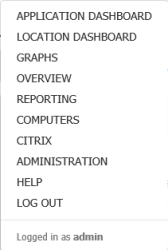
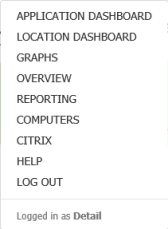
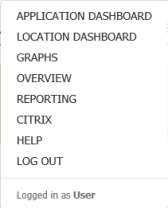
This is what users with the various roles will be able to select from the menu in the PerformanceGuard web interface:
| Admin | Detail | User |
|---|---|---|
 |
 |
 |
Users List
Section titled “Users List”On the PG Users/Roles tab, the users list contains all users except the admin user (see Administrator in the following). To change a user’s password, type the new password and select Update. To change a user’s role, select or clear the Admin or Detail check box. The role change is saved right away. To delete a user, select Delete.
Add User to Users List
Section titled “Add User to Users List”Select + User. In the Add User dialog, type a Name and a Password, confirm the password, and then select Create. The user name must be unique, and it can’t be blank. The new user gets the User role. To give the user the Admin or Detail role, select the check box in the users list.
Administrator
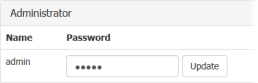
Section titled “Administrator”A special built-in user called admin always has the Admin role.
You can change the admin user’s password, but you can’t delete the admin user.