

Custom Counters
Collect Data from Any Computer Chart
Section titled “Collect Data from Any Computer Chart”If you want PerformanceGuard to collect data from a Computer Chart, you can create a custom counter in PerformanceGuard.
Custom counters are template-based. A template can contain multiple custom counters, and each template can be attached to one or more Manage Agent Configuration Groups. This means that if you want PerformanceGuard agents from different agent configuration groups to collect the same custom counters, you don’t need to set up identical custom counters for each agent configuration group—instead you simply link the required agent configuration groups with the required custom counter template. To get you started, PerformanceGuard offers a number of built-in templates.
Built-in Custom Counter Templates
Section titled “Built-in Custom Counter Templates”PerformanceGuard comes with a number of ready-to-use custom counter templates for monitoring the performance of MS Exchange, MS SQL Server, Terminal Services as well as memory, physical disks, etc.
To view the built-in custom counter templates, select ADMINISTRATION > Agent Configuration > Custom Counter Templates.
To use a built-in custom counter template, simply apply it to the required agent configuration groups. See Apply Templates to Agent Configuration Groups in the following.
Create Custom Counter Templates
Section titled “Create Custom Counter Templates”-
Select ADMINISTRATION > Agent Configuration > Custom Counter Templates.
-
Click the New Template button.
-
Specify a Name (required) and a Description (optional) of your template. The name must be unique. If the name is already in use, PerformanceGuard saves the template with a different name and tells you which name it used.
-
In the Counters field, specify the custom counters that the template should contain. You can specify the counters in two different ways:
- Use Performance Counter Configuration Utility, a tool provided by PerformanceGuard to help you quickly and easily define custom counters with the correct syntax.
- Enter custom counters directly in the text field. For the syntax, see Custom Performance Counters.
- In the Sample every … menu, select how often (in seconds) that PerformanceGuard agents should collect the custom counter data. You can select 1, 2, 5, 10 or 15 seconds. The default is 1 second.
- In the Report data every … menu, select how often (in seconds) that agents should calculate the collected data in order to be able to report minimum, maximum and average values to PerformanceGuard. The default is 5 seconds. The menu only offers values that fit the Sample every … value.
- Click Save.
Performance Counter Configuration Utility
Section titled “Performance Counter Configuration Utility”The Performance Counter Configuration Utility helps you quickly and easily define custom counters with the correct syntax. You can download the Performance Counter Configuration Utility (PerfCounterUtility.exe) with the Download button when you create or edit a custom counter template.
Once you have downloaded and saved the utility, you should run it. To make sure that you have access to all counters, you need to run the utility with administrative privileges: Right-click the PerfCounterUtility.exe file and select Run as administrator ….
To define a new custom counter with the Performance Counter Configuration Utility:
- Select the required computer in the list in the top left corner of the Performance Counter Configuration Utility window, and then click the Connect button.
- Select a Category, a Counter and (when possible) an Instance.
-
Click the Add>> button to add your custom counter to the list of added counters in the right part of the window.
-
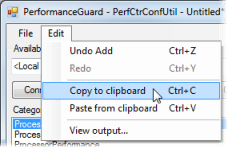
Repeat as required. Once you have defined all the counters that you need, select Edit > Copy to clipboard.
-
In the PerformanceGuard web interface, select ADMINISTRATION > Agent Configuration > Custom Counter Templates and then either create or edit the required custom counter template. When ready, paste (CTRL+V) your copied custom counters into the template’s Counters box.
Apply Templates to Agent Configuration Groups
Section titled “Apply Templates to Agent Configuration Groups”- Select ADMINISTRATION > Agent Configuration > Configurations.
- Click the Edit link next to the required agent configuration group.
- On the Agent Configuration tab, scroll down to the Custom Counter Templates section and select the templates that should be used by PerformanceGuard agents that belong to the agent configuration group.
- Click the Save Configuration button.
Edit Existing Templates
Section titled “Edit Existing Templates”To edit an existing custom counter template, select ADMINISTRATION > Agent Configuration > Custom Counter Templates and click the Edit icon  next to the required template.
Delete Templates
Section titled “Delete Templates”To delete an unwanted custom counter template, select ADMINISTRATION > Agent Configuration > Custom Counter Templates, click the Delete icon  next to the no longer required template.
Upgrade from Old Versions that Didn’t Support Templates
Section titled “Upgrade from Old Versions that Didn’t Support Templates”In previous versions of PerformanceGuard you were also able to use custom counters, but you needed to define the custom counters separately for each agent configuration group instead of through templates. This meant that if multiple agent configuration groups should use the same custom counters, you needed to define identical custom counters separately for each agent configuration group. The new templates feature, that lets you define custom counters once, and use them in multiple agent configuration groups, thus significantly reduces the required administration.
Existing custom counters are automatically converted to templates: If you have upgraded from an old version of PerformanceGuard that didn’t support custom counter templates, the new PerformanceGuard version automatically converts your existing custom counters to custom counter templates. Any custom counters that you have defined for agent configuration group A will be turned into custom counter template A, and the template will automatically be appended to agent configuration group A. The same thing will happen to any custom counters that you have defined for agent configuration group B, and so on.
If you have templates with identical content after upgrade: Because you may previously have defined identical custom counters for multiple agent configuration groups, you may find that some or all of the new custom counter templates, that PerformanceGuard has automatically created for you during the upgrade, have identical content. If that’s the case in your organization, the templates will work even though they have identical content. However, you may want to spend a few minutes on linking agent configuration groups with just one of those identical templates and then deleting the surplus templates.
Processes with Identical Names
Section titled “Processes with Identical Names”If you want a custom counter to monitor a process, bear in mind that multiple instances of the same process may run simultaneously.
You may find it difficult to distinguish between such identically named processes that run simultaneously if you monitor them with a custom counter. In such cases we recommend that you instead use the standard PerformanceGuard Performance Counters feature (ANALYZE > Computers > Performance Counters) which lets you easily distinguish between multiple instances of the same service.
How Agent Handles No New Data
Section titled “How Agent Handles No New Data”From PerformanceGuard version 6.7.2 the PerformanceGuard agent acts in a different way if it doesn’t receive new data from a performance counter:
When a sample contained no new data from a performance counter, earlier versions of the agent would report a repetition of the previous value to PerformanceGuard. From version 6.7.2 the agent will simply report a value of nothing instead.
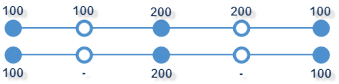
The old way (top) and new way (bottom) of handling no new data
Compared with the old way, the new way may feel as if it causes lapses in the sampling. The new way, however, will provide you with a better and more representative data set for analyzing your performance counters.
Windows Performance Counter Reference
Section titled “Windows Performance Counter Reference”For more information about Windows performance counters, go to technet.microsoft.com and search for Windows performance counters.