

Load Overview
The Load Overview chart (ANALYZE > Overview > IP Traffic > Load Overview) presents an overview of communication to servers, ports and applications as well as from subnets and Citrix servers. It also lets you quickly identify the most used processes.
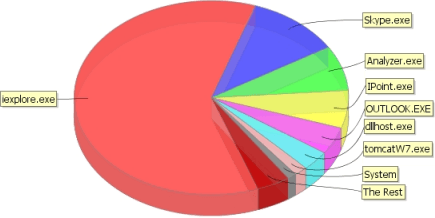
- Type: Determines the type of information shown on the pie chart:
- Servers: Lists servers accessed by computers.
- Processes: Lists processes used by computers. IP data process information is not collected on computers that run Windows XP.
- Ports: Lists ports accessed by computers.
- Services: Lists server:port combinations accessed by computers.
- Subnets (outgoing traffic): List client subnets that have accessed servers.
- Citrix Servers (outgoing traffic): List Citrix servers that have accessed servers.
- Show top # only: By default only the top 20 entities are shown, but you can change this if required. Note that the last 5 % is always grouped together as a single pie slice named The Rest.
- Agents: Filter on computers. Select a specific group of computers or All agents.
- Servers: Filter on servers. Select All Servers, All Monitored Servers or a specific server or server group.
- Data type: Determines the type of data by which the pie chart is ordered: Load (Sent+Received bytes), Total response time, Number of requests, Unavailability, Load (Sent bytes) or Load (Received bytes). The option Unavailability means the number of requests that didn’t receive a response.
- Interval: Select which time interval the pie chart should be based on. If the predefined intervals don’t suit you, select Custom to Custom Time Periods on Graphs.
- Advanced mode: Select this check box to show the Exclude top field.
- Exclude top: Exclude the top n items from the pie chart. This can be useful if the first item covers nearly 100% of the chart.
Click Update to generate the pie chart.