

Manage Frontend Servers
The PerformanceGuard Frontend server handles the communication with PerformanceGuard agents, stores data from agents, and communicates with the PerformanceGuard Backend server to synchronize agent IDs and aggregate performance data. You can use Multiple Frontend Servers in your PerformanceGuard solution if required.
When you install a Frontend server, it will automatically register itself with the Backend server and receive a unique ID.
PerformanceGuard agents will automatically receive a Frontend server list as a part of their configuration. You can create a list of Frontend servers for a specific location. This can be useful if you want all the PerformanceGuard agents installed on the computers at a location to use one or more specific Frontend servers.
List of Frontend Servers
Section titled “List of Frontend Servers”The Frontend servers list (ADMINISTRATION > Setup > Frontends) shows all registered Frontend servers with the following information:
- Status
- ID
- Frontend Server: Name of the Frontend server. By default the hostname of the Frontend server is used.
- Agent Delivery Address: The IP address or hostname and TCP port number that agents should use when communicating with the Frontend server.
- Version: The Frontend server’s version of PerformanceGuard.
- Enabled: Whether the Frontend server is enabled (it is possible to disable a Frontend server when you edit its properties).
- Priority: The priority of the Frontend server. Agents use the priority when they decide which Frontend server to connect to (see the following).
- Agents (Online): The number of agents that use the Frontend server, and how many of those agents that are currently online.
Edit a Frontend Server
Section titled “Edit a Frontend Server”- Select ADMINISTRATION > Setup > Frontends.
- On the Frontends tab, click the edit icon next to the required Frontend server.
- Change the settings as required:
- Name: The name of the Frontend server.
- Agent Delivery Address and Agent Delivery Port: The address and TCP port that agents should use when they communicate with the Frontend server. The Port No. field shows the port that the Frontend server itself listens on.
- Priority: Primary, Secondary or Failover.
- Enabled: Yes or No.
- Click Save.
To remove a Frontend server from the list, for example because you have uninstalled it, click Delete instead.
Agent-Frontend Server Connection Priorities
Section titled “Agent-Frontend Server Connection Priorities”An agent will only use one Frontend server at a time.
Agents will automatically receive a Frontend server list as a part of their configuration. By default agents will get a list of all enabled Frontend servers. If some agents belong to a location for which a specific Frontend server list has been defined (see the following), they will get a separate list of Frontend servers.
If your organization uses multiple Frontend servers, agents will connect to the Frontend servers in the following order:
- Any primary Frontend server in the list
- Any secondary Frontend server in the list
- Any failover Frontend servers in the list
- The Frontend server that was defined for an agent when the agent was installed
Once an agent has successfully connected to a Frontend server, it will stay with that Frontend server for the lifetime of Agent. However, if the agent has connected to a Frontend server that has a lower priority than another Frontend server on the list, the agent will try to connect to the Frontend server that has a higher priority at regular intervals to see if the higher-priority Frontend server has become available.
Agents will receive an updated Frontend server list if there are any changes to the list, that is if Frontend servers are added or removed, enabled or disabled, or if their priorities have changed.
Prioritization Isn’t Load Balancing
Section titled “Prioritization Isn’t Load Balancing”Bear in mind that prioritization of Frontend servers does not in itself offer any load balancing. PerformanceGuard agents will simply follow the Frontend server list and Frontend server priorities they get as part of their configuration. The agents have no way of determining the load on specific Frontend servers, so they are not able to switch Frontend servers in order to distribute the load across servers.
Any such load balancing must be set up separately outside of PerformanceGuard.
You can achieve Semi Load Balancing by ensuring that:
- All Frontend servers, you need to balance between shall have the same priority.
- All Frontend servers shall be up and running at the time of connection.
- No agents have ever been connected to the Frontend servers. If they have, you must remove the RandomSeed value on those agents (see the previous).
DNS Alias Tip
Section titled “DNS Alias Tip”Because of the way that agents connect to Frontend servers in an multiple Frontend server environment, the following can be a good way of installing PerformanceGuard agents and Frontend servers:
-
Create a DNS alias like performance.yourcompany.com and make sure that it points to one of your Frontend servers at all times.
-
Install the agents using this DNS alias as the configured Frontend server.
-
The agents will connect to the Frontend server behind the DNS alias. From that Frontend server they will receive the correct Frontend server list.
This way agents will never be lost, because agents will always try to connect to the Frontend server that was defined during installation as their last resort. Because you control which server that is through your DNS administration, you can make sure that agents are always able to connect to a running Frontend server.
Create Specific Location-Frontend Server Mapping
Section titled “Create Specific Location-Frontend Server Mapping”If required, you can create a specific list of Frontend servers and priorities that agents at a specific location should use. This can sometimes be useful for network infrastructure reasons.
To set up a location-frontend server mapping:
-
Select ADMINISTRATION > Setup > Frontends and then select the Locations tab.
-
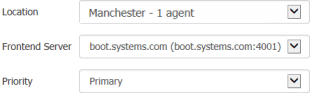
Under New Location - Frontend Relation, select the Location, the Frontend Server and the Priority.
-
Click New.
-
Repeat for each Frontend server that agents at the location should use.
The tab shows the Default Frontend List that agents get when their location has no specific list, and a Frontend List for each location that has one. See also Set Up Locations.
Changes Take 30 Minutes or More
Section titled “Changes Take 30 Minutes or More”If you change your Frontend server configuration, for example by adding a Frontend server, by changing location-frontend server mappings or by changing priorities, you should be aware that it takes 10 agent delivery intervals before you can be sure that your changes have been communicated to all online agents. With a default agent delivery of three minutes, that’s at least half an hour.
The reason for this is that communication of Frontend server changes takes up considerable agent resources. That’s why PerformanceGuard does not let Frontend servers communicate this type of configuration changes to agents more often than every 10th agent delivery interval.