

Agent Can't Connect
Use this information if the PerformanceGuard agent on a computer won’t connect to the PerformanceGuard system even though the computer is otherwise online.
When that’s the case, the computer never appears when you search for it in the PerformanceGuard web interface (ANALYZE > Computers > Computer Search). Alternatively, it does appear, but with a yellow or red status.
How it should work
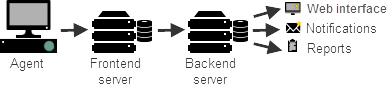
Section titled “How it should work”When everything works correctly, the agent connects to the PerformanceGuard Frontend server. The Frontend server in turn sends the agent’s data to the PerformanceGuard Backend server, which lets you view the data in the PerformanceGuard web interface, in reports, and through email notifications.
Possible cause
Section titled “Possible cause”The most likely reason why the agent can’t connect is that the agent isn’t configured with the correct IP address and port number of the PerformanceGuard Frontend server.
Another reason may be that a network problem or firewall prevents the computer that has the agent installed from connecting to the Frontend server.
The following sections check that the agent has the correct information about the Frontend server. If required, you then check the connection between the computer that has the agent installed and the Frontend and Backend servers.
Verification
Section titled “Verification”-
On the computer that has the agent installed, open a browser and go to
http://localhost:4007. -
In the agent information page that opens, select View > Configuration.
-
In the agent configuration table, look for the Frontend IP and Frontend Port values. These values must be the IP address of the required Frontend server and the port number on which the Frontend server listens for data from agents (by default port 4001).
If the page at http://localhost:4007 doesn’t open, check that the PerformanceGuard agent service is running, and then continue with the solution below.
Solution
Section titled “Solution”Option 1: Correct the Frontend server address in the registry
Section titled “Option 1: Correct the Frontend server address in the registry”On the computer that has the agent installed:
-
Select Start, type
services.mscand press ENTER. Then stop the PerformanceGuard agent service. -
Open the Registry Editor (select Start, type
regeditand press ENTER) and expand the keyHKEY_LOCAL_MACHINE\SOFTWARE\PremiTech\E2EAgent. -
Edit the values of
BackendIPandBackendPortso that they are the IP address of the required Frontend server and the port number on which the Frontend server listens for data from agents.If the values are already correct, there is probably a network problem or firewall that prevents the computer from connecting to the Frontend server. Start the agent service as described in the next step, and then continue to Test Frontend and Backend Server Connections.
-
In Services, start the PerformanceGuard agent service.
The agent should now be able to communicate with the Frontend server. After some minutes, the computer should show up if you search for it in the PerformanceGuard web interface. If not, verify the agent’s communication with the Frontend and Backend servers as described in Test Frontend and Backend Server Connections.
Option 2: Reinstall the agent
Section titled “Option 2: Reinstall the agent”- Uninstall the agent.
- Install the agent again with the correct Frontend server IP address and port. See Install PerformanceGuard Agents.