

Send Requests to a Windows Endpoint
From an endpoint’s page you can send requests to the CapaOne Agent, for example to collect a fresh inventory or upload the agent logs for troubleshooting. This page describes the requests and where to find their results.
Send a request
Section titled “Send a request”-
Open the actions menu (⋮) in the endpoint header.
-
Point to Request and select a request.
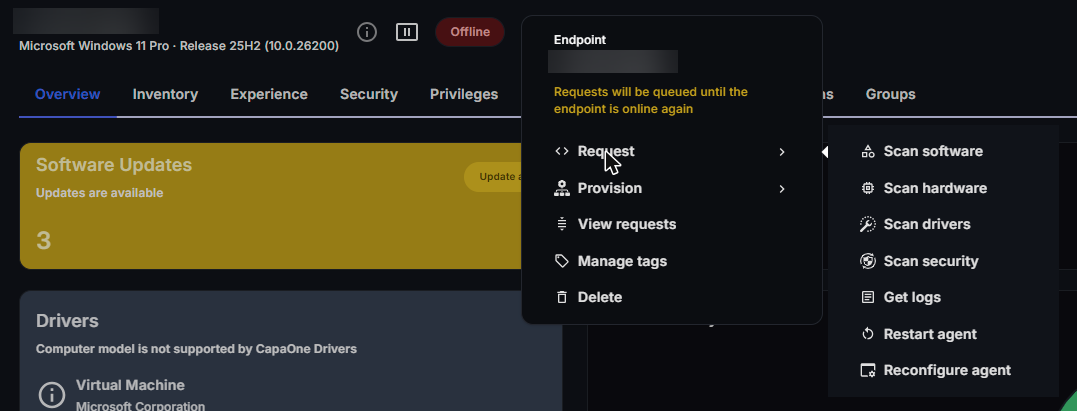
| Request | What it does |
|---|---|
| Scan software | Collects a fresh software inventory. |
| Scan hardware | Collects a fresh hardware inventory. |
| Scan drivers | Collects a fresh driver inventory. |
| Scan security | Collects the inventory that the security checks are based on. |
| Get logs | Uploads the agent’s log files to CapaOne. See Collect the agent logs. |
| Restart agent | Restarts the CapaOne Agent service on the endpoint. |
| Reconfigure agent | Makes the agent fetch its latest configuration from CapaOne and apply it. |
You don’t normally need Reconfigure agent. CapaOne sends the endpoint its new configuration automatically when you change a configuration. Use the request when you want the endpoint to pick up a change right away.
The same menu also has these actions:
- View requests — see View requests and their results.
- Manage tags — see Tag Windows Endpoints.
- Provision → Start PXE (30 mins) — requires Provision Manager. See Provision Points.
- Delete — removes an offline endpoint from CapaOne. See Delete endpoints.
View requests and their results
Section titled “View requests and their results”Select View requests in the actions menu. The Commands for dialog lists the requests sent to the endpoint.
| Column | What it shows |
|---|---|
| Date | When the request was created. |
| Command name | The request that was sent. |
| Result | Whether the request has been sent, and its outcome, such as Completed, Processing, or Failed with exit code followed by the code. |
Select Hide sent commands to show only the requests that are still waiting. Click Details to see the full details of a request.
Collect the agent logs
Section titled “Collect the agent logs”When you contact support about an agent problem, you’re often asked for the agent logs.
- In the actions menu, select Request → Get logs.
- Wait until the request has completed. If the endpoint is offline, the request runs when it’s online again.
- In the actions menu, select View requests.
- On the row for the log upload, click Logs.
A log viewer opens. Click Download to save one log file, or Download all to save all
log files as one .zip file.
The Logs button also appears for installations and uninstallations of applications, so you can read the log of a single deployment the same way.
Follow the command log
Section titled “Follow the command log”The command log shows what the agent reports while it works on the endpoint. Click Show command log in the endpoint header to open it. A badge on the button counts new entries while the log is closed.
- Use Search command log to highlight matching lines.
- Click Copy on an entry to copy it.
- Turn on Debug to make the agent log in more detail for 5 minutes. Debug logging is only available while the endpoint is online.
When you select Trace in command log for an application on the endpoint’s Applications tab, the command log shows only that operation. Click Stop trace to return to the full log.