

Managing Users
Users in CapaOne are the people associated with managed devices — the endpoint users, not CapaOne administrators. You find them under Management → Users.
Knowing who is assigned to which device matters for accountability, targeting, and enrollment workflows. A device with an assigned user is easier to identify and contact when something needs attention.
The user list currently shows users for Mobile Manager: users linked to Android and Apple devices. Windows endpoints don’t have an assigned user in CapaOne. The active users on a Windows endpoint are listed on its Inventory → Users tab.
Creating users manually
Section titled “Creating users manually”-
Go to Management → Users and click New.
-
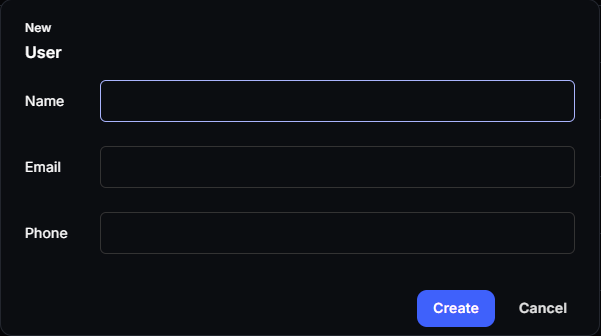
Enter the user’s Name and Email, and optionally a Phone number.
-
Click Create.
-
Assign the user to a device from the device’s page. See Linking users to endpoints.
Manual user creation is suitable for small environments or for adding a specific user that is not covered by directory sync.
Syncing users from a directory
Section titled “Syncing users from a directory”For larger environments, creating users manually does not scale. CapaOne can sync users automatically from Microsoft Entra ID (formerly Azure AD) via the Integrations page.
Synced users show up in the Users list with an Entra ID icon next to their name. When a user is updated or removed in the directory, CapaOne reflects the change after the next sync.
See Integrate CapaOne with Entra ID for setup steps.
Linking users to endpoints
Section titled “Linking users to endpoints”A user can be linked to one or more Android and Apple devices. The endpoint count next to each user in the list shows how many devices are currently associated with them. Click the count to open the user’s Endpoints tab. From there, you can select devices and add them to a group.
To assign or change the user of a device, open the device’s page under Android → Endpoints or Apple → Endpoints and click Assign user, or select Manage user in the device’s row menu. You can search for a user, or remove the current one. This is useful when a device changes hands — update the user assignment to keep records accurate.
User details
Section titled “User details”Click a user to open their page. The Information tab shows the user’s details. For users synced from Entra ID, this includes the properties you chose to sync, such as department, job title, and office location. A synced user that was removed from the directory shows the badge Marked as deleted. See User Marked as Deleted.
Local users can be edited and deleted from the row menu. Synced users are managed in the directory.
Good to know
Section titled “Good to know”- Local users are created directly in CapaOne. Synced users come from an external directory. Both types appear in the same list. An icon next to each user shows the type.
- Removing a user does not remove their associated endpoints from CapaOne — the devices remain managed, but the user association is cleared.
- Users are per-organization — each organization in CapaOne has its own user list.