

Managing Groups
Groups let you assign applications and configurations to many endpoints at once. A group can hold Windows, Android, and Apple endpoints, together with the configurations and applications they should get. When an endpoint joins a group, it gets everything assigned to the group. You manage groups under Management → Groups.
Create a group
Section titled “Create a group”- Go to Management → Groups and click New.
- Enter a Group name and, optionally, a Description.
- Click Create.
The group opens. Add endpoints, configurations, and applications as described in Add endpoints, configurations, and applications.
The group list
Section titled “The group list”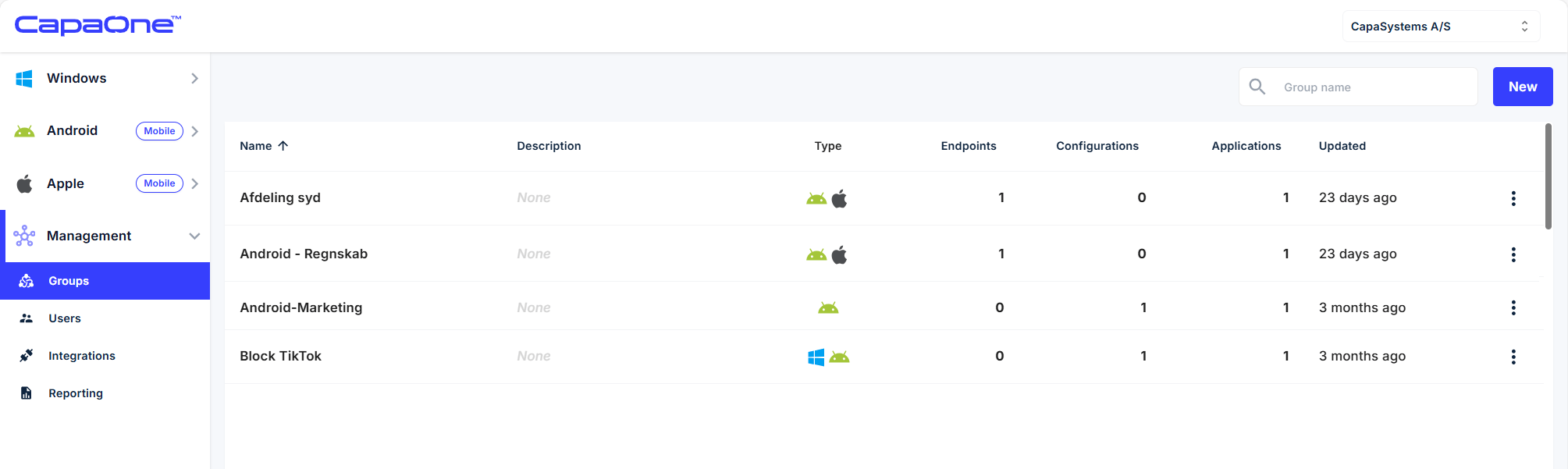
| Column | What it shows |
|---|---|
| Name and Description | The group’s name and description. |
| Type | Icons for the platforms the group holds: Windows, Android, and Apple. |
| Endpoints, Configurations, Applications | How many of each the group holds. Click a number to open the group. |
| Updated | When the group was last changed. |
Add endpoints, configurations, and applications
Section titled “Add endpoints, configurations, and applications”Open a Group to manage its Endpoints, Configurations, and Applications. Each platform — Windows, Android, and Apple — has its own Endpoints, Configurations, and Applications list.
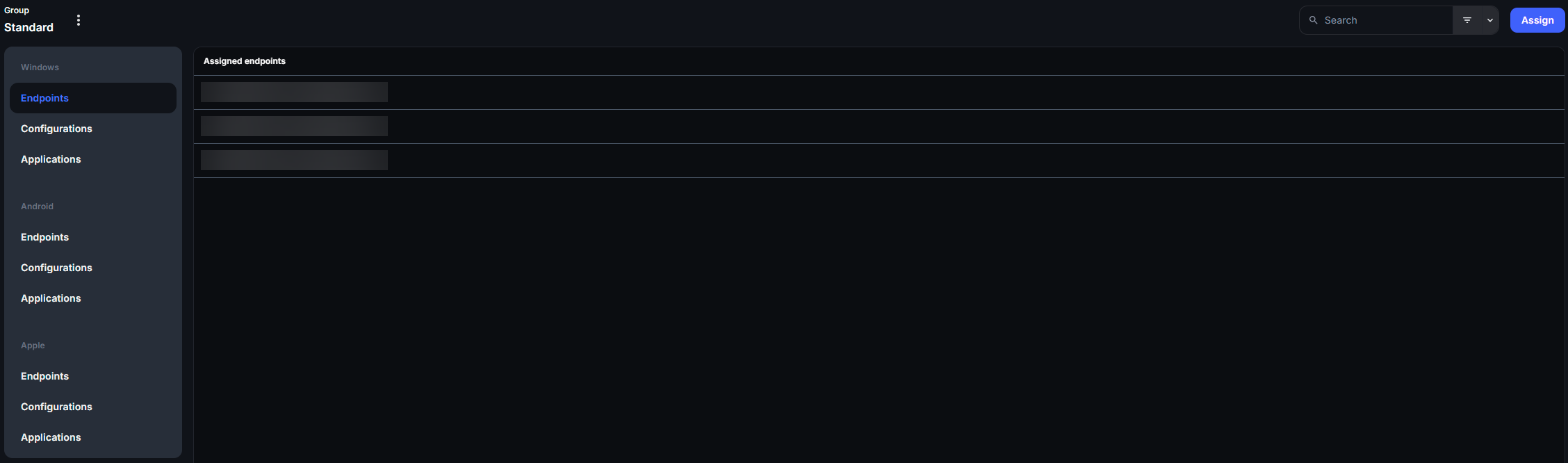
- Open the group and select the platform and the type, for example Windows → Endpoints.
- Click Assign.
- Select the items under Available and move them to Assigned. Move items back to remove them from the group.
- Click View to return to the list of assigned items.
Your changes are saved right away. There is no separate save step.
On the Endpoints tab you can use the endpoint filters, including your saved filters, to find the endpoints to add. This works for Windows, Android, and Apple. See Windows Endpoint List and Apple Endpoints Overview. On the Apple → Configurations tab, DDM configurations have a DDM badge.
You can also add endpoints to a group from the endpoint list: select the endpoints and choose Add to group.
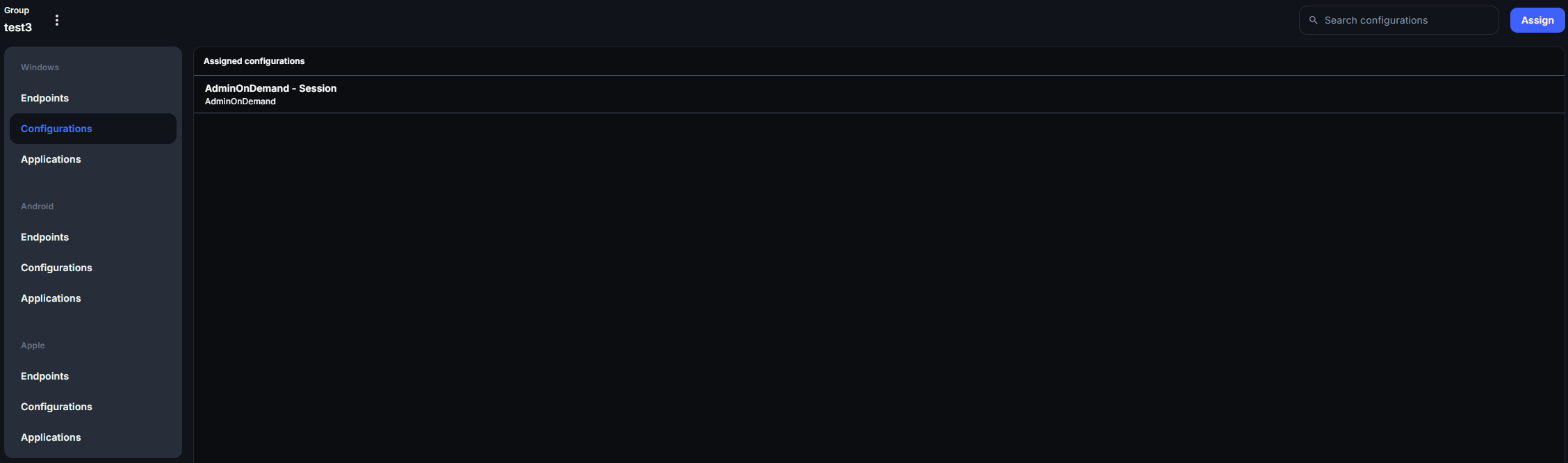
You can also assign a configuration from the configuration itself. Open a Windows, Android, or Apple configuration and go to its Assignment tab. From there, assign the configuration to a group or directly to individual endpoints.
Limitations
Section titled “Limitations”- You can’t copy or move endpoints from one group to another. Assign them to the new group, then remove them from the old one.
Groups from the installer
Section titled “Groups from the installer”When you install the CapaOne Agent with MSI, you can add the endpoint to one or more groups
during enrollment with the MSI property GROUPS. Separate several group names with a semicolon (;).
If a group with that name doesn’t exist when the endpoint enrolls, CapaOne creates it as a Windows group.
You can also assign groups in a Windows enrollment configuration. See Windows Enrollment.
Edit or delete a group
Section titled “Edit or delete a group”Open the group’s menu and select Edit to change its name or description, or Delete to delete it. Endpoints that got configurations or applications only through the group no longer get them.
Related
Section titled “Related”- Configuration Priority — what happens when an endpoint gets several configurations.
- Managing Users