

Create a Script
A script runs configuration tasks on Windows endpoints, such as setting registry values, joining a domain, or removing an application. You build a script from PowerBricks, so you don’t need to write any code.
Create the script
Section titled “Create the script”-
Go to Windows → Applications and select the Scripts tab.
-
Click New.
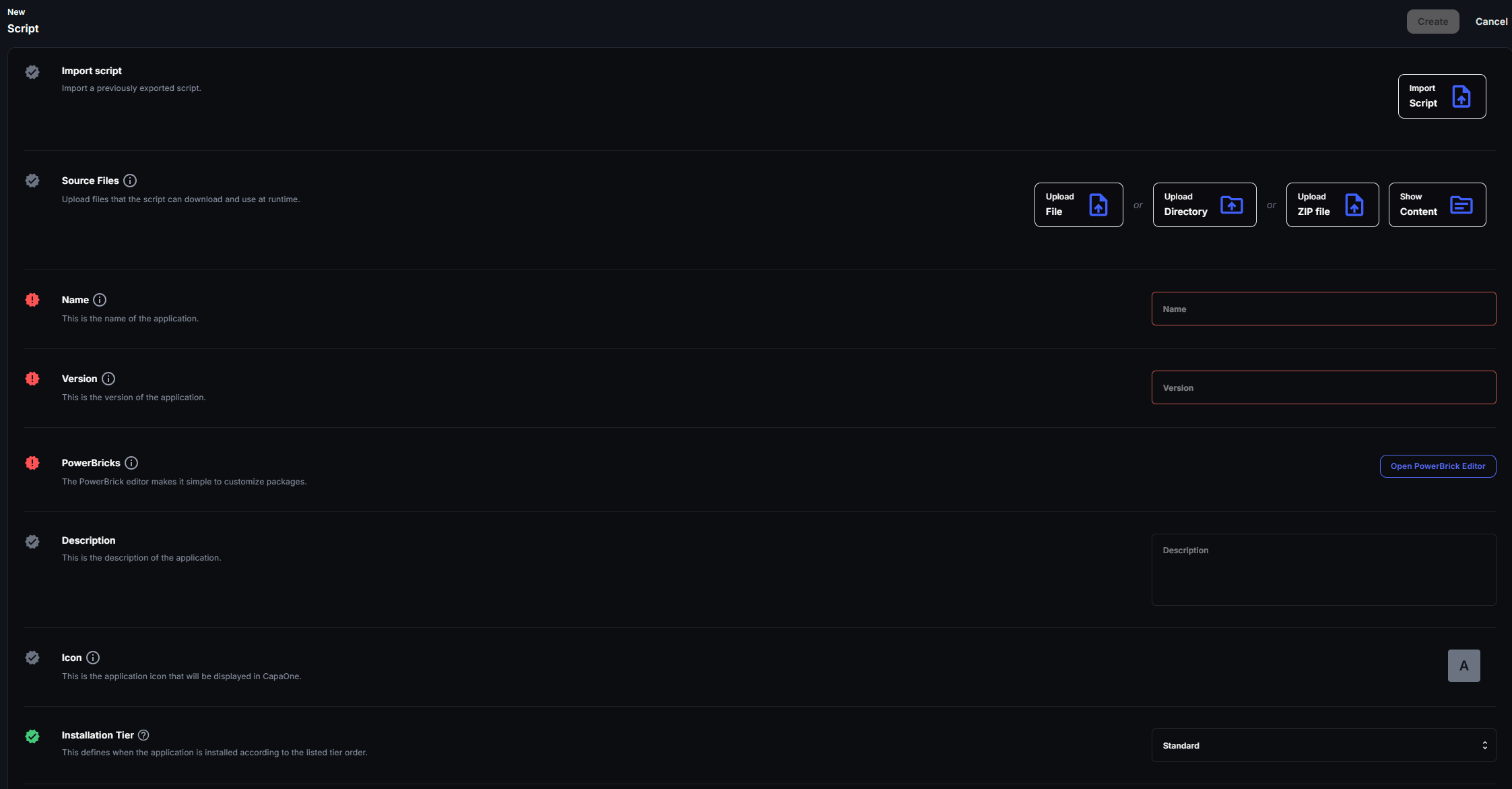
-
Optionally, under Source Files, upload files that the script can download and use when it runs, for example a configuration file.
-
Enter a Name and a Version.
-
Under PowerBricks, open the PowerBricks Editor and add at least one brick to the Install or Uninstall sequence. See PowerBricks for how the editor works.
-
Optionally, add a Description and an Icon.
-
Select the Installation Tier. Standard is the default. See Installation Tiers.
-
Select the Release status. Testing is the default.
-
Click Create.
The Create button stays unavailable until the required fields are filled in. Hover over it to see which fields are missing.
Scripts don’t have Architecture or Language settings.
To create a script from one that was exported with Export for CapaOne, select
Import script on the New page and select the exported .zip file. If you’ve already filled
in fields, CapaOne asks you to confirm, because the imported script overwrites them.
Manage scripts
Section titled “Manage scripts”The Scripts tab lists each script’s Name, Version, Release Status, and the number of Endpoints and Groups it’s assigned to. Scripts share the storage shown at the top of the tab with Company Apps.
The row menu has Assignment (Direct or Groups), Edit, Duplicate,
View content, Export for CapaInstaller, Export for CapaOne, and Delete.
Export for CapaOne downloads the script as a .zip file that you can import again.
Next steps
Section titled “Next steps”Assign the script to endpoints or groups. See Assign and Redeploy Windows Applications.