

Enforce a Specific OS Update
Software Update Enforcement Specific tells a device to install one specific OS version by a date and time you choose. Until the deadline, the user can install the update when it suits them. At the deadline, the device installs it on its own.
This is the DDM replacement for Legacy MDM’s Schedule OS update command, which no longer functions on iOS 27 and macOS 27.
Fields
Section titled “Fields”| Field | Required | Format | Example | What it does |
|---|---|---|---|---|
| Target OS Version | Yes | OS version number | 27.0.1 |
The version to install. The device installs exactly this version — it doesn’t install a later patch if you only set the minor version. |
| Target Build Version | No | Build number, optionally with a supplemental letter suffix | 24A341 or 24A341a |
Pins an exact build. Use it for testing during beta seeding, or to target a supplemental update. Leave it empty otherwise. |
| Target Local Date/Time | Yes | yyyy-mm-ddThh:mm:ss, no time zone |
2026-10-15T20:00:00 |
When the device force-installs the update if the user hasn’t already. The time is the device’s local time, so a fleet across time zones installs at the same local hour. |
| Details URL | No | https://… |
https://intranet.example.com/ios-update |
A More information link shown to the user with the update — use it to explain why and when. |
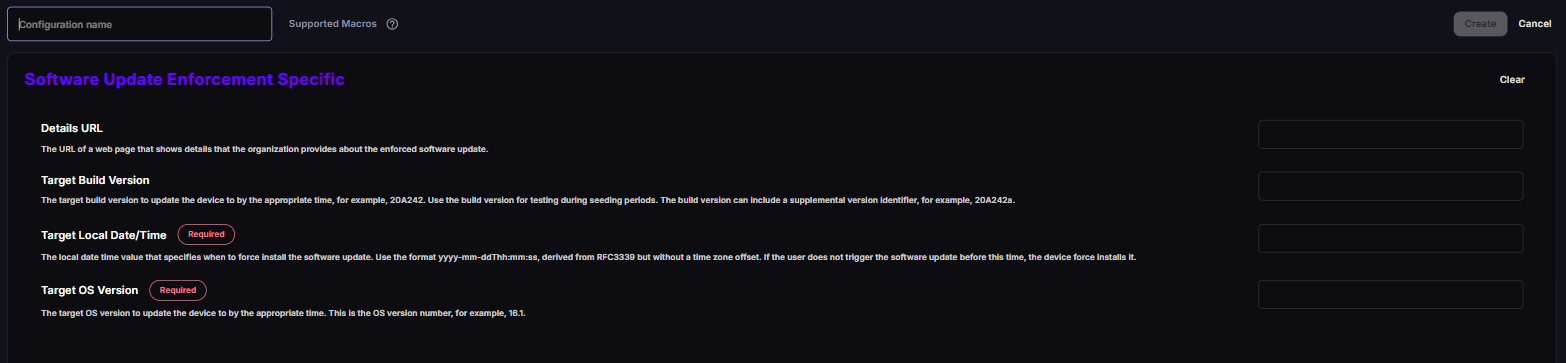
You type every field as text. There’s no date picker, so enter Target Local Date/Time in the format yyyy-mm-ddThh:mm:ss, for example 2026-10-15T20:00:00.
Create an enforcement
Section titled “Create an enforcement”- Check that the target version is available. Look it up at gdmf.apple.com/v2/pmv under the platform (
iOSormacOS) and confirm that the version lists your device models. - Navigate to Apple → Configurations → DDM and click New.
- On the Configurations tab, select Software Update Enforcement Specific.
- Name the configuration after the version and ring, for example
DDM - SU Enforce - iOS 27.0.1 - Pilot. - Enter the Target OS Version and the Target Local Date/Time.
- Optionally, enter a Details URL.
- Save the configuration.
- Select the Assignment tab, and then Group. Click Assign and move the target group to Assigned.
What the user sees
Section titled “What the user sees”The device handles the whole process itself, and notifications become more frequent as the deadline gets closer:
- When the configuration arrives — the update appears in Settings → General → Software Update (or System Settings on Mac) with the deadline, and the device downloads and prepares it in the background.
- Leading up to the deadline — the device shows notifications that let the user install now or later. During the last 24 hours, notifications show even when Do Not Disturb is on.
- One hour before the deadline — a final notification, followed by a restart countdown.
- At the deadline:
- iPhone and iPad — the device asks for the passcode, if one is set and hasn’t already been entered, and installs the update.
- Mac — the system force-quits all open apps, including apps with unsaved documents, and restarts if needed. On Apple silicon Macs, it uses the bootstrap token to authorize the update if one is available — otherwise it asks the user for credentials.
If Notifications is set to No in Software Update Settings, the user only sees the one-hour notification and the restart countdown.
If the device misses the deadline
Section titled “If the device misses the deadline”If the device is off, offline, low on battery, or low on storage at the deadline, it doesn’t give up. When the device is back on and connected, it downloads and prepares the update if needed, shows a notification that the update is past due, and tries to install it within about an hour — once it meets the requirements, such as minimum battery level.
Supplemental and Background Security Improvement updates
Section titled “Supplemental and Background Security Improvement updates”A supplemental update — for example 27.0.1 (a) — can only be installed on a device that already runs its base version (27.0.1). A device on an older version can’t jump straight to it. To target a supplemental update, enter the build version with its letter suffix in Target Build Version, for example 24A341a.
To bring older devices to a supplemental version, use two enforcements:
- An enforcement for the base version, for example
27.0.1, with the first deadline. - An enforcement for the supplemental version, with a later deadline. Use the same Target OS Version, and enter the build version with its letter suffix, for example
24A341a, in Target Build Version.
The device processes the first, then the second once the base version is installed.
Roll out in rings
Section titled “Roll out in rings”Enforcement is the most reliable way to keep a fleet current, so treat it like any other change: test first.
| Ring | Group example | Deadline after Apple’s release | Purpose |
|---|---|---|---|
| Pilot | DDM - Pilot — IT and a few volunteers |
1–3 days | Catch blocking problems with your apps and VPN. |
| Early | DDM - Early — ~10% of users across departments |
7 days | Validate at scale. |
| Broad | All remaining devices | 14 days | Bring the fleet current. |
| Critical security release | All devices | 2–5 days | Close actively exploited vulnerabilities fast. |
Create one enforcement per ring with the same Target OS Version and different deadlines, and assign each to its ring’s group.
After the update: clean up
Section titled “After the update: clean up”An enforcement stays active after devices have installed the version. Remove it when it’s no longer needed:
- When all devices in the ring run the target version or later, unassign the enforcement from the group.
- Delete enforcements for versions Apple no longer offers. If a version disappears from Apple’s available list, devices that haven’t installed it can’t install it, and the configuration just stays active without effect.
- Create a new enforcement for the next release.
Check the progress
Section titled “Check the progress”Open the configuration and select its Endpoints tab to see each endpoint’s Status and assignment. On the device, Configurations → Applied shows the enforcement settings it received. To see where the update is on a device, check its OS version on the device page, or look at Settings → General → Software Update on the device.

In the background, DDM devices report software update progress to CapaOne on their own:
| What the device reports | Values | What it means |
|---|---|---|
| Install state | none, downloading, prepared, installing, failed |
Where the update is right now. none also means the last update succeeded. |
| Pending version | OS version, build, and the enforcement date and time | Which update is pending, and whether it’s being enforced. |
| Install reason | for example declaration, system-settings, auto-update |
Why the update is pending — declaration means your enforcement. |
| Failure reason | count, reason, timestamp | How many times the update failed, and the last reason. |
CapaOne doesn’t show these values as separate fields today.
If a device doesn’t update, see DDM Software Update Not Installing.
Good to know
Section titled “Good to know”- The deadline is local time —
2026-10-15T20:00:00means 20:00 wherever the device is. - Exact version only — targeting
27.0doesn’t install27.0.1. Enter the version you want in Target OS Version. - Several enforcements can coexist — Software Update Enforcement Specific is a multiple type, so a device can hold one per release. Remove old ones to keep the list readable.
- Works on Unsupervised iPhone and iPad — unlike deferrals and automatic actions in Software Update Settings, enforcement doesn’t require supervision on iOS.
- Source: Apple’s Software Update Enforcement Specific declaration (Release v27.0), Apple Platform Deployment: Install and enforce software updates, and Apple’s iOS 27 enterprise release notes.