Apple VPP Integration
Integrate Apple VPP
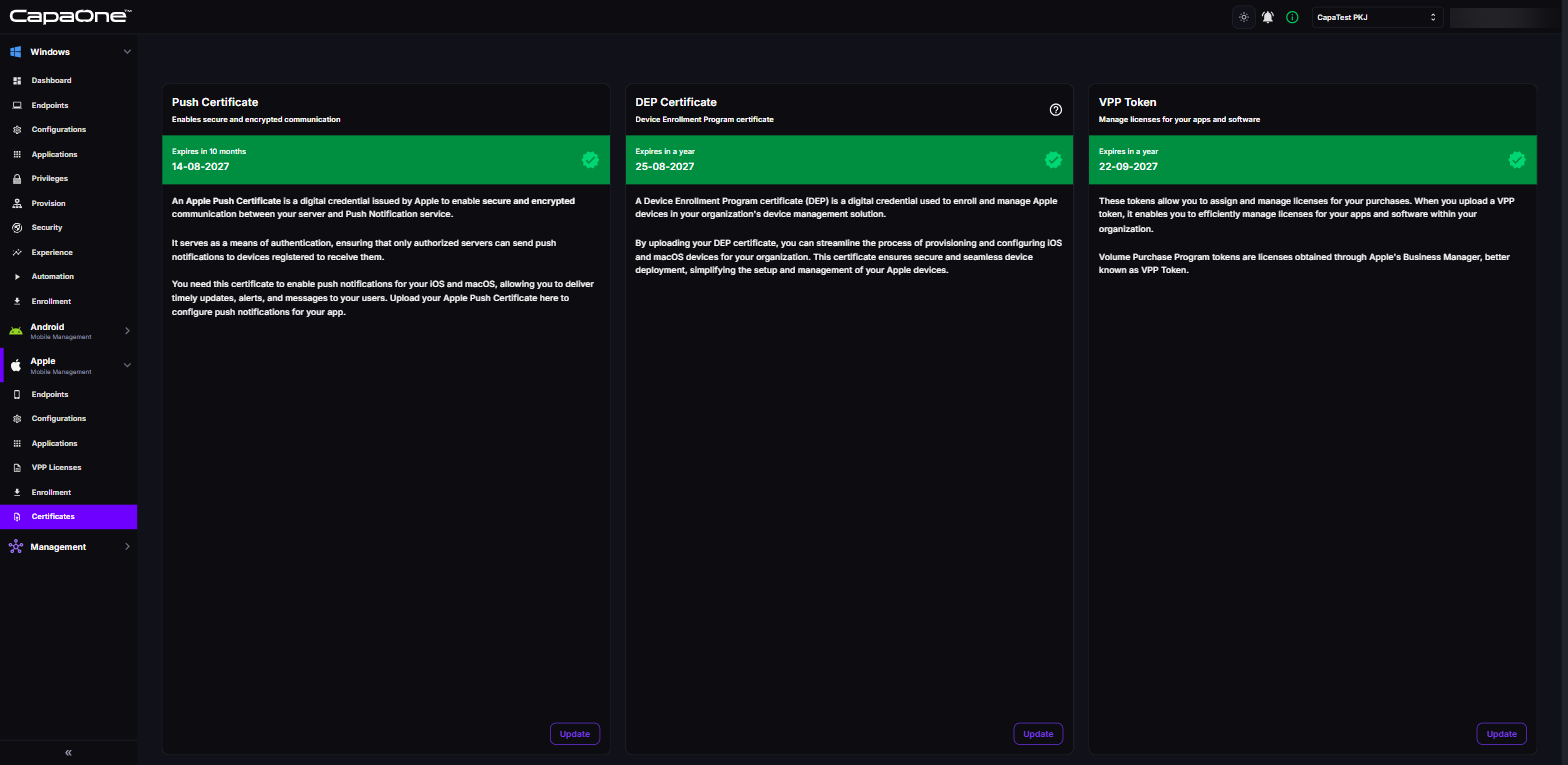
Section titled “Integrate Apple VPP”- In CapaOne, go to Apple → Certificates, and click Update (or Select) on the VPP Token card.
- Confirm that you can sign in to your Apple Business Manager account, select the check box, and click Confirm.
- In ABM, open Preferences from your profile, and select Payments and Billing.
- On the Apps and Books tab, under Content Tokens, download the token for the location
you use with CapaOne (
.vpptokenfile). - In CapaOne, click Select VPP Token, select the file, and click Upload.
VPP is now linked. The VPP Token card shows the token’s expiration date.
If the token belongs to another location than the token you uploaded before, CapaOne asks you to confirm with Force Update. A forced update removes all current VPP licenses from CapaOne and syncs them again from the new location, so apps can be temporarily unavailable.
Purchase VPP apps
Section titled “Purchase VPP apps”- In ABM, go to Apps and Books.
- Search and purchase apps (free or paid).
- Assign licenses to organization location.
Assign VPP licenses
Section titled “Assign VPP licenses”- In CapaOne, go to Apple → VPP Licenses, open the menu of a licensed app, and select Create Application. CapaOne creates the app as a VPP app and opens its page.
- On the Assignment tab, assign the app to a group or directly to devices.
App is delivered to device.