

Automation
Automation lets you build workflows that run tasks — like patching applications and drivers — across many devices at once, on a schedule or on demand. You find it under Windows → Automation.

The list shows each workflow’s filter (which devices it targets), schedule, status, last run, and an Enabled toggle to turn it on or off.
Create a workflow
Section titled “Create a workflow”-
Go to Windows → Automation and click New in the upper right corner.
-
Give the workflow a name and choose its type:
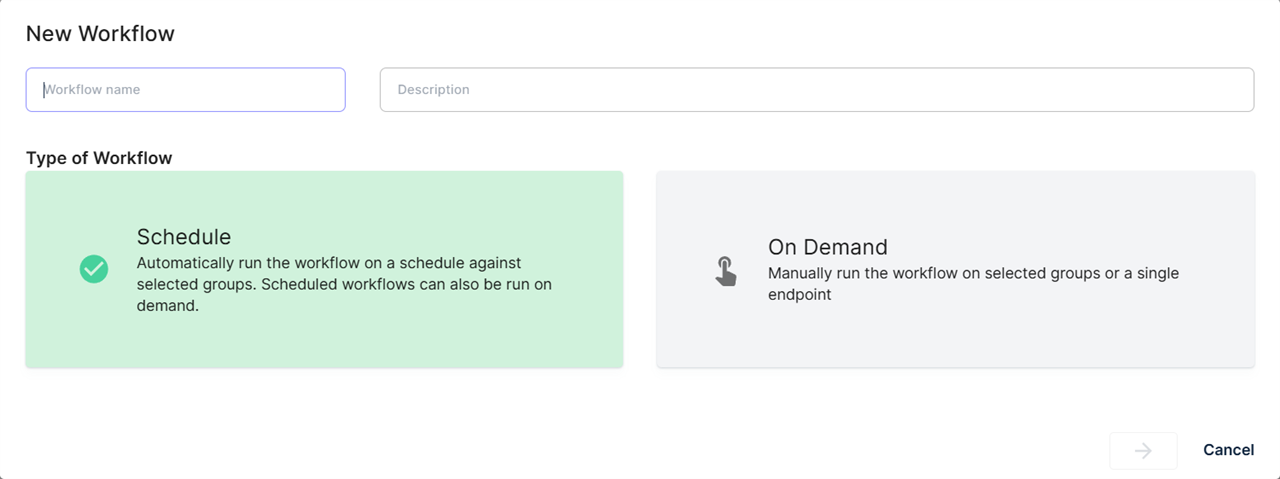
- Schedule — runs automatically on a schedule. Scheduled workflows can also be run on demand.
- On Demand — runs only when you start it.
For a scheduled workflow, set the schedule under Choose Schedule and pick a Start Date. The default schedule is every day at 18:00 in your browser’s time zone. Summary describes the schedule in words, and Next runs lists the next run times.
Under Default filter, select All endpoints or a saved endpoint filter. CapaOne shows how many endpoints the filter matches. See Windows Endpoint List for how to save a filter.
-
The workflow opens on a flow board:
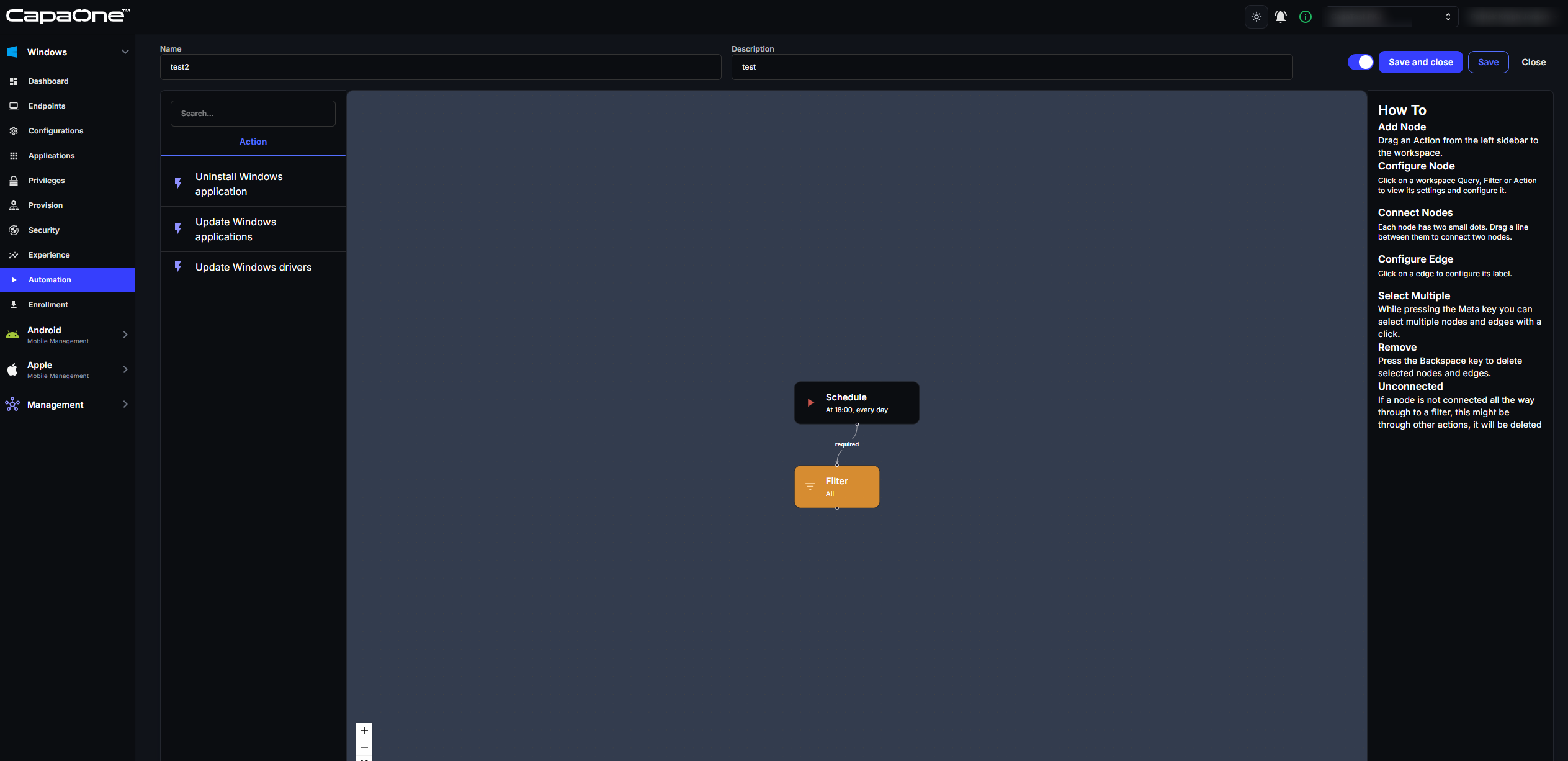
Drag an action from the Action bar on the left onto the board and connect the Filter block to it, as described in the How to box on the right. The Schedule block only exists for scheduled workflows. Available actions include installing and uninstalling Windows or custom applications, updating Windows applications, displaying a message on the device, and updating Windows drivers. See Action options.
-
Select an action on the board to configure it on the right-hand side.
-
Enable or disable the workflow with the toggle in the top right corner, then click Save and close. Your workflow is ready to run.
Options menu
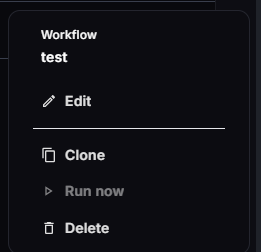
Section titled “Options menu”The three vertical dots at the right of each row open the options menu with Edit, Clone, Run now, and Delete:
Run now
Section titled “Run now”Any enabled workflow — including scheduled ones — can be run immediately: open the options menu and select Run now. In the Run workflow dialog, select a filter to run the workflow on a subset of endpoints, and click Run now. Without a filter, the button reads Run on all endpoints. Run now is unavailable while the workflow is disabled.
Edit and Delete are available for workflows that belong to your organization, or when you’re working in the parent organization.
Action options
Section titled “Action options”| Action | Options |
|---|---|
| Install, update, or uninstall a Windows application | Application, and Language: Detect, or a specific language. |
| Update Windows applications | Turn on Update all applications to update every application, including ones added to the catalog later, or pick the applications to update. You can also exclude applications, which the workflow shows as “All except” followed by the excluded apps. |
| Install or uninstall a custom application or script | Application or Script. When you install a Company App or a script, you can also turn on Redeploy if assigned and Ignore if not assigned. See Repeat a Company App or script on a schedule. |
| Display a message on the device | Title, Message, Notification type (Information or Warning), and Display duration in minutes. Set the duration to 0 to show the message until the user closes it. |
| Update Windows drivers | No options. |
Repeat a Company App or script on a schedule
Section titled “Repeat a Company App or script on a schedule”By default, a workflow assigns the Company App or script to every endpoint that matches the filter, and an endpoint where it has already been deployed doesn’t run it again. Two options change this:
- Redeploy if assigned — every run of the workflow deploys the app or script again on endpoints where it’s already assigned, even if it completed successfully before. Use it for tasks that must be repeated, such as a weekly cleanup script or a configuration that must be reapplied.
- Ignore if not assigned — the workflow doesn’t create new assignments. It only acts on endpoints where the app or script is already assigned, directly, through a group, or by another workflow. Other endpoints in the filter are skipped.
Combine the two to redeploy a script on a schedule to every endpoint that already has it, without rolling it out to the rest: set the filter to All and turn on both options.
Follow a workflow
Section titled “Follow a workflow”The list shows when each workflow last ran. Workflow runs are also recorded in the Activity Log with the type Automations. The operations a workflow starts appear on Operations in Progress with the workflow in the Requested By column.