

View and edit your profile
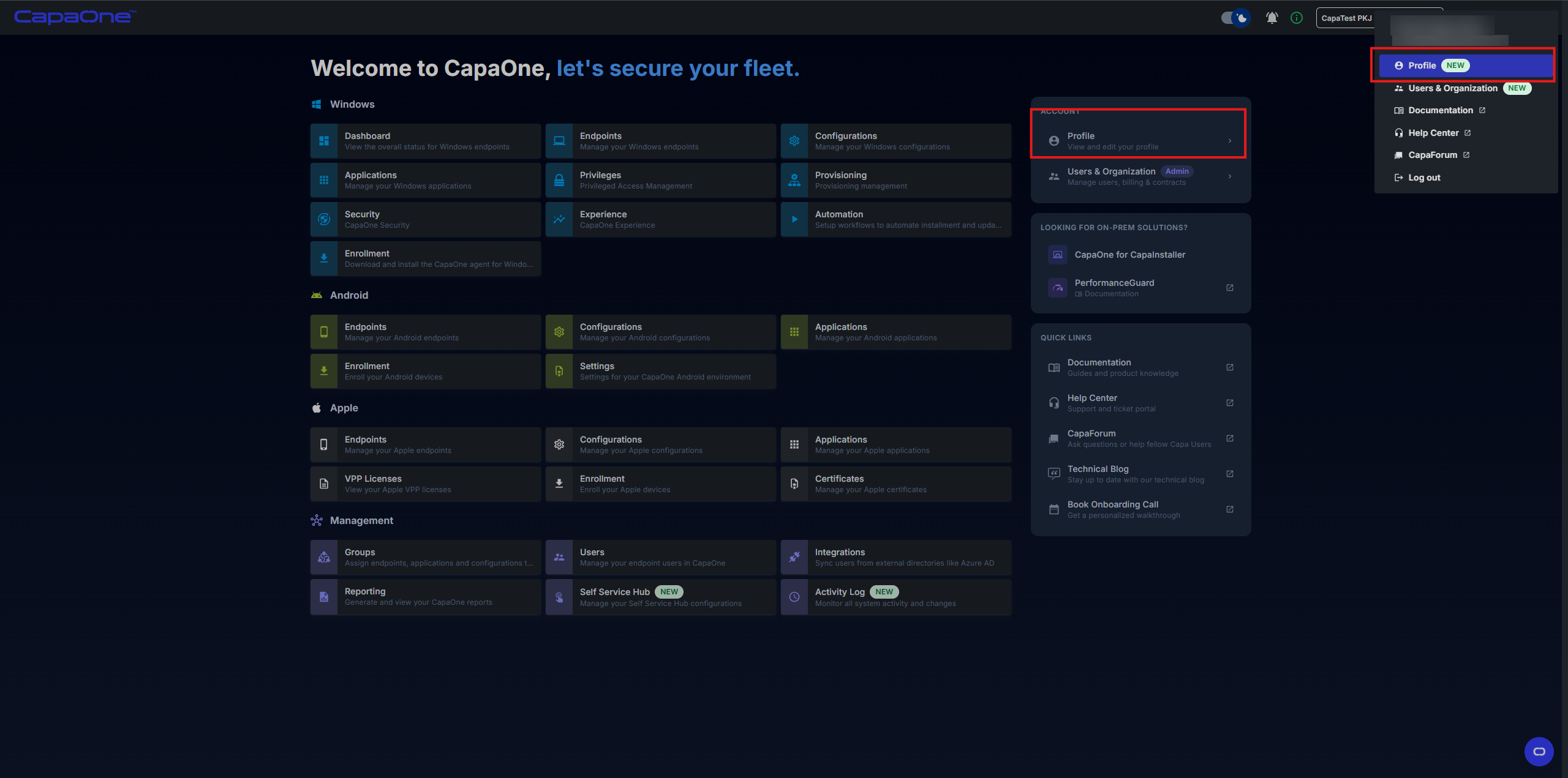
Your profile page shows your account details and the contracts of your organization. To open it, click your name in the top-right corner and select Profile, or click Profile in the Account panel on the home page.
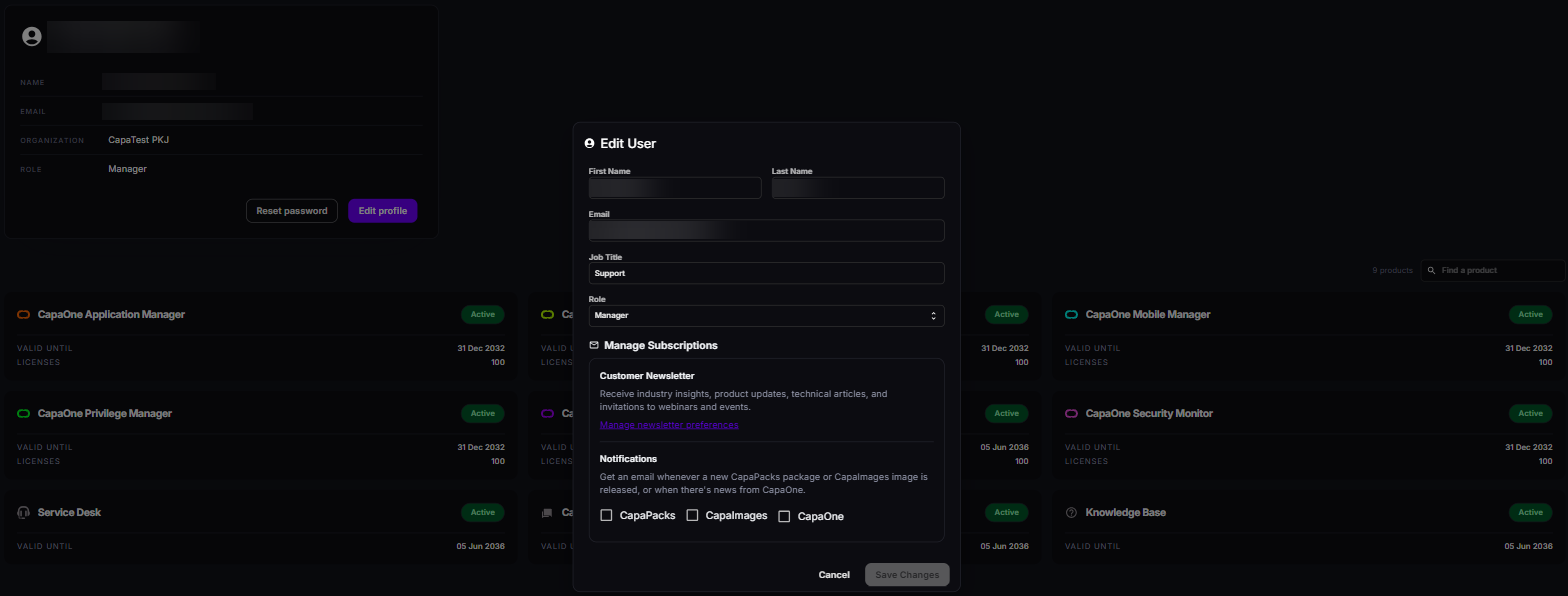
Profile overview
Section titled “Profile overview”The profile page displays your current account information:
- Name
- Organization
- Role
Below your details, there’s a card for each contract of your organization, with its status, end date, and number of licenses. See License and Contract Management.
Edit your profile
Section titled “Edit your profile”- Click Edit profile. The Edit User dialog opens.
- Update any of these fields:
- First Name and Last Name
- Job Title
- Role — only users with the Manager role can change it. See Roles and Product Access.
- Under Manage Subscriptions, choose your email subscriptions. See Subscriptions.
- Click Save Changes.
Subscriptions
Section titled “Subscriptions”- Customer Newsletter — industry insights, product updates, technical articles, and invitations to webinars and events. Click Manage newsletter preferences to subscribe or unsubscribe on the CapaSystems website.
- Notifications — get an email when there’s a new CapaPacks package, a new CapaImages image, or news from CapaOne. Select the notifications you want.
Reset your password
Section titled “Reset your password”- Click Reset password on the profile page.
- Confirm. CapaOne sends a password reset email to your email address.
- Follow the link in the email to set a new password.