

Enable Apple DDM
This guide walks you through migrating Apple devices from Legacy MDM to Declarative Device Management (DDM) in CapaOne.
Step 1: Plan your migration
Section titled “Step 1: Plan your migration”- Check device eligibility. The device must be running iOS or iPadOS 17 or later, or macOS 14 or later, whether it’s Supervised or Unsupervised (BYOD). Verify the OS version before proceeding — devices that don’t meet it can’t be enabled for DDM. If you plan to use a declaration that requires Supervised mode, confirm the device’s management mode as well.
- Check for Legacy software update policy. Before migrating a group to iOS 27, confirm whether it currently relies on Legacy MDM for software update management — cadence settings, deferrals, or BSI restrictions. If it does, you need a Software Update Settings or Software Update Enforcement Specific DDM configuration in place first; see iOS 27 and Software Update Management for how to audit and configure this.
- Review what the current groups assign. A device’s apps and configurations come from the groups it belongs to. If you move a device out of a group with many apps and configurations and into a DDM-only group, it can lose apps and configurations it still needs. List what each existing group assigns, and plan which group will deliver each item after the move.
- Communicate with your users. Let them know their device management configuration is changing. No user action is required, but it’s good practice to set expectations.
- Plan a phased rollout. Start with a pilot group or a single test device, confirm that configurations apply correctly, then expand to the rest of your fleet.
Step 2: Prepare configurations in DDM format
Section titled “Step 2: Prepare configurations in DDM format”Before enrolling any devices, review your existing Legacy MDM configurations and identify which ones need a DDM equivalent.
- Navigate to Apple → Configurations.
- Switch between the Legacy and DDM tabs to compare what already exists in each format.
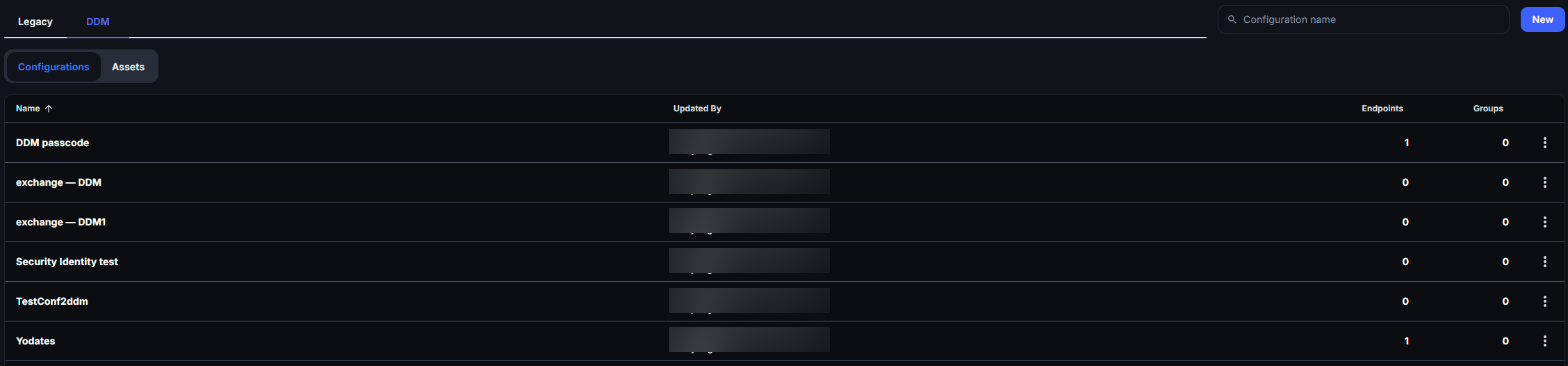
For each configuration that should be managed through DDM:
-
Navigate to Apple → Configurations → DDM.
-
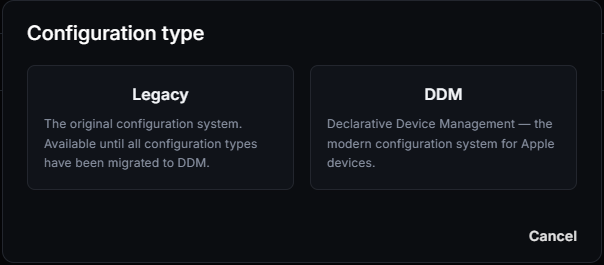
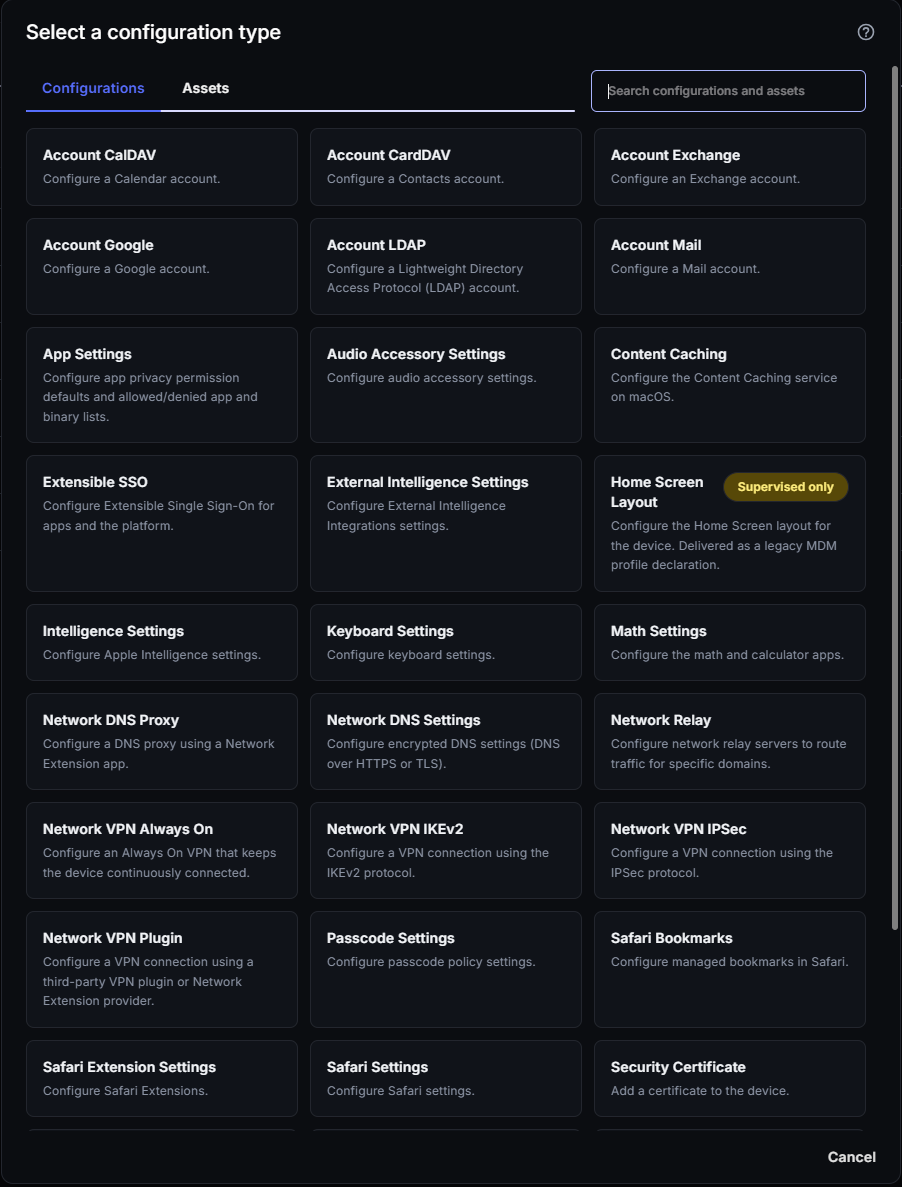
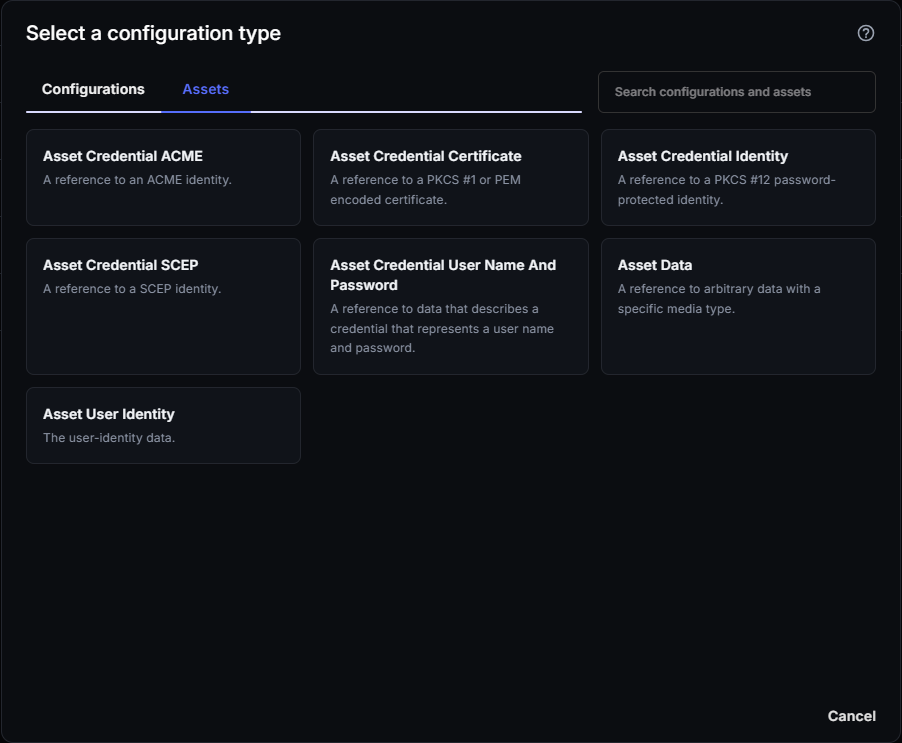
Click New. This opens the Select a configuration type picker, with two tabs:
- Configurations — every DDM configuration type, listed alphabetically. This is what you’ll use for most migrations. See DDM Configuration Types Reference for what each one does.
- Assets — credentials, identities, and data that a configuration can reference, rather than configurations in their own right (for example, a certificate a Wi-Fi configuration points to). See DDM Assets if the configuration you’re recreating uses a certificate, identity, or stored credential.
-
Create a new configuration matching your existing Legacy configuration.
-
Save and verify the configuration.
Step 3: Prepare a new group for DDM
Section titled “Step 3: Prepare a new group for DDM”Create a dedicated device group for DDM migration before you link any DDM configurations to devices. This keeps your rollout isolated from existing Legacy-managed groups and gives you a clear, at-a-glance view of migration progress.
- Navigate to Management → Groups.
- Click New and give the group a descriptive name, for example
DDM - PilotorDDM - Production. - Save the group. Don’t add devices yet.
Then link your DDM configurations to this group:
- Navigate to Apple → Configurations → DDM.
- Open each DDM configuration you prepared in Step 2.
- Select the Assignment tab, and then Group.
- Click Assign and move your new DDM group to Assigned.
Step 4: Enroll and enable DDM on devices
Section titled “Step 4: Enroll and enable DDM on devices”Enroll the device as normal — see Apple Enrollment. The device enrolls under Legacy MDM initially.
To enable DDM on an already-enrolled device:
- Navigate to Apple → Endpoints.
- Open the device page for the device you want to migrate.
- Click the action menu (⋯) in the top right corner.
- Select Request → Enable Apple DDM, and confirm.
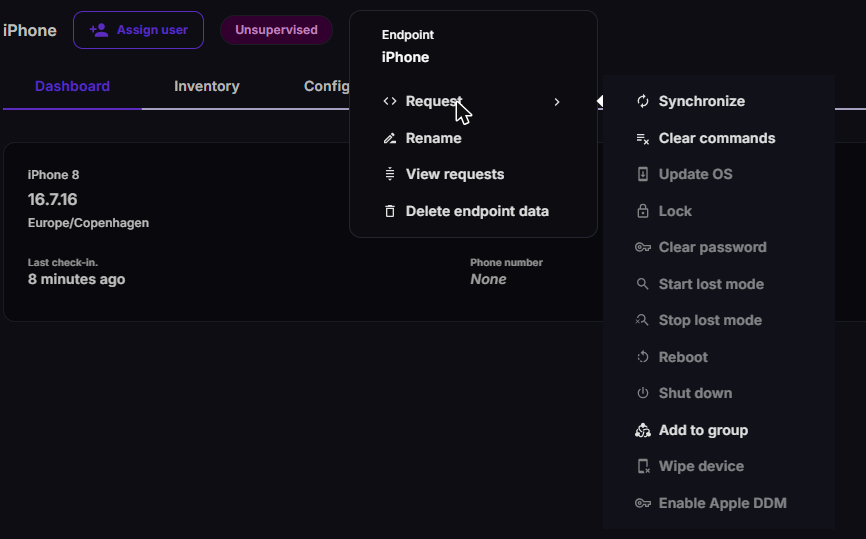
Enable Apple DDM is only on the device page, so you enable one device at a time. It’s unavailable if the device runs an older OS version than iOS or iPadOS 17, or macOS 14. Point to the command to see the version the device reports.
When the device acknowledges the command, it runs under DDM management.
Step 5: Verify DDM enrollment
Section titled “Step 5: Verify DDM enrollment”- Open the device page in Apple → Endpoints. The device badge shows Supervised DDM or Unsupervised DDM (or Kiosk Mode DDM), confirming DDM is active.
- Select the Configurations tab. On Assigned, DDM configurations are marked DDM. A DDM configuration that the device rejected shows an error icon with the reason. Applied shows the settings the device received.

If a configuration doesn’t apply, check that the correct group is assigned to it and that the device is a member of that group. See DDM — Unknown Configuration Error or Cannot Be Applied.