

Apple Endpoints Overview
All enrolled Apple devices are visible under Apple → Endpoints, organized into three tabs: Mobile Devices, Mac, and DEP. Understanding what each tab shows — and the difference between them — helps you manage your Apple fleet effectively.
Mobile Devices
Section titled “Mobile Devices”The Mobile Devices tab lists all enrolled iPhone and iPad devices that are actively checking in to CapaOne. For each device you can see:
- Device name and model
- Associated user
- Last check-in time
- Battery percentage
- Serial number and IMEI
- Management mode (e.g., Supervised)
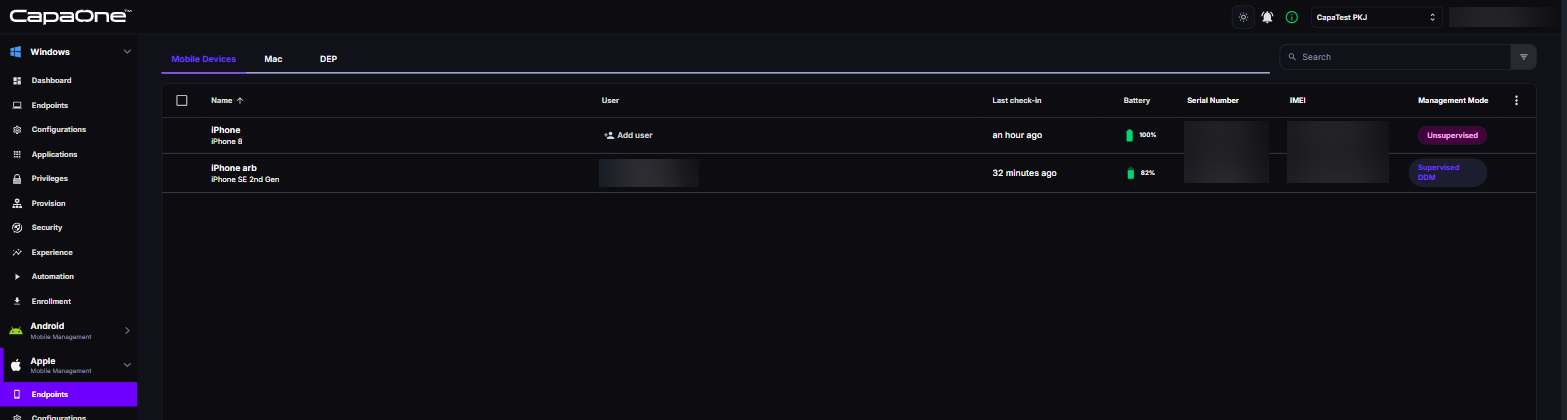
Click a device name to open its detail page. To send commands such as lock or wipe, see Apple Device Commands.
Supervised devices — those enrolled through Apple Business Manager using DEP — have the broadest management capabilities. Supervised mode allows silent app installation, stricter restrictions, and features not available on unsupervised (BYOD) devices.
Filter the Mobile Devices list
Section titled “Filter the Mobile Devices list”You can filter the Mobile Devices list to find specific devices. For example, filter to show devices that need an update, or devices that aren’t supervised.
You can filter on these fields:
| Field | Example values |
|---|---|
| Name | The device name |
| System Update Status | Up to date, Update available |
| Critical System Update | Yes, No |
| User Name | The name of the associated user |
| User Email | The email address of the associated user |
| Last Check-in | When the device last checked in |
| Serial Number | The device’s serial number |
| IMEI | The device’s IMEI number |
| Supervised | Yes, No |
For example, set System Update Status to Update available to list the devices that are
behind on iOS or iPadOS updates. Set Supervised to No to list unsupervised devices, such as BYOD
devices.
Device detail page
Section titled “Device detail page”Click a device name in the Mobile Devices list to open its detail page. The page has these tabs:
| Tab | What it shows |
|---|---|
| Dashboard | An overview of the device |
| Inventory | The device’s inventory, split into Software and Hardware |
| Configurations | The configurations for the device, split into Assigned and Applied |
| Applications | The applications for the device |
| Groups | The groups the device belongs to |
The Mac tab lists enrolled macOS computers. Mac enrollment follows the same DEP-based process as supervised iOS devices. If the tab is empty, start by setting up a macOS enrollment configuration under Apple Enrollment.
You can filter the Mac list on the same fields as the Mobile Devices list, except IMEI. See Filter the Mobile Devices list.
A Mac’s detail page has the same tabs as a mobile device, except Applications. Apps under Apple → Applications are for iPhone and iPad.
The DEP tab shows devices that have been assigned a CapaOne MDM profile in Apple Business Manager — regardless of whether they have completed enrollment yet. This is useful for tracking devices that are in transit or have not been set up by the user.
Each row shows:
- Serial number — the device’s unique hardware identifier
- Last Seen — when the device last contacted Apple’s DEP service
- Profile Status — whether the CapaOne MDM profile has been assigned to this device in Apple
Business Manager (
Assignedmeans it is ready to enroll) - Enrollment — the Apple enrollment configuration linked to the device, or Not Available
- Enrollment Status — whether the device has completed enrollment
To link a device to another enrollment configuration before it enrolls, open its row menu and select Link Enrollment, then select the configuration. The current one is marked. To fetch the latest device list from Apple Business Manager, select the sync icon (Sync DEP devices).
A device can appear in both the DEP tab and the Mobile Devices tab simultaneously — DEP shows the assignment status in Apple Business Manager, while Mobile Devices shows the active management connection.
Good to know
Section titled “Good to know”- DEP and Supervised are related but separate — DEP is the mechanism that enrolls a device and puts it into Supervised mode automatically during initial device setup. You cannot make an already-set-up device Supervised without wiping and re-enrolling it via DEP.
- Profile Status: Assigned means Apple Business Manager has associated the device with your CapaOne MDM server, but the device has not yet completed setup. Once the user powers on the device and completes the setup assistant, it will appear in Mobile Devices or Mac.
- BYOD devices (enrolled without DEP) appear in Mobile Devices but not in DEP. They are unsupervised and have more limited management capabilities.
- Tags are Windows-only — you can’t tag Apple devices. To organize them, add them to Groups, or use the list filters to find devices by user, update status, or supervision.
- For details on setting up DEP or adding devices to Apple Business Manager, see Apple DEP Integration.