

Apple Intelligence, Siri and External AI Controls
Apple moved its AI-related restrictions out of the Legacy Restrictions payload and into three DDM configuration types. Use this article to choose the right type for the feature you want to control, and to recreate existing Legacy restrictions.
| To control… | Use this DDM type | Minimum version |
|---|---|---|
| Apple Intelligence features: Writing Tools, Genmoji, Image Playground, summarization, and the ChatGPT integration | Intelligence Settings | iOS 26.4 / macOS 26.4 |
| Siri, Siri while locked, user-generated content, the profanity filter | Siri Settings | iOS 26.4 / macOS 26.4 |
| Third-party AI integrations in Apple Intelligence, such as ChatGPT | External Intelligence Settings | iOS 26.4 / macOS 26.4 |
Intelligence Settings
Section titled “Intelligence Settings”Every setting in Intelligence Settings is a Yes / No setting with the options Not configured, No, and Yes. Not configured leaves the setting out, so the device keeps its default. Set a setting to No to turn the feature off.
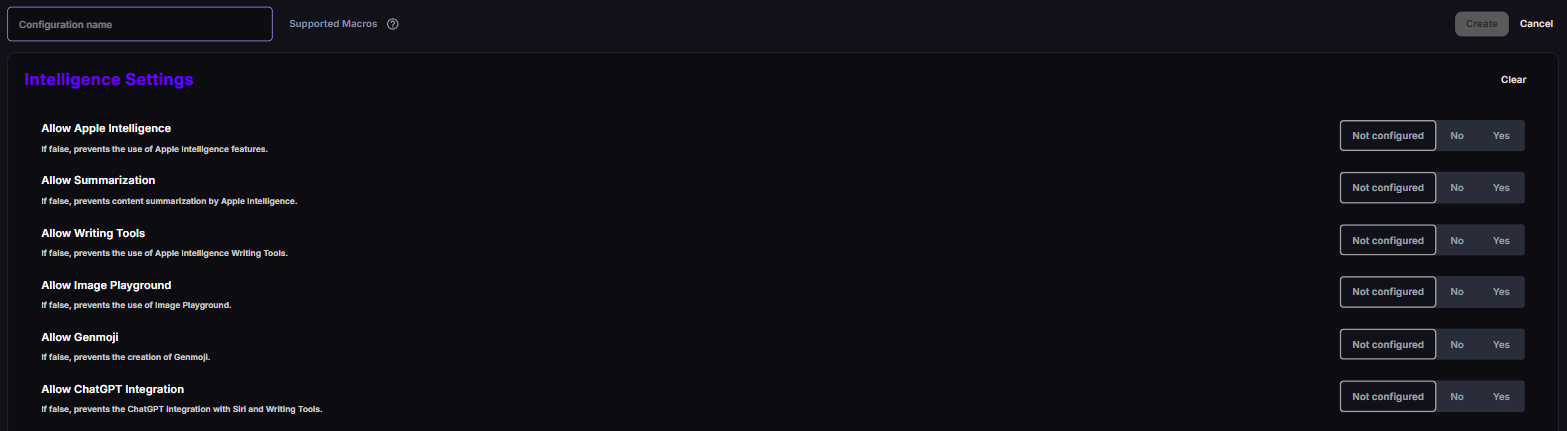
| Setting | What setting it to No does |
|---|---|
| Allow Apple Intelligence | Prevents the use of Apple Intelligence features. |
| Allow Summarization | Prevents content summarization by Apple Intelligence. |
| Allow Writing Tools | Prevents the use of Apple Intelligence Writing Tools. |
| Allow Image Playground | Prevents the use of Image Playground. |
| Allow Genmoji | Prevents the creation of Genmoji. |
| Allow ChatGPT Integration | Prevents the ChatGPT integration with Siri and Writing Tools. |
Siri Settings
Section titled “Siri Settings”Every setting in Siri Settings is a Yes / No setting with the options Not configured, No, and Yes.
| Setting | What it does |
|---|---|
| Enabled | No disables Siri completely. |
| Allow While Locked | No disables Siri on the Lock Screen. |
| Allow User-Generated Content | No disables Siri user-generated content, such as answers from Wikipedia. |
| Force Profanity Filter | Yes forces the Siri profanity filter. |
External Intelligence Settings
Section titled “External Intelligence Settings”External Intelligence Settings controls third-party AI integrations that Apple Intelligence can hand requests to — for example ChatGPT. It doesn’t control Siri. Use Siri Settings for that.
It has one setting, a Yes / No setting with the options Not configured, No, and Yes:
| Setting | What it does |
|---|---|
| Allow External Intelligence | No prevents the use of external AI integrations. |
To block only the ChatGPT integration with Siri and Writing Tools, and keep other integrations, set Allow ChatGPT Integration to No in Intelligence Settings instead.
Common scenarios
Section titled “Common scenarios”| Goal | Configuration |
|---|---|
| Turn off all generative AI on company devices | Intelligence Settings: set Allow Apple Intelligence to No. External Intelligence Settings: set Allow External Intelligence to No. Siri Settings: set Enabled to No if you also want to turn off Siri. |
| Keep Apple Intelligence, block third-party AI | Intelligence Settings: set Allow ChatGPT Integration to No. External Intelligence Settings: set Allow External Intelligence to No. |
| No Siri on the Lock Screen | Siri Settings: Allow While Locked set to No. |
Good to know
Section titled “Good to know”- Any “off” wins — every Allow… and Enabled setting in these types is combined with AND across configurations. If any configuration sets a feature to No, it’s off.
- Supervised only — on Unsupervised devices these types are rejected. There’s no DDM way to restrict Apple Intelligence on unsupervised devices.
- Feature availability also depends on Apple — Apple Intelligence features are only available on supported hardware, languages, and regions. Restricting a feature that isn’t available on a device has no visible effect.
- Source: Apple’s Intelligence Settings, Siri Settings and External Intelligence Settings declarations (Release v27.0), and Apple’s iOS 27 enterprise release notes.