

Android Device Commands
You can send commands to enrolled Android devices from CapaOne, for example to lock a lost phone or wipe a device before it’s handed on. Commands are sent immediately and can’t be undone.
Send a command to one device
Section titled “Send a command to one device”-
Go to Android → Endpoints and click the device’s name.
-
Open the actions menu in the header and point to Request.
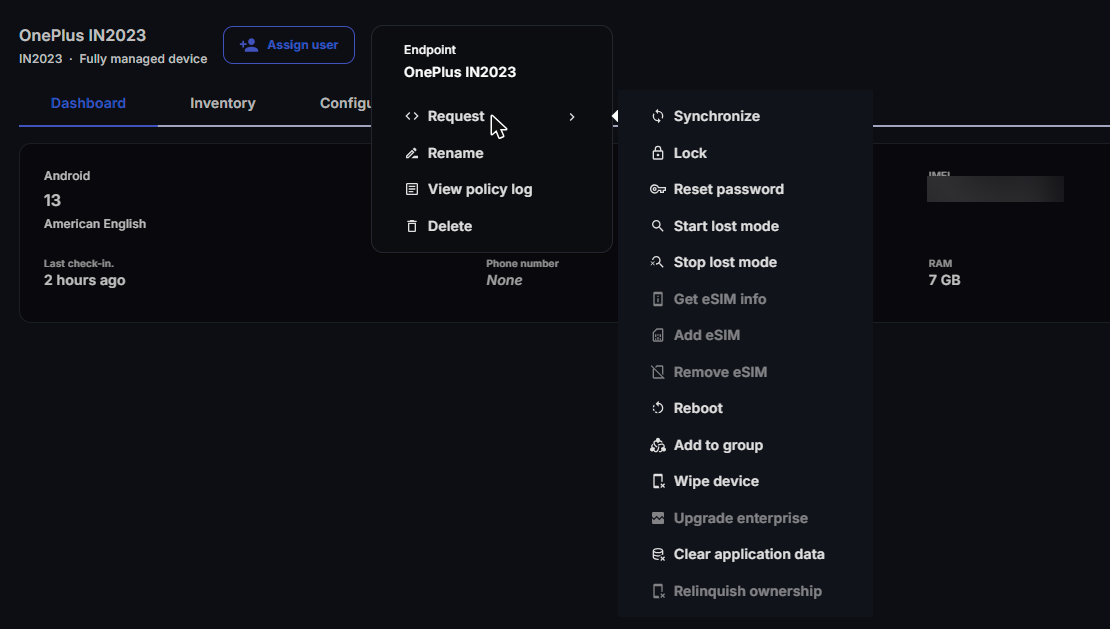
-
Select the command and fill in any options.
-
Confirm that I accept and want to proceed is selected, and send the command.
Send a command to several devices
Section titled “Send a command to several devices”- Go to Android → Endpoints and select the devices.
- Open the actions menu and select the command.
- Fill in any options, select I accept and want to proceed, and send the command.
Commands to many devices are sent in the background, and each one is recorded in the Activity Log. CapaOne doesn’t check each device’s Android version or ownership when you send a command to several devices, so a command can be rejected by devices that don’t support it. Check the requirements in the table below.
Commands
Section titled “Commands”| Command | What it does | Requirements |
|---|---|---|
| Synchronize | Syncs the device with its latest policy right away. | — |
| Lock | Locks the device, as if the lock screen timeout had expired. On a work profile, it locks the work profile and the user must enter their passcode. | — |
| Reset password | Sets a new password. See Reset password options. | — |
| Start lost mode | Locks the device and shows a message, for example with a phone number to call. The Lost message is required. You can add a phone number, email address, street address, and organization. | Fully managed devices with Android 11 or later, or company-owned devices with a work profile and Android 13 or later. |
| Stop lost mode | Ends lost mode. | Same as Start lost mode. |
| Get eSIM info | Requests the eSIM identifier (EID). | Personally owned devices with a work profile and Android 13 or later. One device at a time. |
| Add eSIM | Adds an eSIM profile. Enter the Activation code and whether the profile is Activated or Deactivated after it’s downloaded. | Android 15 or later. |
| Remove eSIM | Removes an eSIM profile. Enter its ICC ID. | Android 15 or later. |
| Reboot | Restarts the device. | Fully managed devices with Android 7.0 or later. |
| Add to group | Adds the devices to a group. | — |
| Wipe device | Factory resets a company-owned device, or deletes the work profile on a personally owned device. The wipe happens when the device acknowledges the command. | — |
| Relinquish ownership | Ends management of the device. The device is no longer managed by your organization. | Company-owned devices with a work profile and Android 13 or later. One device at a time. |
| Clear application data | Clears the data of one of the apps assigned to the device. | Android 9 or later. One device at a time. |
When you select several devices, the actions menu also has Export to CSV, which downloads the selected devices as a CSV file.
Reset password options
Section titled “Reset password options”| Option | Description |
|---|---|
| New password | At least 6 characters. It can’t be a simple sequence or one repeated character, and it must meet the device’s password policy. |
| Require entry | Don’t allow other admins to change the password again until the user has entered it. |
| Lock device now | Lock the device after the password is reset. |
| Don’t ask for user credentials | Don’t ask for user credentials when the device starts. |
All options are off by default.
Delete a device
Section titled “Delete a device”Delete is in the device’s actions menu and row menu. It removes the device and its data from CapaOne and ends its connection to CapaOne. As the confirmation says, the device is then restored to its original factory settings.