

Configure Accounts with DDM
The DDM Account configuration types set up accounts in Mail, Calendar, Contacts, Reminders, and Notes. Unlike Legacy account profiles, they don’t embed user details or passwords directly — they point to assets that hold them. This article shows which assets each account type uses, and walks through the most common setup: an Exchange account.
Which assets each account type uses
Section titled “Which assets each account type uses”| Account type | User identity (name, email) | Username and password | Certificate identity |
|---|---|---|---|
| Account Exchange | Asset User Identity | Asset Credential User Name And Password | Asset Credential Identity |
| Account Mail | Asset User Identity | Asset Credential User Name And Password (incoming and outgoing server, separately) | — |
| Account Google | Asset User Identity (required) | — | — |
| Account CalDAV | — | Asset Credential User Name And Password | — |
| Account CardDAV | — | Asset Credential User Name And Password | — |
| Account LDAP | — | Asset Credential User Name And Password | — |
Exchange and Mail can also use identity assets for S/MIME signing and encryption on iOS 17 and later.
To fill in per-user values, use macros in the configuration and asset values, such as $user.fullName$, $user.email$, and $user.userPrincipalName$. Point to Supported Macros in the editor to see the list. See Apple MDM Configuration Types.
Set up an Exchange account
Section titled “Set up an Exchange account”This example creates an Exchange account that uses modern authentication (OAuth) with Exchange Online — the typical setup for Microsoft 365.
Step 1: Create the user identity asset
Section titled “Step 1: Create the user identity asset”-
Navigate to Apple → Configurations → DDM and click New.
-
Switch to the Assets tab and select Asset User Identity.
-
Enter the user’s Full Name and Email Address. Use macros, for example
$user.fullName$and$user.email$or$user.userPrincipalName$, to fill them in per user.
-
Save the asset, for example as
DDM - Asset - User Identity.
Step 2: Create the Exchange configuration
Section titled “Step 2: Create the Exchange configuration”- Navigate to Apple → Configurations → DDM and click New.
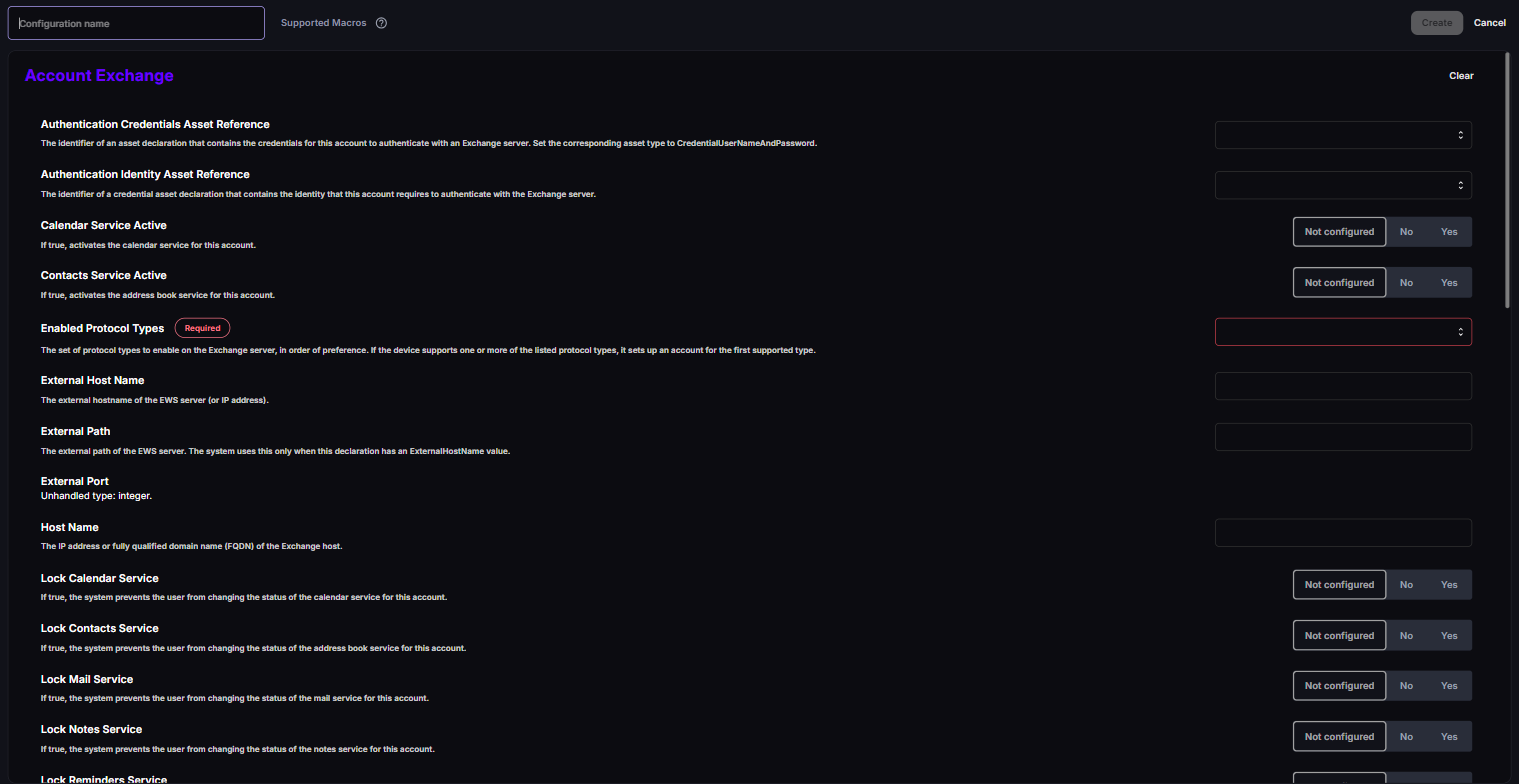
- On the Configurations tab, select Account Exchange.
- Fill in the fields:
| Field | Value for Exchange Online | Notes |
|---|---|---|
| Visible Name | Work |
The account name users see. |
| Enabled Protocol Types (required) | Exchange ActiveSync (EAS) | Select Exchange ActiveSync (EAS) for iPhone and iPad. Mac uses Exchange Web Services (EWS). You can select both, in order of preference. |
| Host Name | outlook.office365.com |
|
| User Identity Asset Reference | DDM - Asset - User Identity |
Fills in the user’s name and email address. |
| OAuth → Enabled | Yes | Uses modern authentication. The user signs in once with their Microsoft account. |
| OAuth → Sign In URL | Leave empty | Only needed for custom identity providers. When set, the device doesn’t use autodiscovery. |
| Mail / Contacts / Calendar / Reminders / Notes Service Active | Yes / Yes / Yes / Yes / No | Which services the account syncs. All are on by default. |
| Lock Mail / Contacts / Calendar Service | Yes | Prevents the user from turning a service off. iOS only, EAS only. |
- Save the configuration, select the Assignment tab, and assign it to your group.
The user sees a sign-in prompt for the account the first time they open Mail.
Option: certificate-based authentication
Section titled “Option: certificate-based authentication”For on-premises Exchange with certificate authentication:
- Create an Asset Credential Identity with the user’s PKCS #12 file. Check that the asset is offered in Authentication Identity Asset Reference. SCEP and ACME assets aren’t offered for this field.
- In the Exchange configuration, leave OAuth off and set Authentication Identity Asset Reference to that asset.
- Set Host Name to your Exchange server.
Option: S/MIME (iOS 17 and later)
Section titled “Option: S/MIME (iOS 17 and later)”- Create an identity asset for signing and, if needed, one for encryption.
- In the Exchange configuration, open S/MIME → Signing, set Enabled to Yes, and select the asset in Identity Asset Reference.
- Open S/MIME → Encryption, set Enabled to Yes, and select the asset in Identity Asset Reference. Set Per-Message Switch Enabled to Yes if users should be able to choose per message.
S/MIME in DDM is supported for EAS accounts on iPhone and iPad only.
Other account types
Section titled “Other account types”Account Mail (IMAP or POP)
Section titled “Account Mail (IMAP or POP)”| Field | Required | What to enter |
|---|---|---|
| Visible Name | No | Account name users see. |
| User Identity Asset Reference | No | Asset User Identity with name and email. |
| Incoming Server → Server Type | Yes | IMAP or POP. |
| Incoming Server → Host Name | Yes | For example imap.example.com. The Port field can’t be set in CapaOne today, so the device uses the default port for the server type. |
| Incoming Server → Authentication Method | Yes | None, Password, CRAMMD5, NTLM, or HTTPMD5. |
| Incoming Server → Authentication Credentials Asset Reference | Required unless the method is None | Asset Credential User Name And Password. Leave it empty when Authentication Method is None. |
| Incoming Server → IMAP Path Prefix | No | IMAP only. |
| Outgoing Server → Host Name / Authentication Method | Yes | For example smtp.example.com. The Port field can’t be set in CapaOne today. |
| Outgoing Server → Authentication Credentials Asset Reference | Required unless the method is None | Can be the same asset as incoming. |
Account CalDAV and Account CardDAV
Section titled “Account CalDAV and Account CardDAV”| Field | Required | What to enter |
|---|---|---|
| Visible Name | No | Account name users see. |
| Host Name | Yes | Server host name or IP address. |
| Port | No | For example 443. |
| Path | No | The principal URL path, if your server needs it. |
| Authentication Credentials Asset Reference | No | Asset Credential User Name And Password. |
Account LDAP
Section titled “Account LDAP”| Field | Required | What to enter |
|---|---|---|
| Visible Name | No | Account name users see. |
| Host Name | Yes | LDAP server host name or IP address. |
| Port | No | For example 636 for LDAPS. |
| Authentication Credentials Asset Reference | No | Asset Credential User Name And Password, for servers that don’t allow anonymous binds. |
| Search Settings | Recommended | One or more search bases, for example ou=people,dc=example,dc=com, with a scope of Base, One level, or Subtree (default). macOS only uses the first one. |
Account Google
Section titled “Account Google”| Field | Required | What to enter |
|---|---|---|
| Visible Name | No | Account name users see. |
| User Identity Asset Reference | Yes | Asset User Identity with the user’s Google email address. The user signs in to Google on the device. |
Good to know
Section titled “Good to know”- Accounts apply side by side — Account types are multiple types, so two configurations create two accounts. Assign each account from one group only. See How Multiple DDM Configurations Combine.
- Change the asset, not the account — updating a password or certificate asset updates every account that references it, without recreating the account.
- Removing the configuration removes the account — including its locally synced mail, contacts, and calendars on the device. Data stays on the server.
- EWS settings are Mac only — path and external host settings for EWS are ignored on iPhone and iPad. The Port and External Port fields can’t be set in CapaOne today.
- Source: Apple’s Account declarations in the device management schema (Release v27.0).