

Android Configurations
Android configurations define the policies and restrictions that apply to enrolled Android devices. Priority controls which configuration wins when a device matches more than one.
Configuration sections
Section titled “Configuration sections”An Android configuration isn’t of a single type. Each configuration holds the settings you choose from a list of sections, grouped by category. In the configuration editor, search the list with Category or Configuration. A check mark shows which sections the configuration uses.
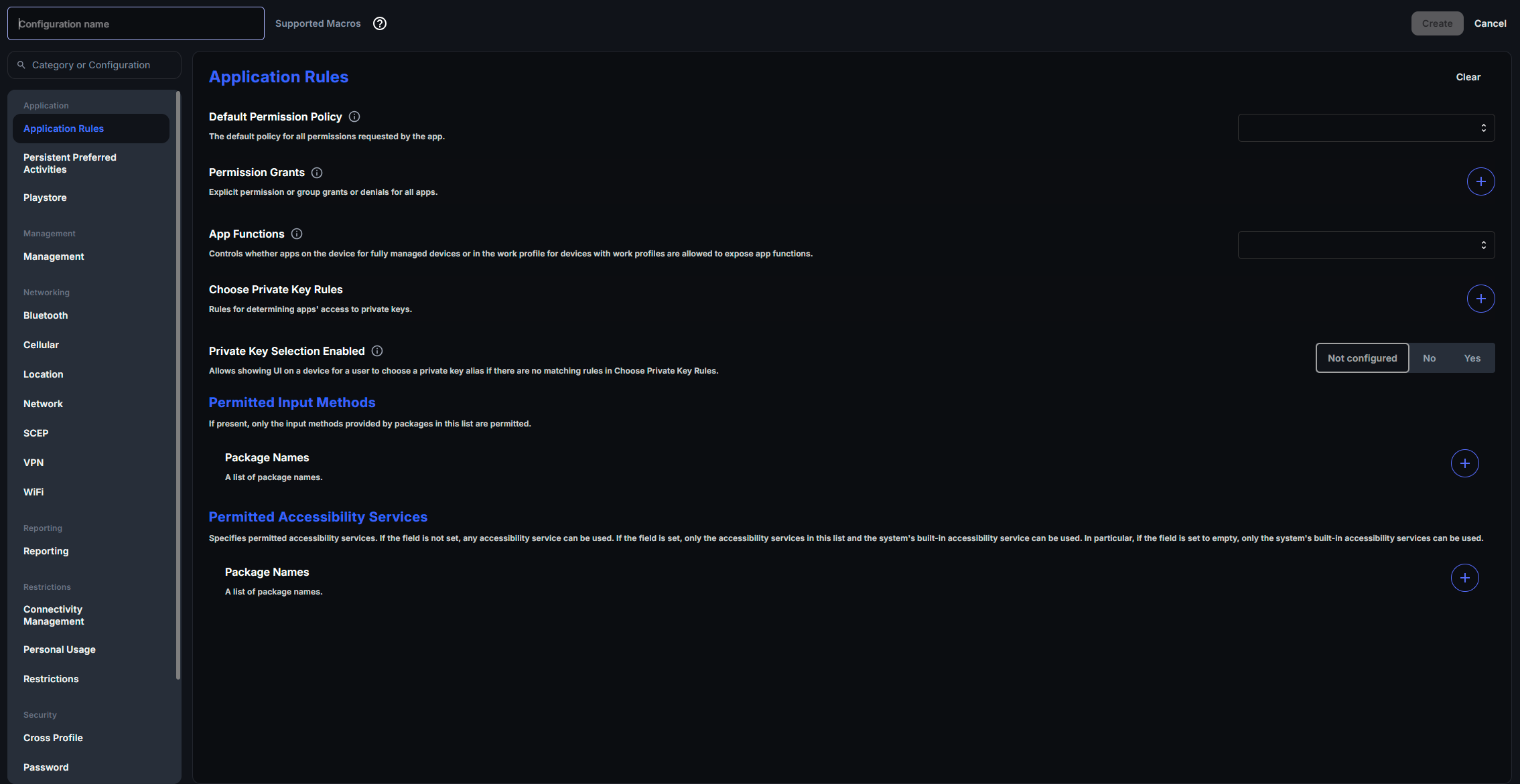
| Category | Sections |
|---|---|
| Application | Application Rules, Persistent Preferred Activities, Playstore |
| Management | Management |
| Networking | Bluetooth, Cellular, Location, Network, VPN, WiFi |
| Reporting | Reporting |
| Restrictions | Connectivity Management, Personal Usage, Restrictions |
| Security | Cross Profile, Password, Security |
| System | Kiosk, System |
Settings marked “This setting requires the CapaOne Agent app to be installed on the device” work only on devices enrolled with the CapaOne Agent app. See Android Enrollment.
The System section also holds the System Update settings. See Manage System Updates on Android.
The Kiosk section (category System) locks the device to the applications you approve, turning it into a single-purpose device. Use it for shared devices, point-of-sale terminals, data collection devices, or any scenario where end users should not have access to the full Android interface. Under Kiosk Customization you control the power button actions, system error warnings, system navigation, status bar, and access to device settings.
Kiosk mode requires the device to be enrolled as fully managed (Personal usage disallowed).
Max Days With Work Off
Section titled “Max Days With Work Off”Max Days With Work Off is a setting in the Personal Usage section (category Restrictions). It sets the maximum number of days the work profile can remain turned off before the device is forced to turn it back on. The value must be at least 3 days. It applies to devices with a work profile, where the user can toggle the work side on and off.
Macros
Section titled “Macros”You can use macros in configuration values. CapaOne replaces them with values from the device or
its user: $hwi.imei$ (IMEI number), $hwi.serialNumber$ (serial number), $user.fullName$,
$user.userPrincipalName$, and $user.email$. Point to Supported Macros in the editor to
see the list.
Enrollment mode and its effect on configurations
Section titled “Enrollment mode and its effect on configurations”The management mode of a device is fixed at enrollment and determines what configurations can do:
Personal usage disallowed (fully managed) — the entire device is managed by CapaOne. There is no separation between work and personal. This mode always requires the device to be either fresh out of the box or factory reset before enrollment — you cannot enroll an already set-up device in this mode. Kiosk configurations apply here.
Personal usage allowed (work profile on company-owned device) — the device has a separate work profile alongside a personal profile. The work side is managed by CapaOne; the personal side is not. This also requires the device to be fresh out of the box or factory reset before enrollment.
BYOD (personally-owned device) — if a device is already set up when the user scans the enrollment QR code, it enrolls as a BYOD device. A work profile is created on the device, but CapaOne’s ability to manage it is limited compared to company-owned enrollment. The device does not need to be reset.
Priority
Section titled “Priority”When several configurations are assigned to the same device, CapaOne combines them into one policy:
- Configurations assigned directly to the device come before configurations assigned through groups.
- Within each of those, configurations are ranked by priority, where 1 is the highest.
- The settings of all the configurations are combined. When two configurations set the same section, the section from the configuration that comes first is used, and the other is skipped.
For example, a baseline configuration that sets Password and Restrictions for all devices can be combined with a Kiosk configuration for a group of shared devices. If both set Restrictions, only the higher-ranked configuration’s Restrictions apply.
Use the Change priority for configurations button to reorder all configurations at once. See Configuration Priority.
Assign configurations to endpoints or groups
Section titled “Assign configurations to endpoints or groups”Configurations are assigned to individual endpoints or to groups. Group assignment is the recommended approach — it means any new device that joins the group automatically receives the correct configuration without additional steps.
Click on a configuration name to open its detail page and manage group and endpoint assignments from there.
Good to know
Section titled “Good to know”- Check the result on the device — the endpoint’s Configurations → Applied tab shows the settings that are applied after all configurations are combined.
- Push changes right away — configuration changes reach the device when it next syncs. To send the latest policy immediately, use the Synchronize command. See Android Device Commands.
- Company-owned devices always need to be fresh or reset — both fully managed and company-owned work profile enrollment require the device to start from factory settings. Personally-owned BYOD devices do not.