

Android Applications
Android app deployment in CapaOne is built on Google Play Managed Store. Rather than uploading APK files manually, you select apps directly from Google Play and push them silently to enrolled devices — no user interaction required.
This requires a linked Android Enterprise account. See Android Enterprise Setup if that has not been configured yet.
Add an app from Google Play
Section titled “Add an app from Google Play”-
Go to Android → Applications and click New.
-
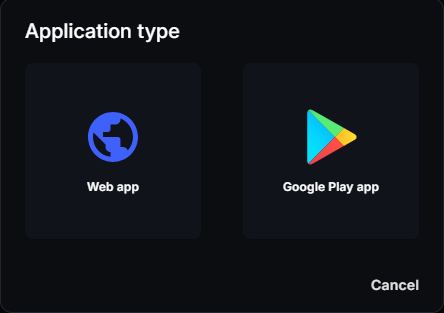
Select Google Play app.
-
Search for the app by name in the Google Play Managed Store browser.
-
Select the app and configure its deployment settings. See App settings.
-
Assign it to groups or individual endpoints.
Apps added this way appear in your application list and are installed on assigned devices according to their Install Type.
Add a web app
Section titled “Add a web app”A web app turns a web page into an Android app, so users can open it from the launcher.
- Go to Android → Applications and click New.
- Select Web app.
- Enter the Application name at the top of the page. This is the name in CapaOne.
- Enter a Title. It’s shown to the user and must be fewer than 30 characters.
- Enter the Start URL — the page that opens when the user opens the app.
- Select a Display Mode:
- Standalone — the device’s status bar and navigation bar stay visible.
- Full screen — the app hides the status and navigation bars.
- Minimal UI — the status bar, navigation bar, the app’s URL, and a refresh button are visible.
- Select an Install Type. See App settings. The default is Force installed. Can’t be removed.
- Click Select icon and upload an Icon: a maskable 512 px square PNG or JPEG image of up to 1 MB.
- Click Create, then assign the web app to endpoints or groups.
The start URL must use HTTPS when the display mode is Full screen or Standalone. If the URL redirects to another website, that site opens in Chrome.
App settings
Section titled “App settings”| Setting | Description |
|---|---|
| Install Type | How the app is installed. See the options below. |
| Auto Update Mode | Low priority, Postponed, or High priority. Controls when Google Play updates the app. |
| Install Priority | Optional. For force-installed and preinstalled apps, a value from 1 to 10,000 where a lower value installs first. 0 (the default) means no priority. |
Install Type options:
- Preinstalled. Can be removed
- Force installed. Can’t be removed
- Blocked from installation
- Available in store — the user installs the app from the managed Play Store.
- Required for Setup — installed automatically, can’t be removed, and setup doesn’t finish until the app is installed.
- Automatically installed in kiosk mode
Priority
Section titled “Priority”The application list has a Priority column where 1 is the highest priority. Select the priority icon above the list to drag the apps into a new order.
The CapaOne Agent app is added automatically when an enrollment configuration uses the Android agent. It’s installed as Required for Setup, so the management channel is in place before other apps are deployed.
App versions
Section titled “App versions”Open an app and select the Versions tab to see how many endpoints run the newest version and which versions are installed.
OEMConfig apps
Section titled “OEMConfig apps”Some manufacturers publish OEMConfig apps — for example, Datalogic OEMConfig for Datalogic barcode scanners. These apps act as a configuration bridge between CapaOne and manufacturer- specific device features that are not covered by standard Android Enterprise APIs.
Add the OEMConfig app for your hardware the same way as any other app. Then set the manufacturer-specific options in the app’s managed configuration: open the app’s menu on Android → Applications and select Edit Managed Configuration. See Create Managed Configuration for Android. The settings apply to the devices the app is assigned to.
Assign to groups or endpoints
Section titled “Assign to groups or endpoints”Click an app name to open its detail page, where you can manage group and endpoint assignments. Group assignment is recommended for apps that should reach all devices of a certain type — new devices joining the group receive the app automatically.
Reinstall an app on one device
Section titled “Reinstall an app on one device”CapaOne removes an app from a device when you unassign it, either from the device directly or from a group the device is a member of. It reinstalls the app when you assign it again. You can’t reinstall one group-assigned app on one device on its own:
- Removing the app from the group removes it from every device in the group.
- Removing the device from the group removes all of that group’s apps and configurations from the device, not only the broken app.
To reinstall the app on the one device:
- Check which apps and configurations the group assigns. They’re all removed from the device in the next steps.
- Remove the device from the group. See Managing Groups.
- Wait until the device checks in and the group’s apps and configurations are removed.
- Add the device back to the group.
The group’s apps and configurations, including the broken app, are reinstalled on the device.
Good to know
Section titled “Good to know”- Installation follows the install type — force-installed, preinstalled, and required apps install without the user doing anything. Apps set to Available in store wait for the user to install them from the managed Play Store.
- No APK uploads — all apps come from Google Play. If you need to deploy a private app not on the public Play Store, it can be published as a private app in your Google Play Managed Store and then added to CapaOne the same way.
- App updates — CapaOne deploys the version available on Google Play at the time of assignment. App updates are handled by Google Play on the device after the initial install, following the app’s Auto Update Mode.
- Unlike Windows apps, Android apps do not have a Testing/Released status — an app is available to assign as soon as it is added to the list.