

Process Elevation Rules
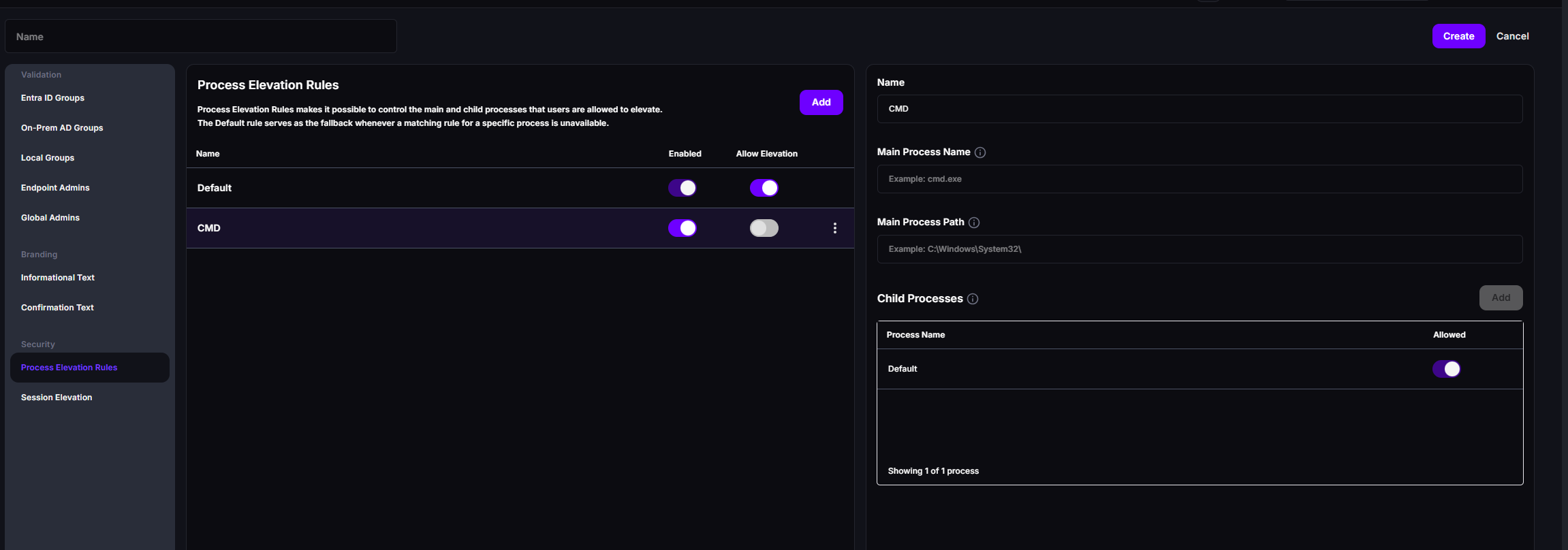
Process elevation rules decide which applications a validated user can run with Run with Admin Privileges, and which child processes those applications can start. You manage the rules under Security → Process Elevation Rules in a Privileges configuration.
Rules only apply to users who pass Validation. See Privilege Manager Configuration Settings.
Rule fields
Section titled “Rule fields”| Field | Description |
|---|---|
| Name | A unique name for the rule. Special characters aren’t allowed. |
| Enabled | Turns the rule on or off. Disabled rules are ignored. |
| Allow Elevation | Whether a process that matches the rule may be elevated. Turn it off to block the process. A new rule starts with Allow Elevation turned off. |
| Main Process Name | The file name of the process, such as cmd.exe or setup.msi. The name must end with .exe or .msi, and must be unique across the rules in the configuration. |
| Main Process Path | Optional. The folder the process must run from, such as C:\Windows\System32\. Enter the folder only, without the file name. |
| Child Processes | The processes that the elevated main process may start. See Child processes. |
Some special characters, including Asian, Arabic, and Cyrillic characters, aren’t supported in process names and paths.
Paths, wildcards, and environment variables
Section titled “Paths, wildcards, and environment variables”- Without a wildcard, the path must match the folder exactly.
C:\Windows\System32\matches processes in that folder, but not in its subfolders. - Use
*as a wildcard to include subfolders.C:\Program Files\*matches processes in any subfolder ofC:\Program Files. - You can use environment variables, such as
%WinDir%\System32\.
The Default rule
Section titled “The Default rule”Every configuration has a rule named Default. It applies when no other enabled rule matches the process. You can’t delete or disable the Default rule, but you can decide whether it allows elevation.
- Default allows elevation: validated users can elevate any
.exeor.msifile, except the processes you block with other rules. - Default blocks elevation: validated users can only elevate the processes that other rules allow.
A new configuration starts with a Default rule that allows elevation and allows all child processes.
How a process is matched
Section titled “How a process is matched”When a user selects Run with Admin Privileges, CapaOne checks the enabled rules in the order they’re listed:
- A rule with only a Main Process Name matches when the file name is the same. Case doesn’t matter.
- A rule with a Main Process Name and a Main Process Path matches when both the file name and the folder match.
- The first rule that matches decides whether the process is elevated.
- If no rule matches, the Default rule decides.
If the matching rule blocks elevation, the user sees a message that the process is blocked by your organization’s elevation policy.
Child processes
Section titled “Child processes”Many applications start other processes. For example, cmd.exe and powershell.exe start the
Console Window Host (conhost.exe). The Child Processes list controls what the elevated main
process may start:
| Child process | Result |
|---|---|
| Listed and Allowed | The child process runs. |
| Listed and not allowed | The child process is stopped. |
| Not listed | Follows the Default entry in the list. |
Each rule starts with a Default child process entry that is allowed, so all child processes can
run until you change it. To allow only specific child processes, turn off Allowed for the
Default entry and add the processes you want to allow. Child process names must end with
.exe.
You can only change child processes for a rule that allows elevation.
If you restrict child processes for cmd.exe or powershell.exe, allow conhost.exe. See
Child processes for why.
Example: allow only one installer
Section titled “Example: allow only one installer”To let users run one approved installer and nothing else:
- In the rules list, turn off Allow Elevation for the Default rule.
- Click Add, enter the rule name
Approved installer, and confirm. The new rule is selected. - Set Main Process Name to the installer’s file name, for example
setup.exe. - Set Main Process Path to the folder the installer runs from.
- Turn on Allow Elevation for the new rule.
- Save the configuration.
Validated users can now elevate setup.exe from that folder. Every other process is blocked by the Default rule.
Good to know
Section titled “Good to know”- Rule changes take effect on an endpoint after you save the configuration and the endpoint receives the updated configuration.
- Process elevation rules aren’t active while a user has an elevated session. See Session Elevation.
- To see which processes users elevate, and which are rejected by a rule, use Elevation Analytics.