

Apple Device Commands
You can send MDM commands to enrolled Apple devices from CapaOne, for example to lock a lost iPhone, install an OS update, or wipe a Mac before it’s handed on. Commands are sent immediately and can’t be undone.
Send a command to one device
Section titled “Send a command to one device”-
Go to Apple → Endpoints and click the device’s name.
-
Open the actions menu in the header and point to Request.
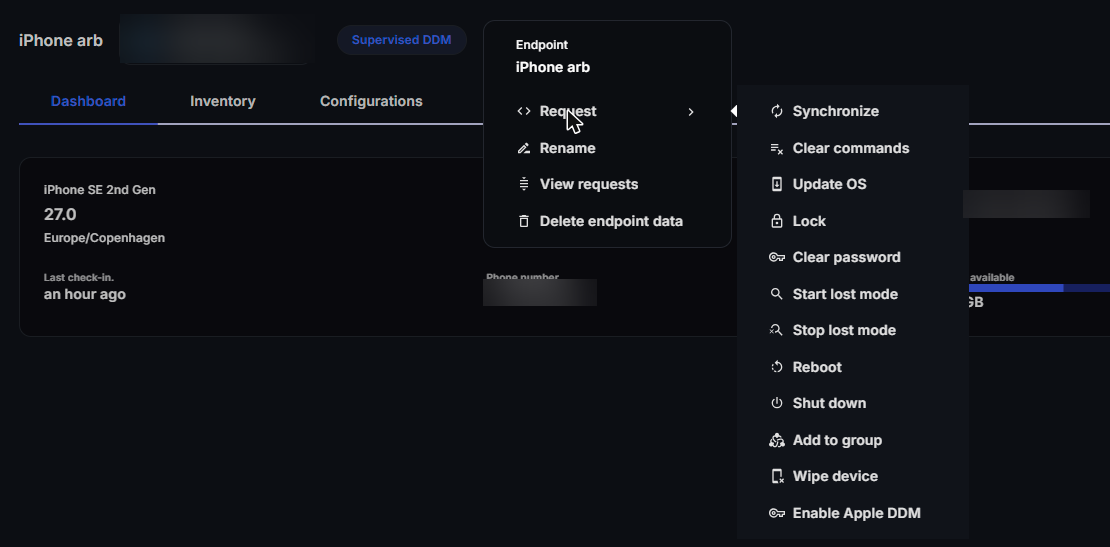
-
Select the command and fill in any options.
-
Select I accept and want to proceed, and send the command.
Send a command to several devices
Section titled “Send a command to several devices”- Go to Apple → Endpoints and select the devices on the Mobile Devices or Mac tab.
- Open the actions menu (Available requests). It shows how many endpoints are affected.
- Select the command and fill in any options.
- Select I accept and want to proceed, and send the command.
Unsupervised devices reject commands that require supervision. The actions menu also has Export to CSV, which downloads the selected devices as a CSV file.
Commands
Section titled “Commands”| Command | What it does |
|---|---|
| Synchronize | Gets the newest data from the device. |
| Clear commands | Clears the device’s command queue. |
| Update OS | Installs an operating system update. See Update OS options. |
| Lock | Locks the device. You can add a Message and a Phone Number to show on the lock screen, and a six-character PIN for Find My. |
| Clear password | Removes the device passcode. |
| Start lost mode | Locks the device and shows a Message and Phone Number (at least one is required). The Footnote replaces the “Slide to Unlock” text. |
| Stop lost mode | Ends lost mode. |
| Reboot | Restarts the device. Notify user is on by default. If you don’t notify the user, the device restarts immediately; this option is supported on macOS 11.3 and later. |
| Shut down | Turns the device off. |
| Add to group | Adds the device to a group. |
| Wipe device | Erases the device. Options: Disallow Proximity Setup, Preserve Data Plan, and a six-character PIN for Find My. |
| Enable Apple DDM | Moves the device to Declarative Device Management. Requires iOS or iPadOS 17, or macOS 14, or later. Only available on the device page, one device at a time. See Enable Apple DDM. |
Update OS options
Section titled “Update OS options”Install Action is required:
| Option | Devices |
|---|---|
| Download & Install | All |
| Download only | All |
| Install Now | All |
| Notify only | Mac |
| Install later | Mac. Set Max User Deferrals to limit how many times the user can postpone the update. The user is asked once a day. |
| Install and force restart | Mac |
Priority (Low or High) sets the scheduling priority for downloading and preparing the update. It applies to minor macOS updates only.
Other actions
Section titled “Other actions”The device’s actions menu also has:
- Rename — change the device name.
- View requests — see Follow the command queue.
- Delete endpoint data — remove the device and its data from CapaOne. This doesn’t send any command to the device or wipe it. To erase the device, use Wipe device first.
Follow the command queue
Section titled “Follow the command queue”Select View requests in the device’s actions menu. The dialog lists the commands waiting for the device, with the date, request name, and number of retries. It refreshes automatically.
If configurations or applications are stuck, click Clear Queue. This clears the queue and retries the installation of configurations and applications. See Apple Application Deployment.