

Reporting
CapaOne includes two built-in reports under Management → Reporting: the Security report, which supports security reviews and compliance work, and the Endpoint report for asset inventory. Both can be exported to CSV or Excel.
The Reporting page
Section titled “The Reporting page”The page has three tabs:
| Tab | What it shows |
|---|---|
| Reports | A card for each report, with Export and Archived. |
| Security | The contents of the Security report, as graphs or tables. |
| Endpoint | The contents of the Endpoint report, with a sub-tab for Windows, Android, and Apple. |
You only see the platforms your organization has.

Export a report
Section titled “Export a report”- Go to Management → Reporting and select the Reports tab.
- On the report’s card, click Export.
- Select Export to CSV or Export to Excel. For the Endpoint report, CSV exports one platform at a time, so select Windows, Android, or Apple. The Excel file includes all platforms.
The file downloads, and a copy is kept in the report’s archive.
The Security tab also has Export to CSV and Export to Excel in its menu.
Security report
Section titled “Security report”The Security report summarizes your endpoints’ security state against controls that matter for security reviews and compliance. It covers:
- Endpoint summary — an overview of your endpoints
- Endpoints per OS version — a breakdown by OS version for Windows, Android, and Apple, useful for identifying devices on unsupported or outdated versions
- Missing updates per Windows endpoint — which devices are missing patches
- System updates for Android and Apple endpoints — update compliance across mobile devices
- Windows Antivirus — antivirus protection status per endpoint
- Windows Encryption — disk encryption status per endpoint
- Firewall — firewall configuration status per endpoint
- Top 5 detected CVEs — vulnerability exposure from the Security Monitor
On the Security tab, switch between graphs and tables. Colored dots show the state of each item: green for Good, yellow for Fair, red for Poor, and gray for unknown.
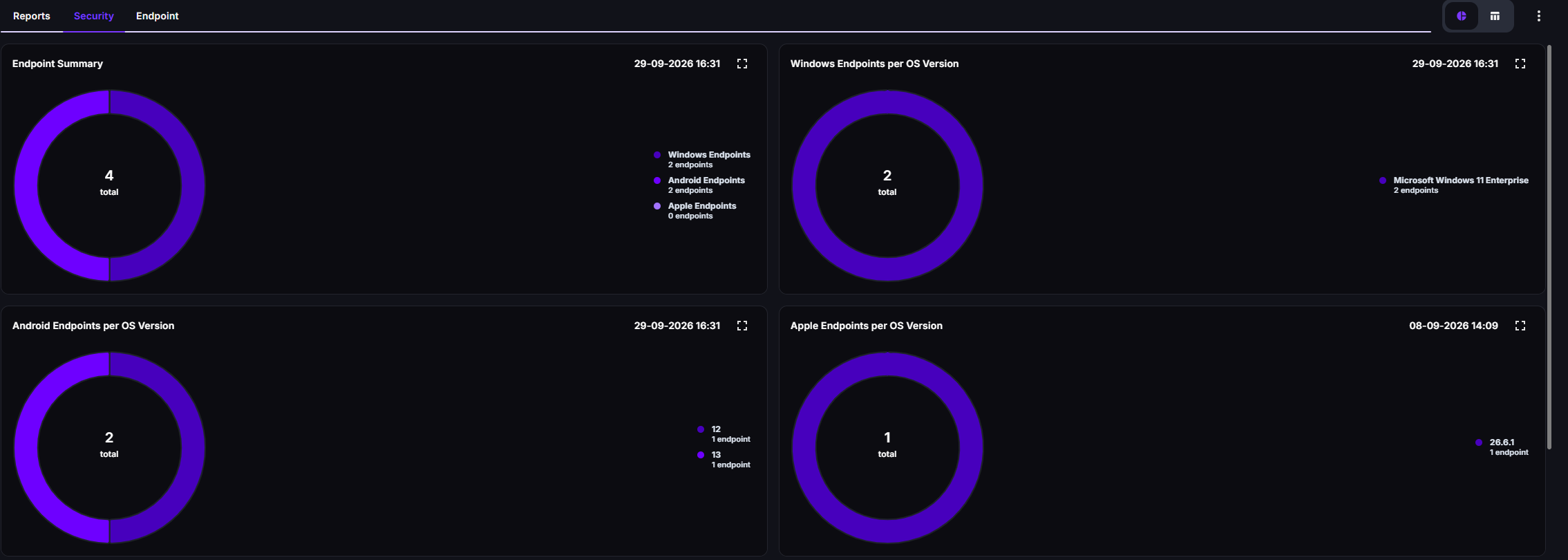
The Security report requires Security Monitor. Without it, the Security tab and the export aren’t available. If the report has no data yet, wait for the security scan to run, or run a security scan on the endpoints.
Endpoint report
Section titled “Endpoint report”The Endpoint report summarises your endpoint details. It’s useful for asset inventory audits and includes:
- Endpoint type (Desktop, Laptop, or Server)
- Endpoint name
- CapaOne Agent version
- Operating system
- Latest OS startup
- Service startup
- Available software updates

Export it to CSV for integration with other asset management or CMDB tooling, or to Excel for a formatted inventory spreadsheet.
Archived reports
Section titled “Archived reports”Every export is archived. On the Reports tab, click Archived on a report’s card to see its earlier exports, with the format, date, and who exported it. From the archive you can download an earlier export again or remove it from the archive. Archived reports let you compare the current state with an earlier snapshot.
Good to know
Section titled “Good to know”- Reports reflect current data — a report is generated from the latest inventory data from enrolled endpoints. Endpoints that have not checked in recently may have stale data.
- Export formats — CSV is better for importing into other systems or scripts. Excel is better for sharing with stakeholders.
- No scheduling — reports are generated when you export them.