Windows Enrollment with Intune
You can deploy the CapaOne Agent from Microsoft Intune in three steps.
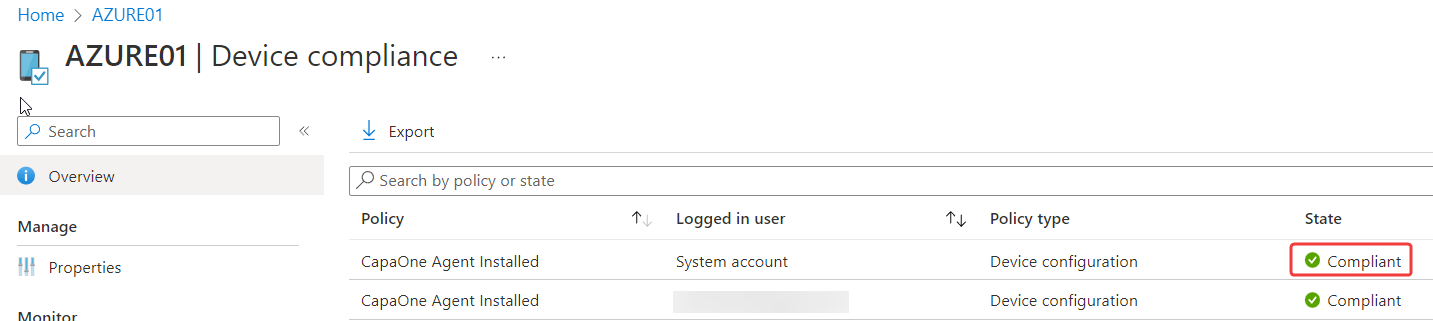
With a few more steps, you can also add a compliance check to verify that the CapaOne Agent is installed.
Deploy the CapaOne Agent
Section titled “Deploy the CapaOne Agent”- Create a group containing the endpoints that should have the CapaOne Agent installed.
-
In CapaOne, go to Windows → Enrollment, open the enrollment configuration, and select the Microsoft Intune tab. Download the install script. The link reads InstallCapaOneAgent.ps1; the file is saved as
Install_CapaOne_Agent.ps1. -
Import the PowerShell script in Microsoft Intune and assign the newly created group
Create a compliance check (optional)
Section titled “Create a compliance check (optional)”-
On the same Microsoft Intune tab, download the CapaOneAgentInstalled.ps1 and CapaOneAgentInstalled.json files. They’re saved as
CapaOne_Agent_Installed.ps1andCapaOne_Agent_Installed.json. -
Add the
CapaOne_Agent_Installed.ps1file as a discovery script
- Create and assign the compliance policy
Additional information
Section titled “Additional information”According to Microsoft, device compliancy is evaluated about every 8 hours on existing devices.
On newly enrolled devices, device compliancy is evaluated every 3 minutes for 15 minutes, then every 15 minutes for 2 hours, and then around every 8 hours.
The device compliance state will be “Not evaluated” until the device compliance policy has been applied.

When the compliance policy has been applied, the device compliance state will either be “Compliant” or “Not Compliant”