

How DDM Works
This article explains what happens on an Apple device when CapaOne manages it with Declarative Device Management (DDM), and how Apple’s DDM building blocks map to what you see in Apple → Configurations → DDM. Read it before you migrate, so the statuses and errors you see later make sense.
You don’t need this article to create a DDM configuration. You need it when you want to understand why a configuration applied, didn’t apply, or combined with another one in a way you didn’t expect.
Legacy MDM vs. DDM
Section titled “Legacy MDM vs. DDM”Legacy MDM is command-and-response. CapaOne sends a command (install this profile, report this inventory, schedule this update), the device runs it once, answers, and forgets. If the device is offline, changes later, or a user undoes a setting, CapaOne only finds out the next time it asks.
DDM is state-based. CapaOne describes the state the device should be in — as a set of declarations — and the device is responsible for reaching that state and keeping it. When something changes on the device, the device reports it back on its own.
| Legacy MDM | DDM | |
|---|---|---|
| Model | Server sends commands, device answers | Server describes desired state, device enforces it |
| Who keeps the setting in place | The server, by re-sending commands | The device, continuously |
| Status | Server polls (inventory queries) | Device pushes status changes when they happen |
| Offline devices | Commands queue until the device checks in | Device already holds its declarations and acts on them offline (for example, enforcing an update deadline) |
| Unit of configuration | Configuration profile (.mobileconfig) with one or more payloads |
Declaration (JSON), one setting area per declaration |
| Software updates on iOS 27 / macOS 27 | No longer functions | Required — see iOS 27 and Software Update Management |
DDM doesn’t replace the MDM enrollment. The device still enrolls with the same MDM profile, push certificate, and Apple Business Manager setup. DDM is turned on on top of that enrollment, and both channels stay open: CapaOne can still send Legacy commands (lock, erase, inventory, install a Legacy profile) to a device that runs DDM.
The four kinds of declarations
Section titled “The four kinds of declarations”Apple defines four kinds of declarations. CapaOne creates and manages most of them for you — you only build two of them yourself.
| Declaration kind | What it does | Where you see it in CapaOne |
|---|---|---|
| Configuration | Describes one area of device policy, for example passcode rules, a mail account, or software update settings. | Apple → Configurations → DDM → New → Configurations tab. |
| Asset | Holds data a configuration needs but that isn’t policy by itself, for example a certificate, a SCEP identity, or a username and password. Assets can be shared between configurations and updated independently of them. | Apple → Configurations → DDM → New → Assets tab. See DDM Assets. |
| Activation | Tells the device which configurations to apply. An activation can also contain a predicate — a condition the device evaluates locally — so configurations only apply when the condition is true. | Created by CapaOne from your assignments. You don’t edit activations directly. |
| Management | Information about the organization and the management server, such as server capabilities and organization details. | Handled by CapaOne. |
What happens when you assign a configuration
Section titled “What happens when you assign a configuration”- You assign a DDM configuration to a group or endpoint in CapaOne.
- CapaOne updates the device’s declaration set and sends the device a push notification.
- The device connects, compares its current declarations with the new set, and downloads only what changed. Each declaration carries a server token — a revision marker — so unchanged declarations aren’t downloaded again.
- The device validates each declaration. A declaration that isn’t supported on that OS version, platform, or enrollment type is marked invalid and not applied. Other declarations are unaffected.
- The device applies the valid configurations and downloads any assets they reference.
- The device sends a status report to CapaOne with the result for every declaration: whether it’s valid, whether it’s active, and — if it failed — a reason code. CapaOne shows that result on the device’s Configurations tab.
When you remove an assignment, the device removes the configuration and its settings in the same way. For configuration types that combine (see below), the device recalculates the combined result from the configurations that remain.
Status reporting
Section titled “Status reporting”A DDM device reports status in two ways:
- Declaration status — for every configuration, asset, and activation: whether the device accepted it (
valid,invalid, orunknown), whether it’s currentlyactive, and the reasons if something went wrong. This is what CapaOne uses to show the error icon and reason on the device’s Configurations tab. See DDM Status Reason Codes for what each reason means. - Status items — facts about the device, such as OS version, software update install state, pending update version, and passcode compliance. The device sends a new value as soon as it changes, without waiting to be asked.
In CapaOne, open the device in Apple → Endpoints and select the Configurations tab. Assigned lists the configurations, with a DDM label on DDM configurations, and Applied shows the settings the device received from each configuration. You can also open the configuration and select its Endpoints tab, which shows each endpoint’s Status and how the configuration is assigned.
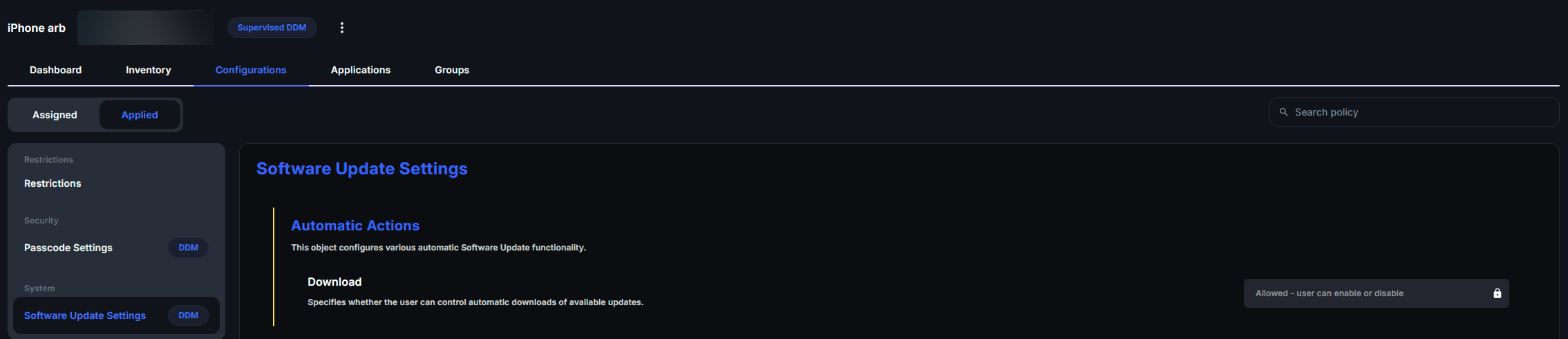
CapaOne doesn’t show the raw status items below as separate fields. They’re listed so you know what the device reports to CapaOne. Status items that matter most day to day:
| Status item | What it tells you |
|---|---|
device.operating-system.version / build-version |
The OS version and build the device runs. |
softwareupdate.install-state |
none, downloading, prepared, installing, or failed. |
softwareupdate.pending-version |
The OS version and build that’s pending, and — if it’s being enforced — the enforcement date and time. |
softwareupdate.failure-reason |
How many times the pending update failed, the last reason, and when. |
softwareupdate.install-reason |
Why an update is pending: for example declaration (a DDM enforcement), system-settings (the user started it), or auto-update. |
passcode.is-present / passcode.is-compliant |
Whether the device has a passcode, and whether it meets every passcode policy on the device. |
mdm.enrollment-type |
supervised, device, or user — iOS 27 and later. |
How configurations of the same type interact
Section titled “How configurations of the same type interact”Every DDM configuration type follows one of three rules for what happens when more than one configuration of that type reaches the same device. This is defined by Apple, not by CapaOne.
| Rule | What happens | Examples |
|---|---|---|
| Combined | All configurations of the type are merged into one effective policy. Each setting has its own merge rule — usually the most restrictive value wins. | Passcode Settings, Software Update Settings, App Settings, Safari Settings, Intelligence Settings, Siri Settings |
| Multiple | Each configuration applies on its own, side by side. | Account Mail, Account Exchange, Security Certificate, Security Identity, Network VPN IKEv2, Software Update Enforcement Specific |
| Single | Only one configuration of the type can be active on the device. | Network VPN Always On, Content Caching |
See How Multiple DDM Configurations Combine for the per-setting merge rules and how to avoid conflicts.
If the same setting is delivered both by a Legacy profile and a DDM configuration, Apple’s rule is the same as for overlapping profiles: the device merges them and enforces the strictest setting. The exception is software updates: DDM software update configurations take precedence over the equivalent Legacy MDM commands.
Enrollment type decides what a device accepts
Section titled “Enrollment type decides what a device accepts”Apple defines, per configuration type and per setting, which enrollment types it supports. A device rejects a configuration — or ignores individual settings in it — when its enrollment type isn’t supported.
| Apple enrollment type | In CapaOne | Typical use |
|---|---|---|
supervised |
Supervised | Company-owned devices enrolled through Apple Business Manager (Automated Device Enrollment). |
device |
Unsupervised (BYOD) | Personally owned devices where the user installs the enrollment profile manually. |
user |
Not offered | Apple User Enrollment (account-driven). CapaOne enrollment configurations are either Supervised or Unsupervised (BYOD). |
The DDM Configuration Types Reference shows whether each type works on Unsupervised devices. Some types are accepted on Unsupervised devices but have individual settings that only work on Supervised ones — for example, deferrals in Software Update Settings. On those devices, the device applies the rest of the configuration and reports the unsupported settings back (Info.UnsupportedSettings).
Legacy profiles inside DDM
Section titled “Legacy profiles inside DDM”Apple lets a Legacy configuration profile be delivered through DDM, wrapped in a legacy profile declaration. This is how a setting without a native DDM equivalent can still be managed declaratively. Home Screen Layout in CapaOne works this way.
A legacy profile declaration can also take over a profile that Legacy MDM already installed, without removing and reinstalling it, when the profile’s identifiers and payload structure match exactly. While DDM owns the profile, Legacy MDM commands can’t install, update, or remove it.
Good to know
Section titled “Good to know”- DDM is per device, not per configuration — once a device runs DDM, it accepts both DDM configurations and Legacy profiles. You migrate configurations at your own pace.
- A failed declaration doesn’t block the others — if one configuration is invalid on a device, every other configuration still applies.
- The device keeps enforcing while offline — declarations are stored on the device. A software update deadline, for example, is enforced even if the device can’t reach CapaOne at that moment.
- Status arrives on the device’s schedule — status is sent when it changes, so a configuration’s status can show as pending for a short time after assignment while the device processes it.
- Source: Apple’s device management schema (Release v27.0, September 2026) and Apple Platform Deployment: Use declarative device management to manage Apple devices.