

Self Service Hub
The Self Service Hub (Management → Self Service Hub) lets end users install approved Apple applications on their own devices without contacting IT. You define what is available — users choose what they need from the catalog.
This reduces help desk ticket volume for routine software requests and gives users faster access to tools they need, while IT retains full control over what can be installed.
How it works
Section titled “How it works”- An IT administrator creates a Self Service Hub in CapaOne and adds Apple applications that are already set up under Apple → Applications.
- The administrator assigns the hub to one or more groups.
- Apple devices in those groups get a Self Service Hub web clip on the home screen.
- The user opens the hub, signs in, and installs the apps they need — no IT involvement required. CapaOne installs them the same way as any other managed app.
Create a Self Service Hub
Section titled “Create a Self Service Hub”-
Go to Management → Self Service Hub and click New.
-
Enter a Self-Service name and, optionally, a Description.
-
Click Create. The hub starts with no apps.
-
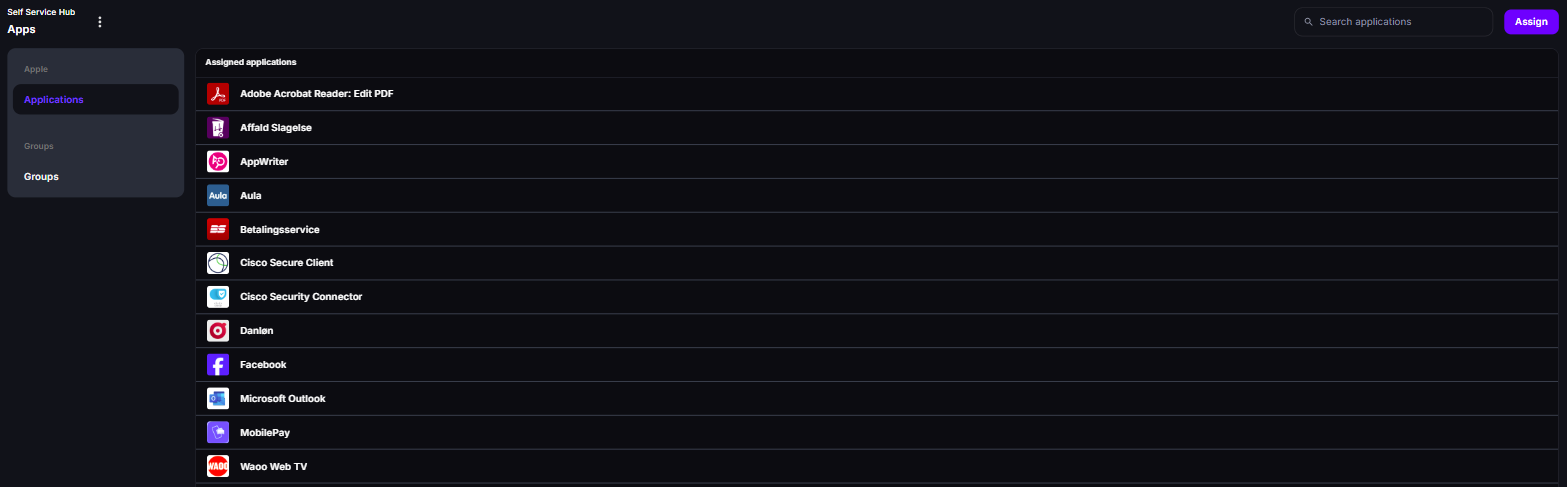
Open the hub and select Apple → Applications. Click Assign and move the apps you want to offer from Available to Assigned.
-
Select Groups → Groups. Click Assign and move the groups whose devices should get the hub to Assigned.
The hub appears on the devices in the assigned groups.
What can be offered
Section titled “What can be offered”Any Apple application you’ve added under Apple → Applications can be offered, including App Store apps, VPP apps, and Web Clips. See Apple Applications. The application must exist in CapaOne before it can be added to a Self Service Hub.
A group can have one Self Service Hub. The Groups tab shows which hub a group currently has.
Prerequisites
Section titled “Prerequisites”Users in CapaOne
Section titled “Users in CapaOne”Every user who opens the Self Service Hub must exist under Users in CapaOne. The user’s email address must match an account in your Microsoft Entra ID tenant. Add users in either of these ways:
- Sync from Entra ID (recommended) — set up the integration under Management → Integrations to add users automatically. See Integrate CapaOne with Entra ID.
- Add users manually — create each user with the email address they use in Entra ID. See Managing Users.
User login on device
Section titled “User login on device”When a user opens the Self Service Hub app on their Apple device, they are prompted to sign in with their company Microsoft credentials. Self Service Hub always requires Microsoft authentication. This is how CapaOne identifies the user and determines which items they are authorized to see in the catalog.
For sign-in to work, the user must exist under Users in CapaOne with the same email address they sign in with. Add the user manually or sync them from Entra ID. See Managing Users.
Good to know
Section titled “Good to know”- Apple only — Self Service Hub currently supports Apple devices (iOS, iPadOS, macOS). It is not available for Windows or Android devices.
- IT controls the catalog — only apps you explicitly add appear in the user’s self-service view. Users cannot browse or install anything outside of what you have approved.
- Installation is managed — when a user installs an app through Self Service, it deploys through CapaOne’s standard app deployment pipeline. The installation is logged and the device shows the app as assigned.
- Self Service requires the MDM profile to be active on the device. If a device is not enrolled, it cannot access the Self Service catalog.