

Apple Push Certificate Setup
Set up the Apple Push Certificate
Section titled “Set up the Apple Push Certificate”- Sign in to CapaOne and go to Apple → Setup. Before a certificate is uploaded, the menu item is called Setup; afterward it’s called Certificates.
- Click Let’s get started! and wait while CapaOne sets up your environment.
- Download the Push Request file. To create a new push request, select Regenerate push request first.
- Go to Apple Push Certificates and sign in with the Apple ID you use for MDM.
- Create a push certificate with the downloaded push request, and download the new certificate
(
.pemfile). - In CapaOne, click Select Certificate and select the
.pemfile. Enter the Apple ID you used in the Apple account field, and click Upload.
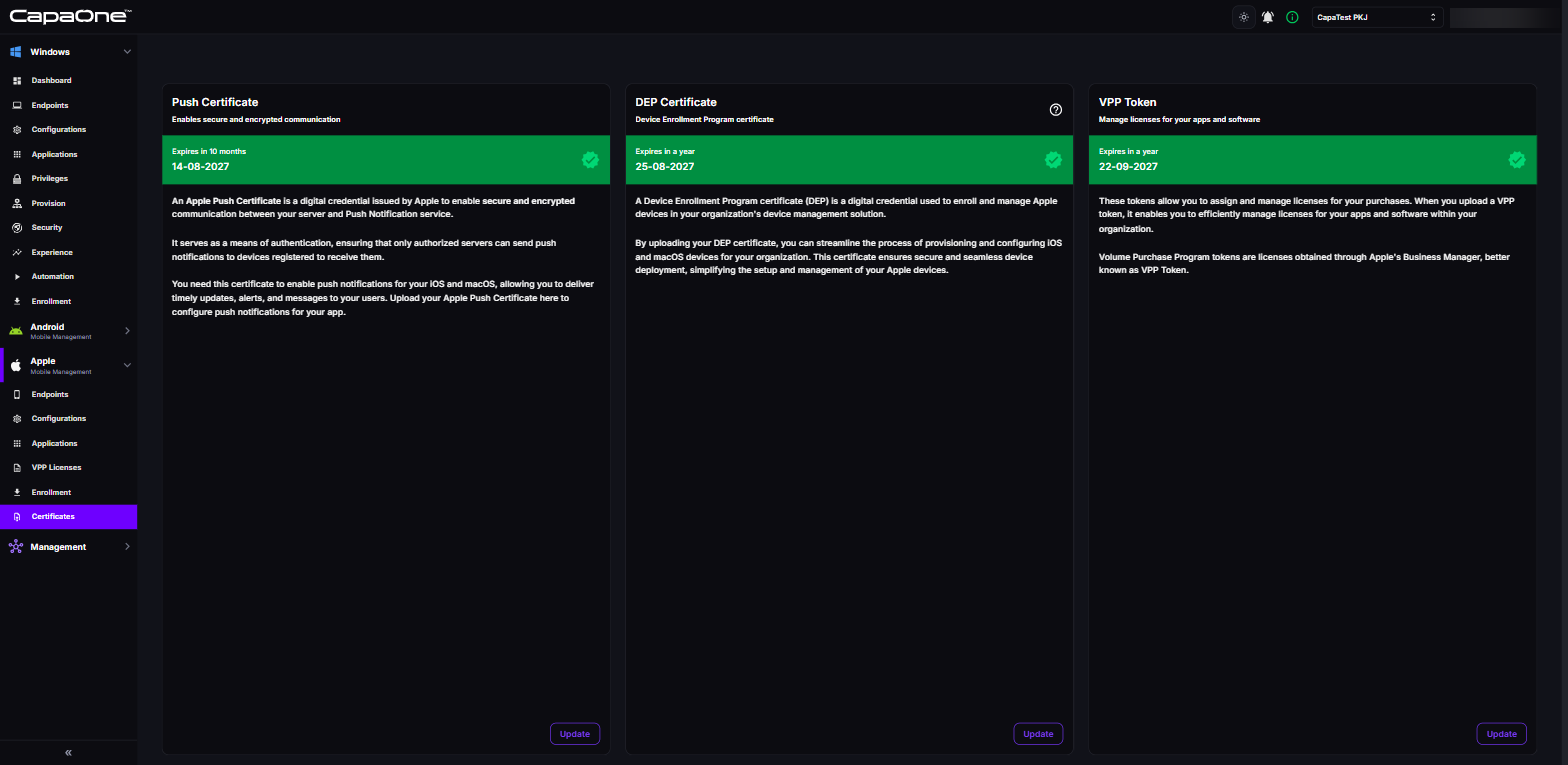
When the certificate is uploaded, Apple → Certificates shows the Push Certificate card with its expiration date. Hover over the status to see whether the certificate is up to date, expires in less than a month, or has expired.
Renew the Apple Push Certificate
Section titled “Renew the Apple Push Certificate”- Go to Apple → Certificates and click Update on the Push Certificate card.
- The dialog shows the Apple account you used for the current certificate. Confirm that you can sign in to Apple Push Certificates with that account, select the check box, and click Confirm. CapaOne creates a new push request.
- Download the Push Request file.
- Go to Apple Push Certificates and sign in with the same Apple ID. Find the current certificate, click Renew, and upload the push request.
- Download the renewed certificate (
.pemfile). - In CapaOne, click Select Certificate, select the
.pemfile, enter the Apple ID, and click Upload.
The Push Certificate card shows the new expiration date.