Privilege Manager
How Privilege Manager works
Section titled “How Privilege Manager works”Privilege Manager enables specified users without local administrator permissions to perform actions with elevated privileges.
Session elevation enables specified users to control system settings and install or remove any application with elevated privileges. Session elevation is less restrictive than process elevation.
Process elevation enables specified users to execute EXE and MSI files with elevated privileges. Process elevation can be used to control exactly which processes users are allowed to execute with elevated privileges.
You set up both types in a Privileges configuration under Windows → Configurations → Privileges.
In this section
Section titled “In this section”- Create a Privilege Manager Configuration — create a configuration and assign it to endpoints or groups.
- Privilege Manager Configuration Settings — every validation, branding, and security setting.
- Process Elevation Rules — control which applications and child processes users can elevate.
- Elevation Analytics — audit elevation activity across your endpoints.
Session elevation
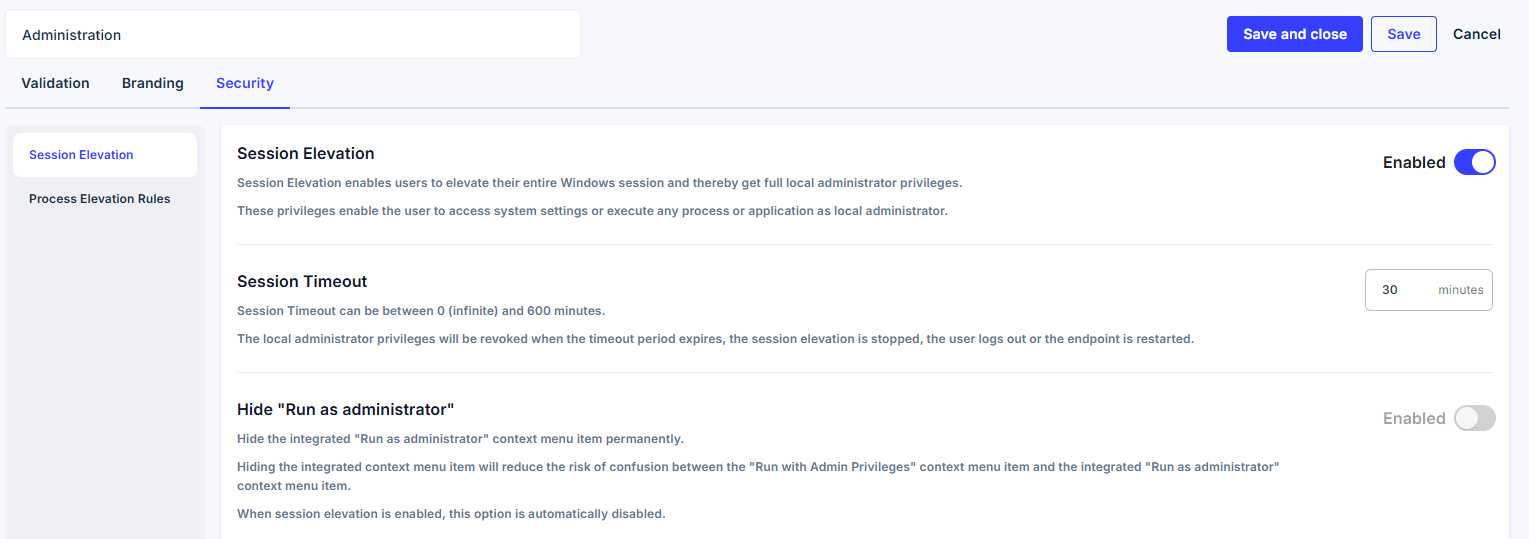
Section titled “Session elevation”To use session elevation, turn it on under Security → Session Elevation in the Privileges configuration.
Afterward, turn on Allow Session Elevation under Validation for the users and groups that may use session elevation.
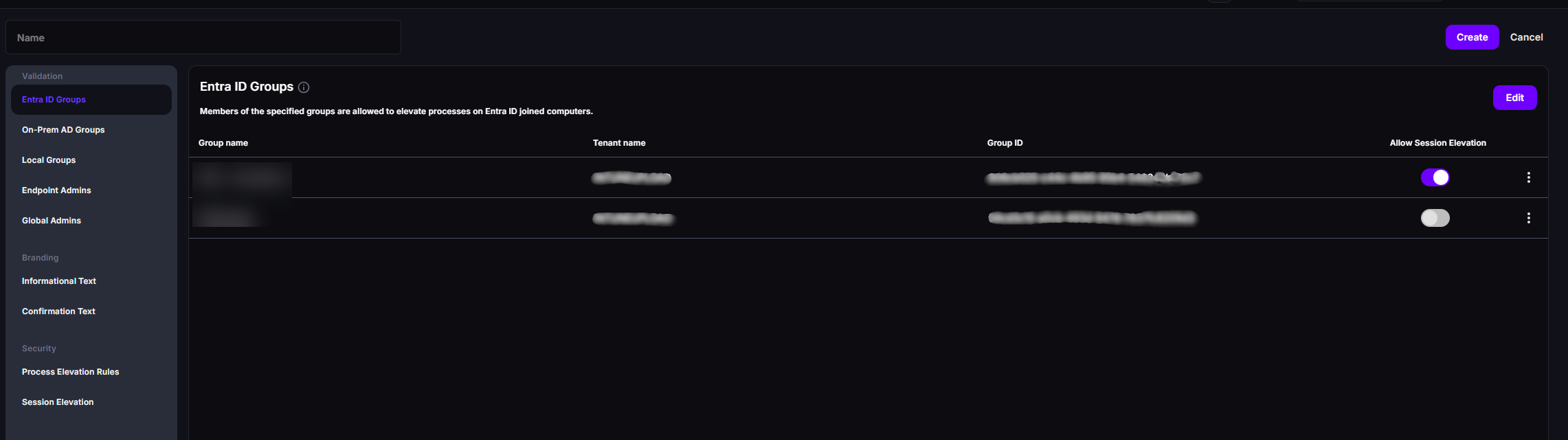
Users and groups without Allow Session Elevation can still use process elevation.
The process elevation rules are not active during a session elevation.
To start a session elevation, a user must click on the CapaOne tray icon and then click the Start button.

The elevated session ends when the Session Timeout expires, when the user clicks Stop, when the user signs out, or when the endpoint restarts. The default timeout is 30 minutes. See Session Elevation for the settings.
Process elevation
Section titled “Process elevation”When users want to execute a single process with elevated privileges, they right-click the .exe or .msi file and select Run with Admin Privileges.
If Informational Text is enabled, it’s presented to the user.
If Confirmation Text is enabled, it’s presented to the user and must be confirmed before proceeding.
You set both texts under Branding in the Privileges configuration. Which processes users can elevate is controlled by Process Elevation Rules.

Prerequisites
Section titled “Prerequisites”User Account Control
Section titled “User Account Control”General
Privilege Manager requires that User Account Control (UAC) is enabled and configured as described.
Configuration can be applied using Group Policy Objects (GPO) or Windows Registry Database (REGDB).
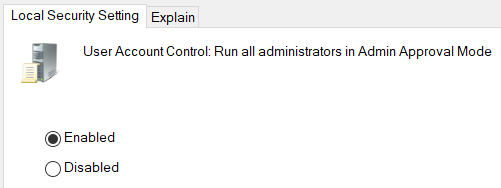
User Account Control: Run all administrators in Admin Approval Mode must be Enabled
GPO: Computer Configuration\Windows Settings\Security Settings\Local Policies\Security Options\User Account Control: Run all administrators in Admin Approval Mode
REGDB: HKEY_LOCAL_MACHINE\SOFTWARE\Microsoft\Windows\CurrentVersion\Policies\System\<EnableLUA>:1 (REG_DWORD)
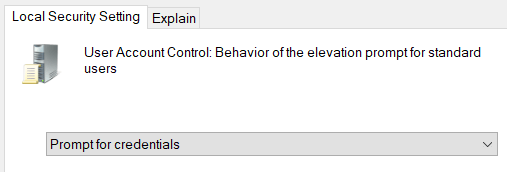
User Account Control: Behavior of the elevation prompt for standard users must be Prompt for credentials or Prompt for credentials on the secure desktop.
GPO: Computer Configuration\Windows Settings\Security Settings\Local Policies\Security Options\User Account Control: Behavior of the elevation prompt for standard users
REGDB: HKEY_LOCAL_MACHINE\SOFTWARE\Microsoft\Windows\CurrentVersion\Policies\System\<ConsentPromptBehaviorUser>:1 or 3 (REG_DWORD)
Configuration issues
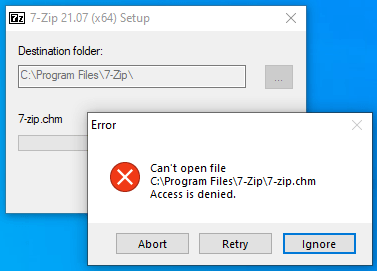
Section titled “Configuration issues”If User Account Control is disabled, an “access denied” message is presented.
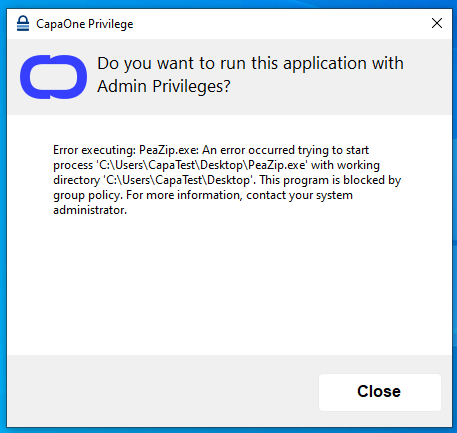
If User Account Control is enabled, but not configured correctly, a “blocking” message is presented.
Process elevation rules
Section titled “Process elevation rules”Child processes
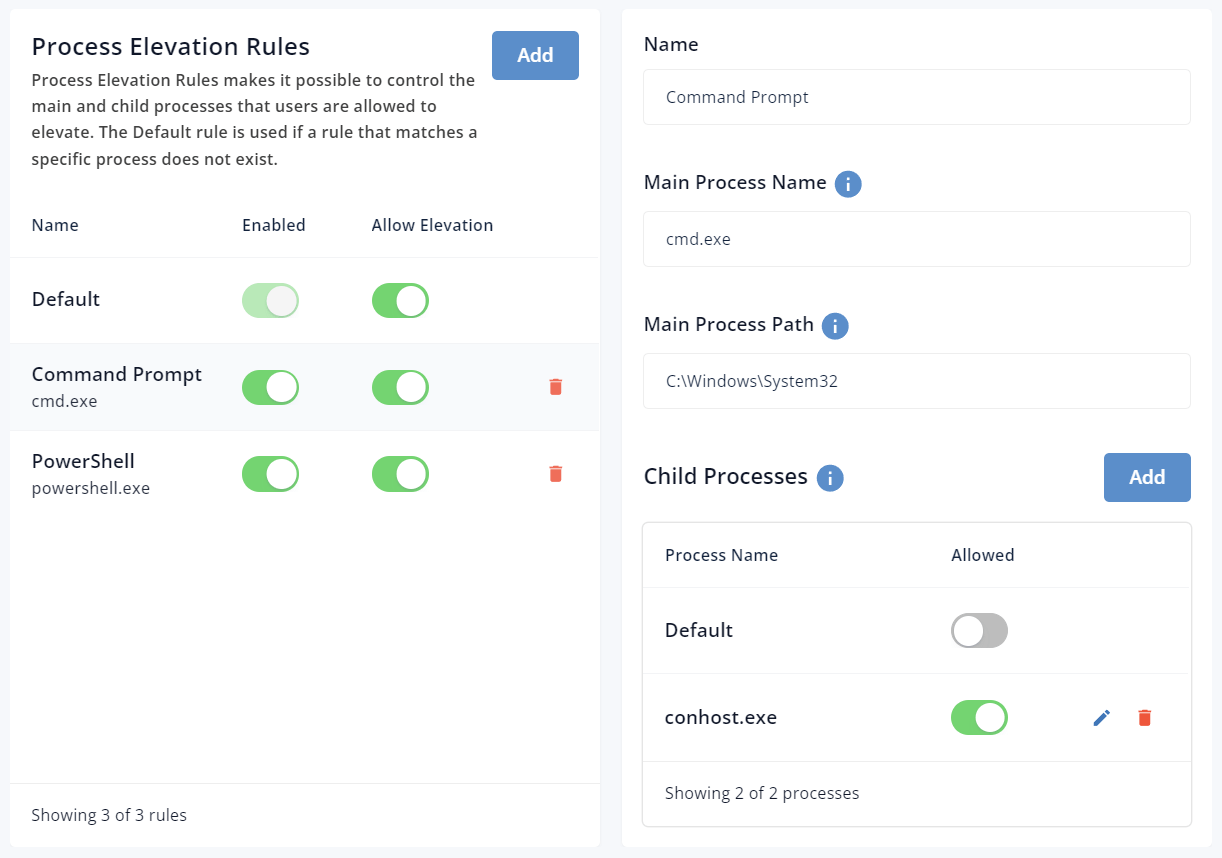
Section titled “Child processes”All applications that use the Windows Command Prompt (cmd.exe) rely on the Console Window Host (conhost.exe) process to interact with other Windows components.
As an example, the Console Window Host makes it possible to drag and drop files and folders from Windows Explorer to Windows Command Prompt.
It is not uncommon to see multiple instances of the Console Window Host in the Task Manager.
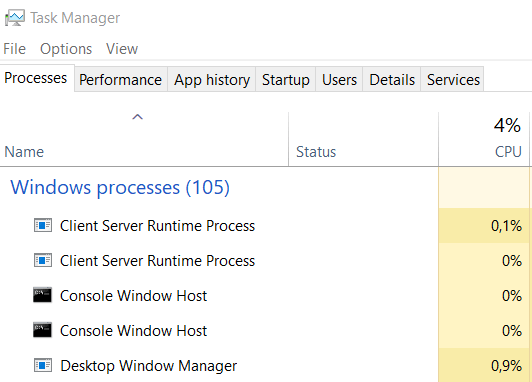
PowerShell and Command Prompt both rely on the Console Window Host. As a result, you need to either allow all child processes (default) or specifically conhost.exe when you create a process elevation rule that allows powershell.exe or cmd.exe
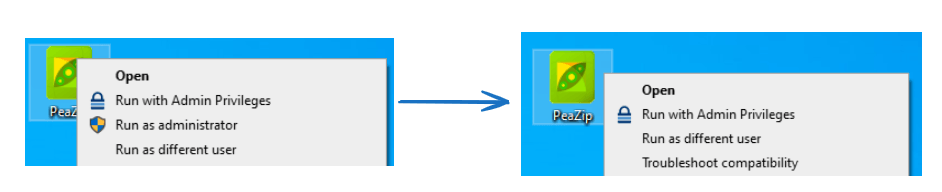
Hide Run as administrator
Section titled “Hide Run as administrator”You can hide the built-in Run as administrator option under Security → Session Elevation in the Privileges configuration.
The built-in option can only be hidden when session elevation is disabled.