

Operations in Progress
The In Progress tab under Windows → Endpoints lists the operations that are queued or running on your Windows endpoints: application installations and updates, custom application and script deployments, and driver updates. The list shows the estimated order in which the operations run, and refreshes automatically.
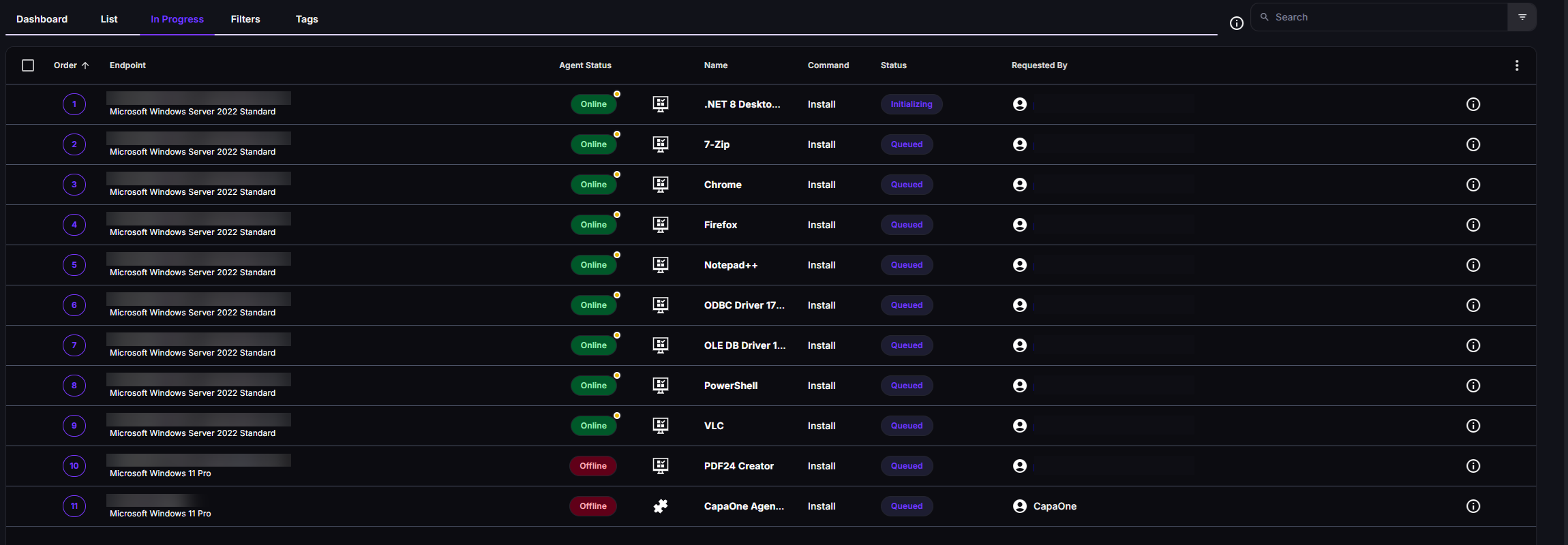
Columns
Section titled “Columns”| Column | What it shows |
|---|---|
| Order | The operation’s position in the queue. |
| Endpoint | The endpoint the operation runs on. |
| Agent Status | Whether the endpoint is online. |
| Type icon | Custom Application, Repository Application, or Driver. |
| Name | The application or driver. Click it to open the endpoint’s application or driver page. |
| Command | What’s being done, for example an installation. |
| Status | For example Queued, Downloading, Installing, or Uninstalling. |
| Requested By | The user who requested the operation, the workflow that requested it, or CapaOne. |
Select the info icon on a row to see when the operation was requested and, for updates, the old and new version.
Use the Online and Status quick filters to narrow the list, or search by name.
Cancel operations
Section titled “Cancel operations”To cancel one operation, open its row menu and select Cancel Operation.
To cancel several operations:
- Select the operations.
- Open the actions menu and select Cancel selected operations.
- Confirm.
Canceled operations are removed from the queue, unless they’re already running.
Pause all operations
Section titled “Pause all operations”Pause mode stops CapaOne from deploying queued applications. Use it, for example, when you’ve found a problem with an application and want to stop it from reaching more endpoints.
- Open the actions menu and select Pause all operations.
- Confirm.
Pause mode applies to all queued deployments in the organization, not only the ones you’ve selected. Queued operations show the status Paused. While deployments are paused, you can cancel queued requests.
To end pause mode, open the actions menu and select Resume all operations. Deployment continues right away.