

Repository Apps
Repository Apps are a curated catalog of common applications maintained by CapaOne — browsers, runtimes, productivity tools, and more. CapaOne keeps the catalog up to date: when a new version is published, enrolled endpoints receive the update automatically. You do not upload or manage installers; you assign the app to a group or endpoint.
Repository Apps are the lowest-maintenance option for supported software. Check the catalog before uploading a Company App for software that might already be there.
How Repository App versions are sourced
Section titled “How Repository App versions are sourced”CapaOne uses the winget (Windows Package Manager) repository as the version source for Repository Apps.
- CapaOne checks winget for new application versions roughly every 3 hours.
- When a new version appears in winget, it is picked up and added to the Repository Apps catalog as part of the regular release cycle.
- If a newly released vendor version is not showing up in CapaOne yet, the version has usually not reached winget yet. This is not a delay on the CapaOne side. Once the version is on winget, it normally appears in CapaOne within a few hours.
Add a Repository App
Section titled “Add a Repository App”To deploy an app from the catalog, add it to your applications first.
- Go to Windows → Applications and select the Company Apps tab.
- Click New. If you’re asked for an application type, select Repository Application.
- In Available CapaPacks, search for the app and select it.
- Check the settings:
- Name, Vendor, Description, and Icon — prefilled from the catalog.
- Installation Tier — Standard by default. See Installation Tiers.
- Architecture — 32-bit, 64-bit, or Auto, depending on what the app offers.
- Language — Danish, English, or System language, depending on what the app offers. System language is the default.
- Release status — Testing by default. See Release status.
- Click Create.
The app’s page opens, and the app appears on the Company Apps tab with the type Repository Application. You don’t choose a version: the app follows the latest version in the catalog.
Assign apps to endpoints or groups
Section titled “Assign apps to endpoints or groups”Repository Apps are assigned either to individual endpoints or to groups. Group assignment is the preferred approach for anything that should apply broadly — it means new devices that join the group automatically receive the software without additional steps.
Open the app from the Company Apps tab and select its Assignment tab. See Assign and Redeploy Windows Applications.
Track and update an app across endpoints
Section titled “Track and update an app across endpoints”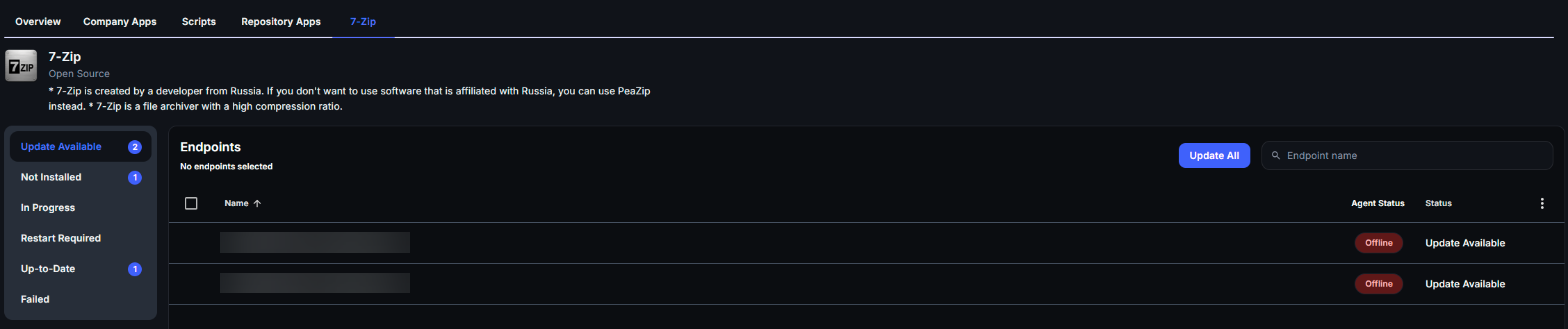
The Repository Apps tab lists the catalog with each app’s name, vendor, version, category, and description. Click an app to see its status on your endpoints. The page shows the app’s name, vendor, and description, and lists the endpoints by status:
| Status | Actions |
|---|---|
| Update Available | Update or Uninstall the app. |
| Not Installed | Install the app. |
| In Progress | The installation or uninstallation is queued or running. |
| Restart Required | The app is installed, and the endpoint must restart. Redeploy or Uninstall the app. |
| Up-to-Date | Redeploy or Uninstall the app. |
| Failed | Redeploy the app, or Remove the failed patch. |
Select endpoints and choose an action, or run it on all endpoints in the list.
Good to know
Section titled “Good to know”- Repository Apps install in the endpoint’s OS language by default (“System Language”). Most apps in the catalog support this; a few are fixed to a specific language.
- Clicking endpoint or group counts in the app list navigates directly to the assignment details for that app, making it easy to audit which devices have a specific application.
- Avoid managing the same app from two places. Some applications update themselves, and Windows Update also updates Microsoft Edge on its own. Running that alongside a Repository App for the same software leads to version conflicts. To let CapaOne control the deployed version, turn off the application’s own auto-update through policy and manage it only through Repository Apps.
- VPN clients aren’t available as Repository Apps. VPN clients, such as Cisco AnyConnect, need configuration that differs from one organization to the next. Repository Apps don’t offer that configuration, so deploy the VPN client as a Company App instead.
Related
Section titled “Related”- Company Apps and Scripts — upload your own installers or run scripts instead
- Application Manager — overview of the deployment surfaces