

Upload a Company App to Intune
You can build and test a Company App in CapaOne, and then upload it to Microsoft Intune. This lets you use PowerBricks for packaging even for endpoints you deploy to with Intune.
Upload the app
Section titled “Upload the app”-
Go to Windows → Applications and select the Company Apps tab.
-
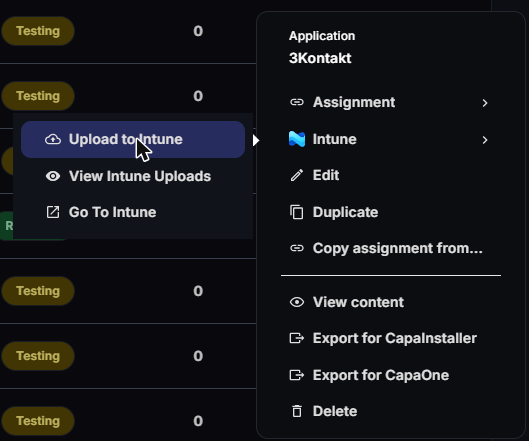
Open the app’s menu and select Intune → Upload to Intune.
-
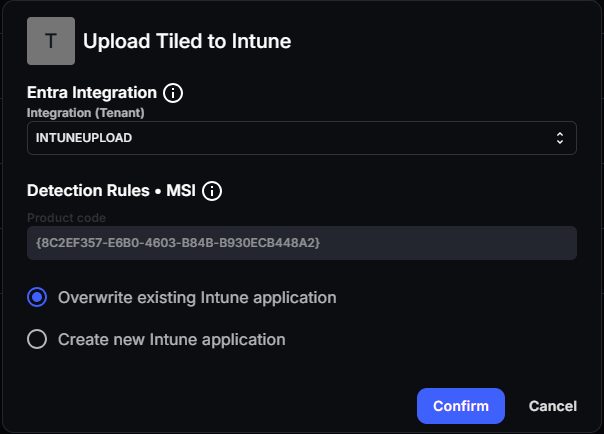
Under Entra Integration, select the Integration (Tenant) to upload to. The list shows the Entra ID integrations connected to your organization, and the first one is selected. If the list is empty, no integration is connected. The integration you select must have the Intune permissions.
-
Check the detection rule that Intune uses to check whether the app is installed:
- For an MSI installer (Detection Rules • MSI), CapaOne fills in the Product code from the MSI file. You can’t change it.
- For any other installer, such as an EXE (Detection Rules • EXE), enter the Key path, Registry Name, and Registry Value of a registry value that the installer creates. All three fields are required. Click Get from inventory to pick the values from the collected software inventory.
-
If the app has been uploaded before, select Overwrite existing Intune application or Create new Intune application.
-
Click Confirm.
The upload starts. You can close the dialog and continue working while it runs. It can take up to 10 minutes before the app is available in Intune.
Follow the upload
Section titled “Follow the upload”- The app’s row on the Company Apps tab shows an Intune badge with the date of the last upload, or a warning if the upload failed.
- Select Intune → View Intune Uploads to see each upload with its integration, status, and date.
- Select Intune → Go To Intune to open Intune.
In Intune, assign the uploaded app to your groups.